
To resolve this issue, please follow the steps below carefully:
1. In the Search bar at the bottom of the Windows screen type: Turn Windows features on or off

2. Click onto the link Turn Windows features on or off
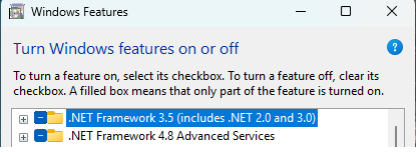
3. In the window that opens you will see the above two options with one or both of them including the blue squares (next to the yellow folder icon - as in the image above)
4. Click on each of the blue squares, to remove the blue and click on OK at the bottom of the window
5. Click Restart now and allow the computer to restart
Once the computer has restarted, please follow the steps below carefully:
1. In the Search bar at the bottom of the Windows screen type: Turn Windows features on or off

2. Click onto the link Turn Windows features on or off
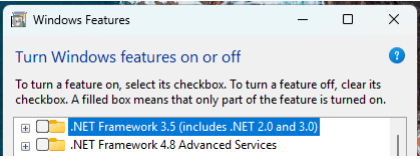
3. In the window that opens you will see the above two options with both options should now be blank (next to the yellow folder icon - as in the image above)
4. Click on each of the blue squares, to add the blue box back in and click on OK at the bottom of the window
5. It will display a message
6. Click ‘Let Windows Update download the files for you’ – this will take around 15 mins to complete
7. Once this is complete click Close
8. Click the Windows icon, the close icon and click Restart
9. Allow the computer to restart
10. Once the computer has restarted please open Donations Co-ordinator, ensure it reads Donations Co-ordinator 7.14 and run the claim process