
Before reversing your claim, first of all make sure that you have a backup file of your donations co-ordinator data.
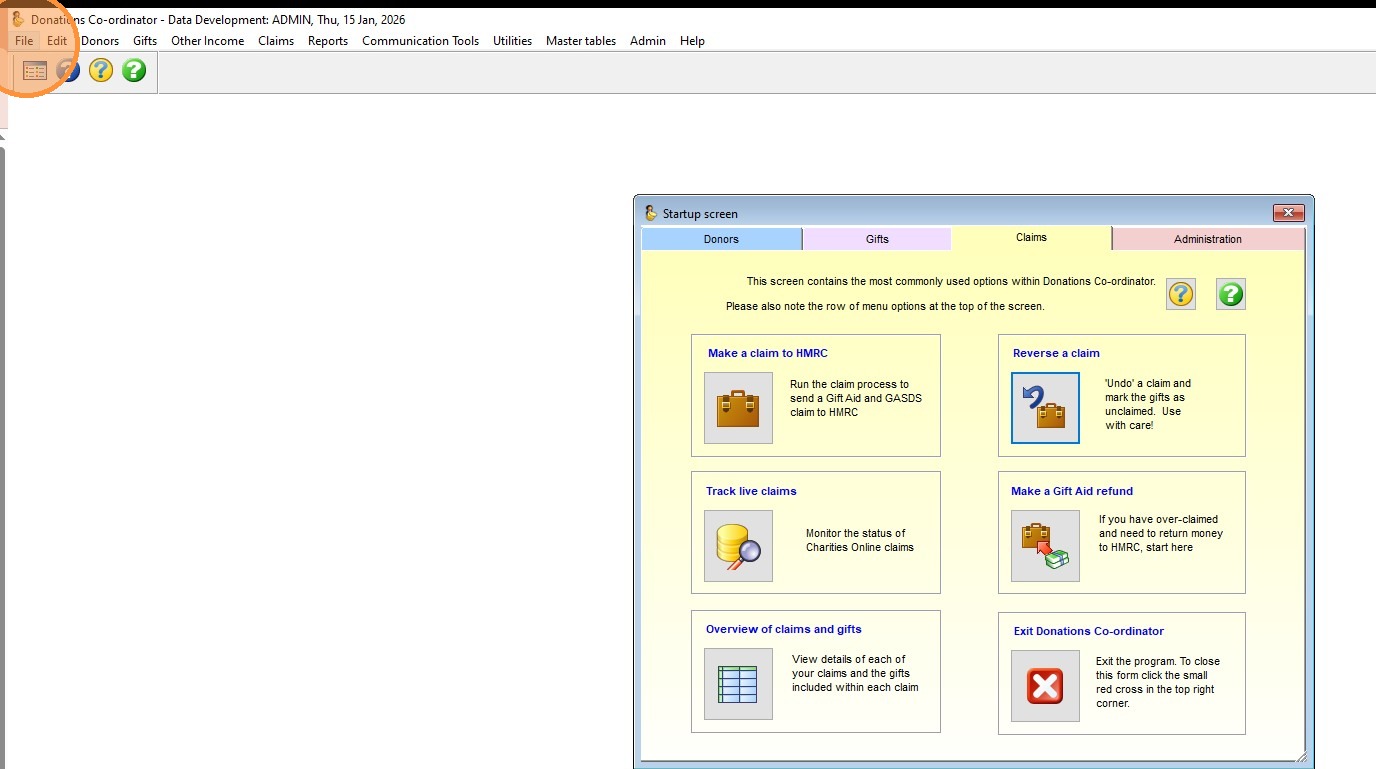
1. To make a backup file, from the home screen, click the 'File' menu in the top left corner of the program.
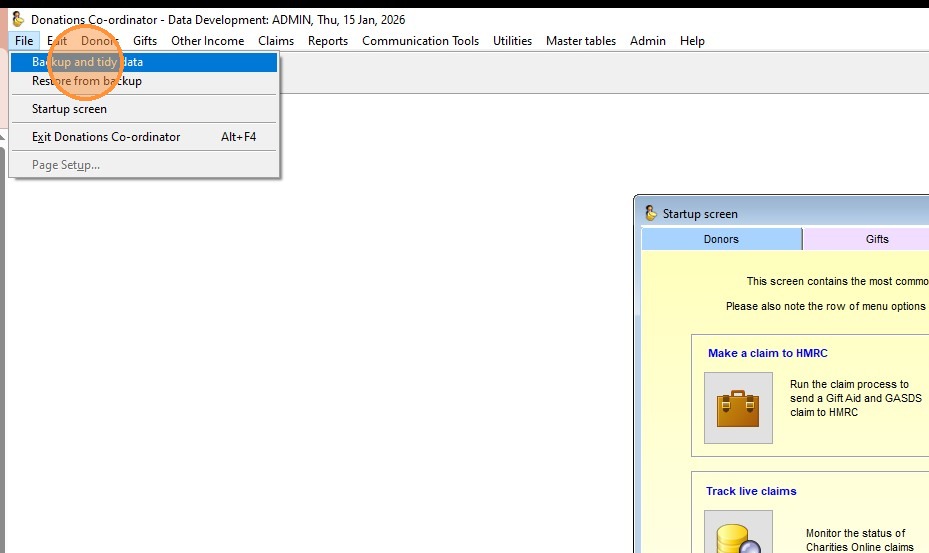
2. Click "Backup and tidy data"
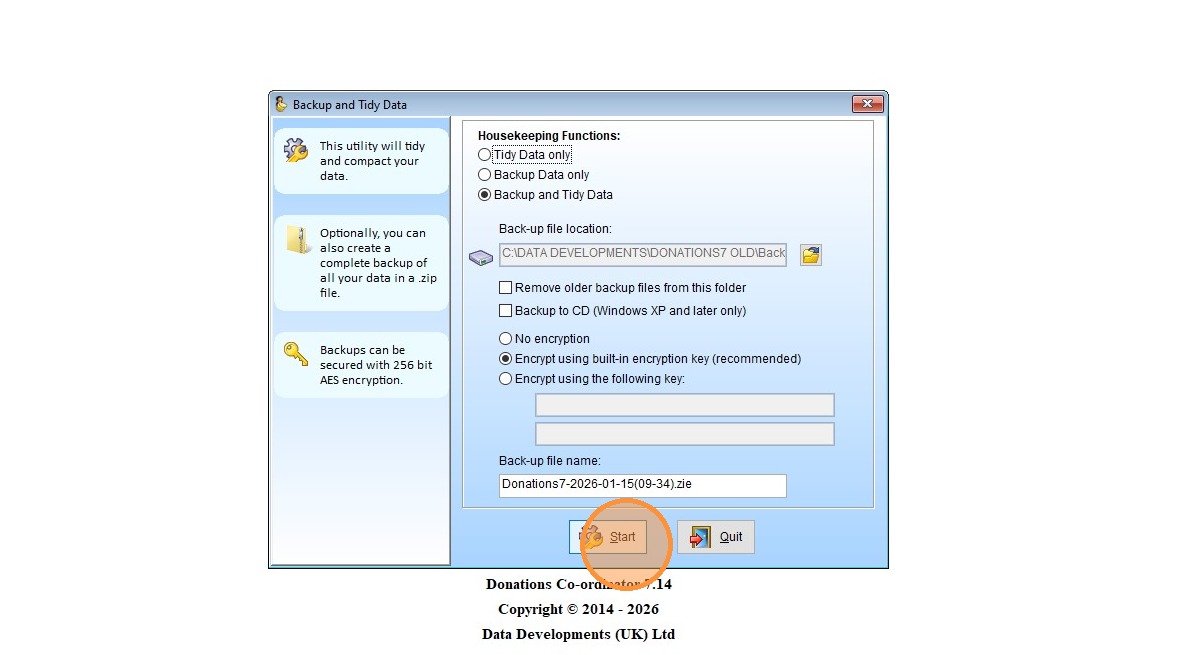
3. Click " Start"
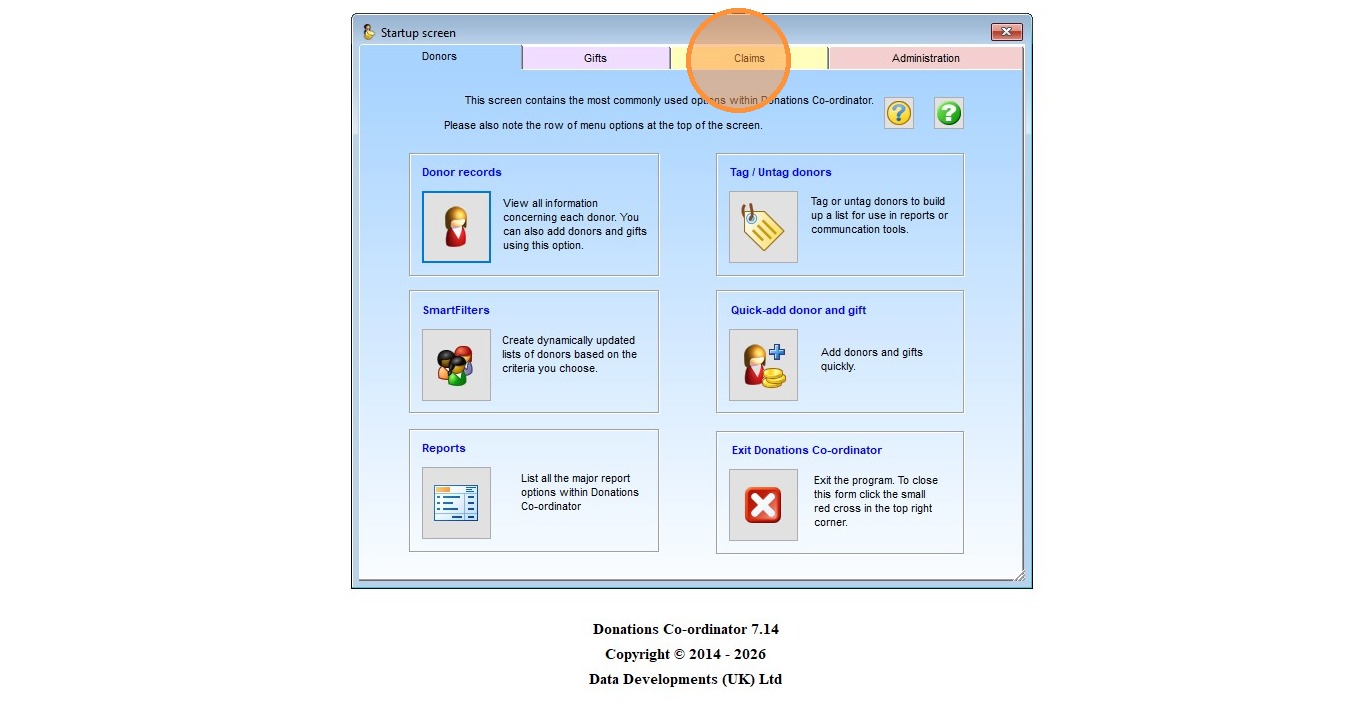
4. After you have made the backup file, the process will take you back to the Startup screen. From here, click on the 'Claims' tab.
5. Click the 'Reverse a claim' option.
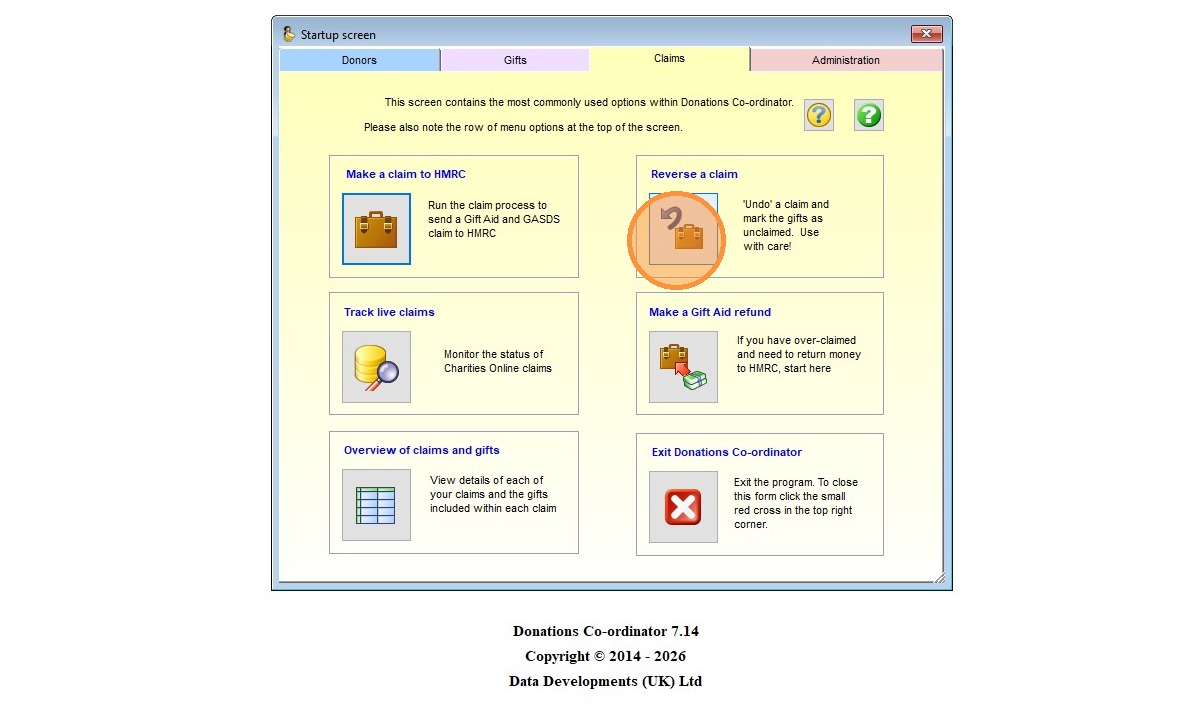
6. Tick the boxes to the left of the claims that you wish to reverse. Make sure if the claim has multiple lines that you tick all lines that are included in that claim. Do not tick any other claims other than the one you wish to reverse.
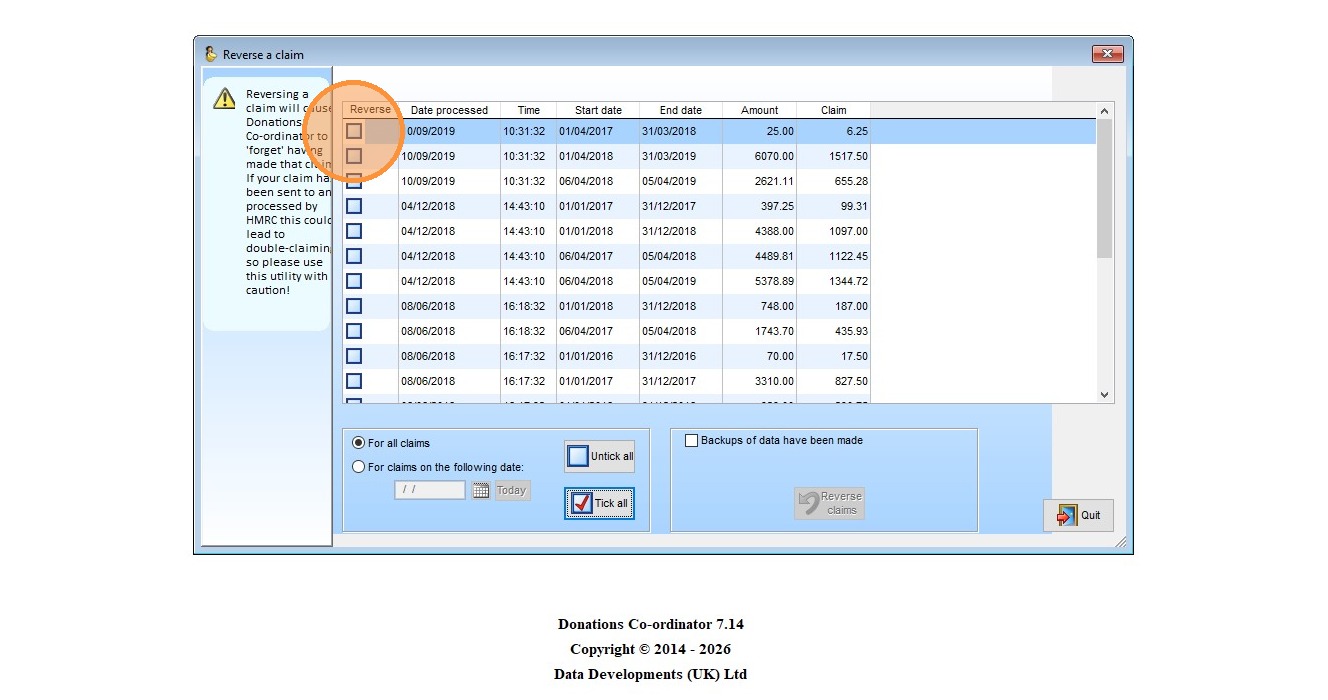
7. Tick "Backups of data have been made"
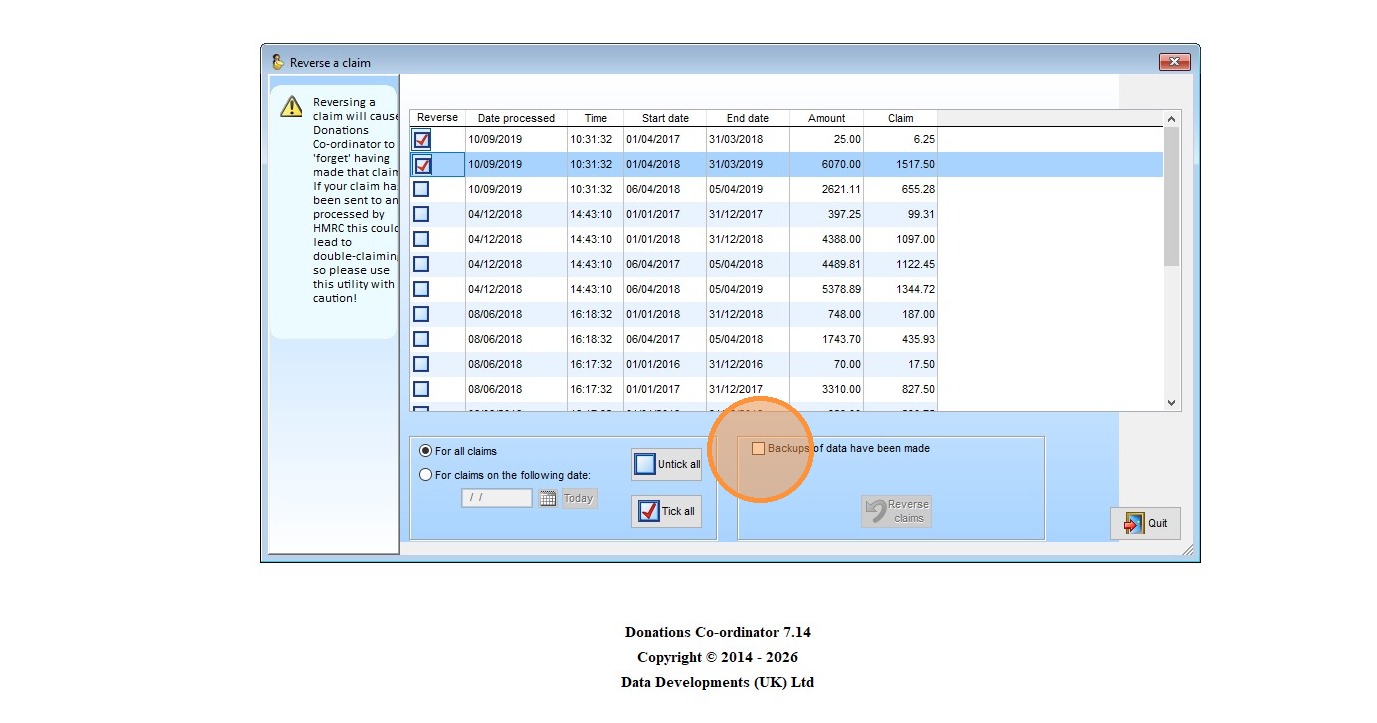
8. Click "Reverse claims"
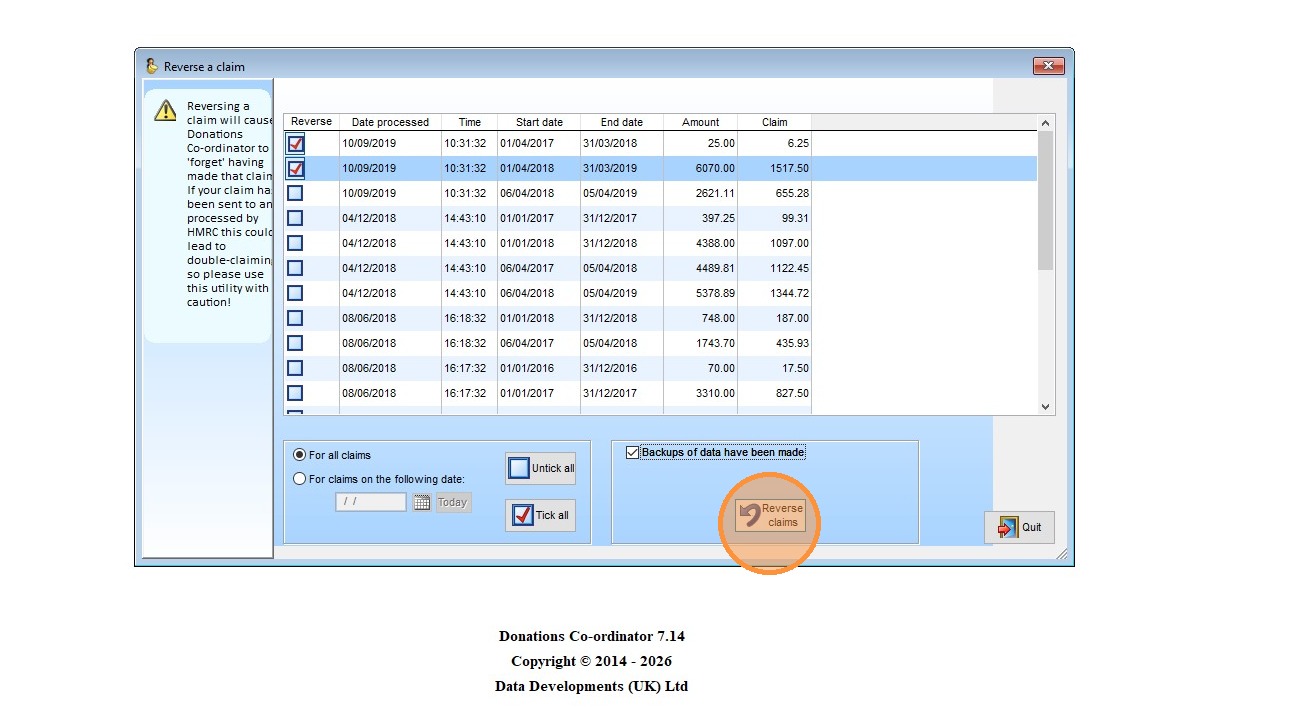
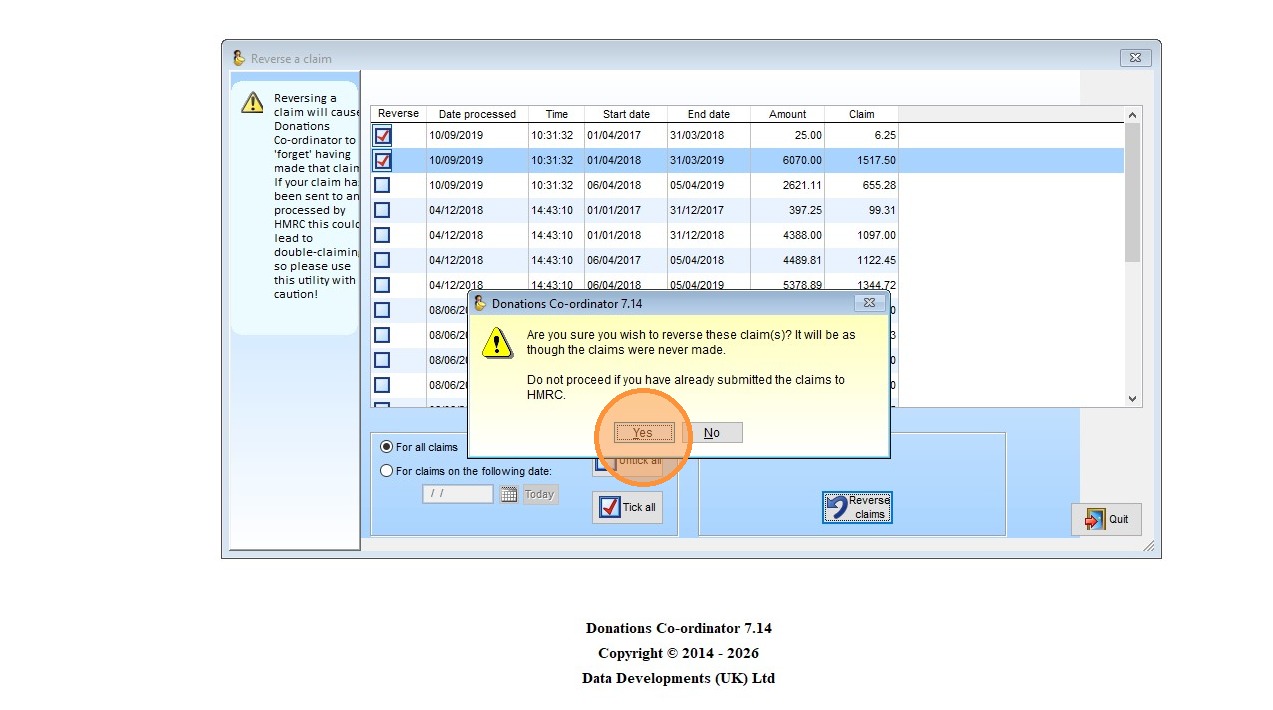
9. Click "Yes"
10. Click 'OK'
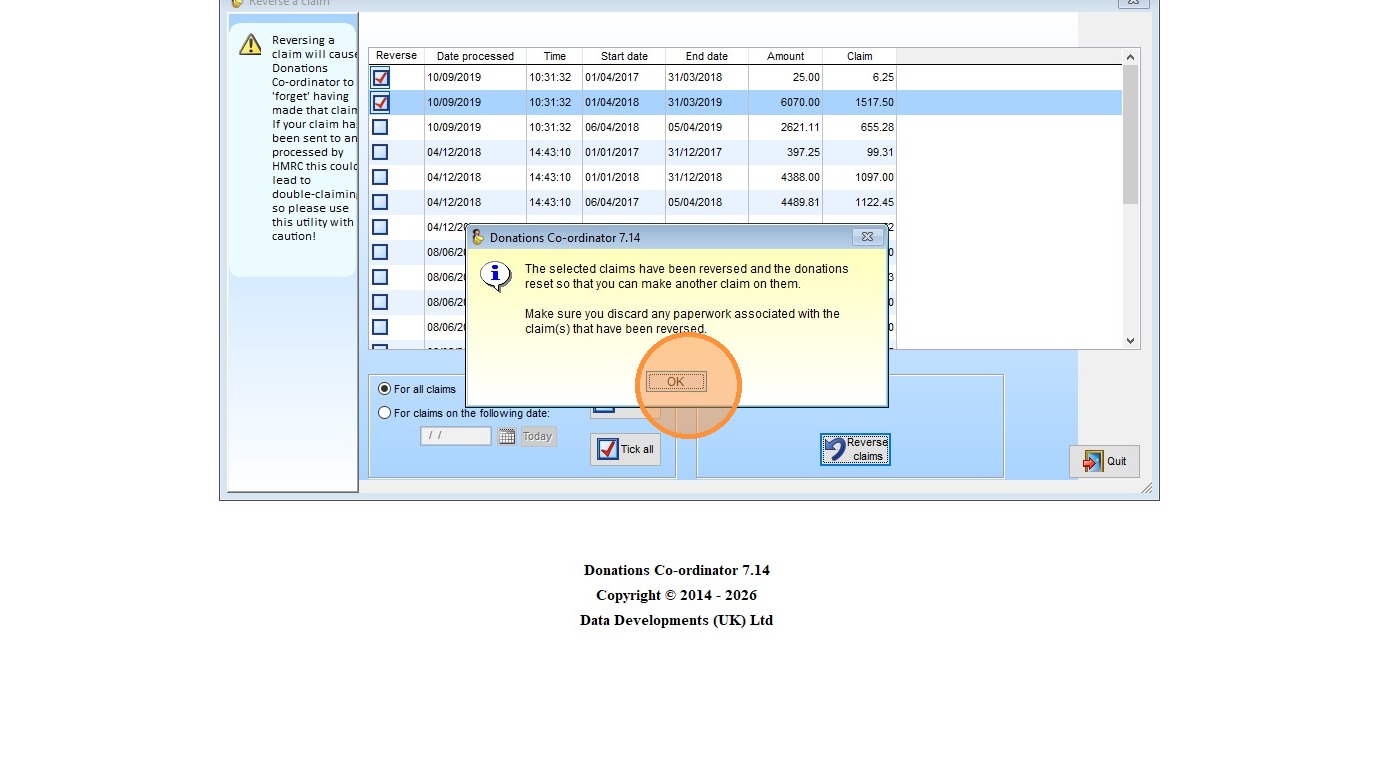
Your claim will now have been reversed and all gifts that were a part of it will now be eligible to be included in a claim again. You will be ready to go ahead and resubmit the claim now.