


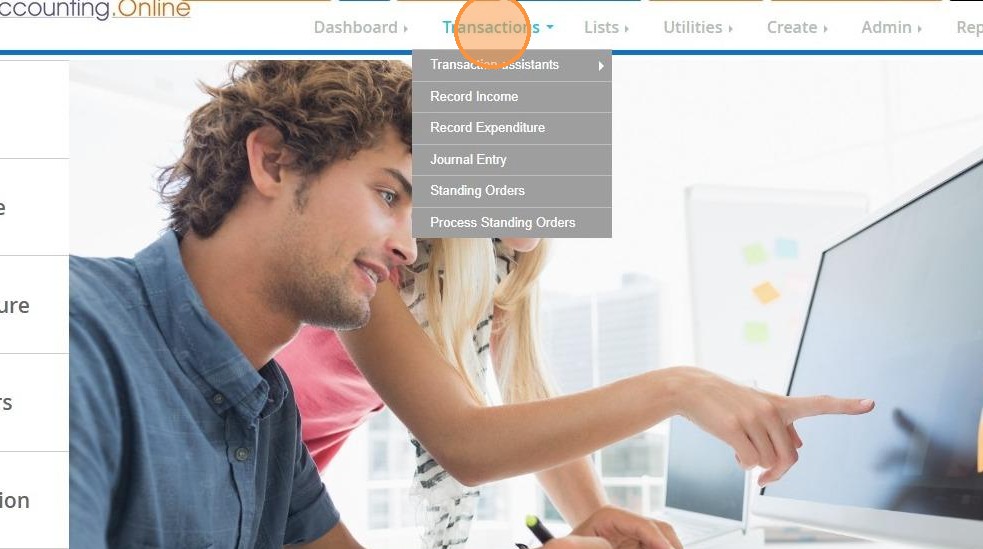
2. Click "Transactions"
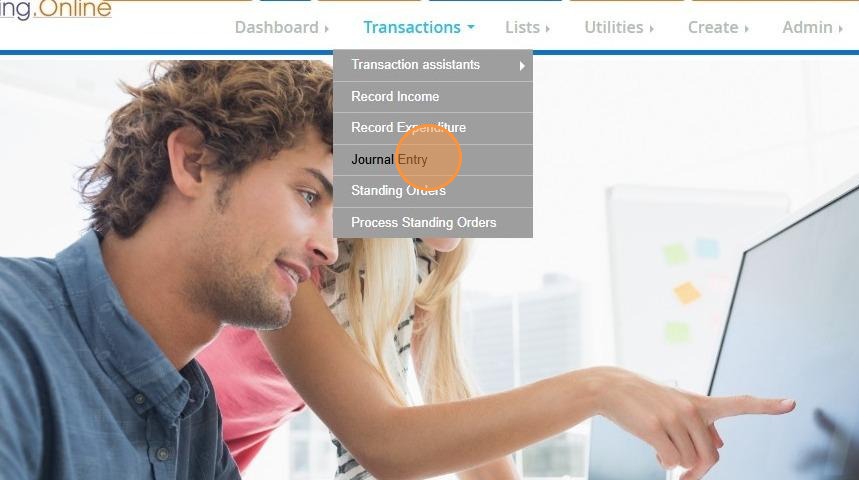
3. Click "Journal Entry"
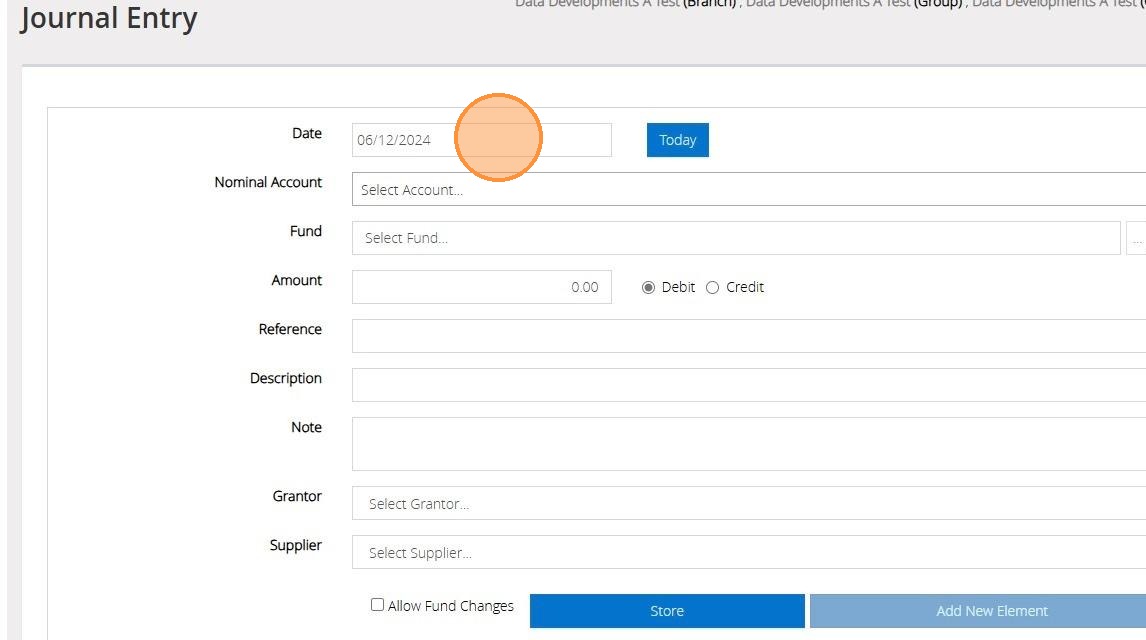
4. Enter the date of the sale by either free-typing, clicking the selection bar to open a calendar, or by clicking on the "Today" button.
5. Select your fixed asset code from the Nominal Account drop down menu
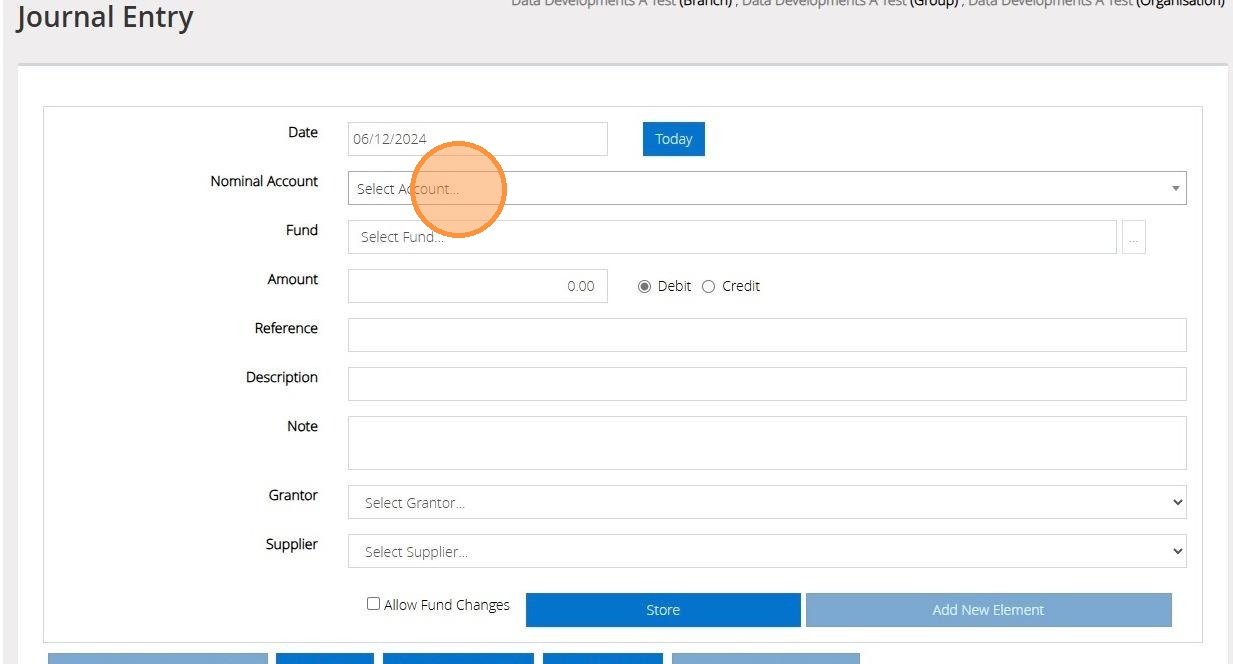
6. Select the fund that relates to this transaction
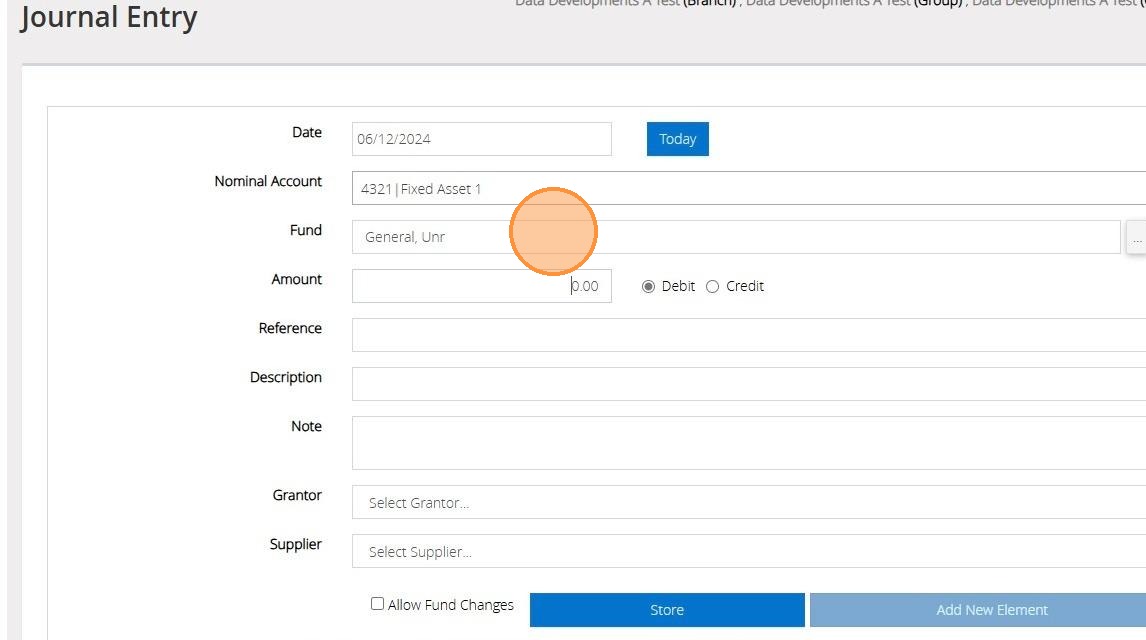
7. Enter the value of the Asset sold and click "Debit"
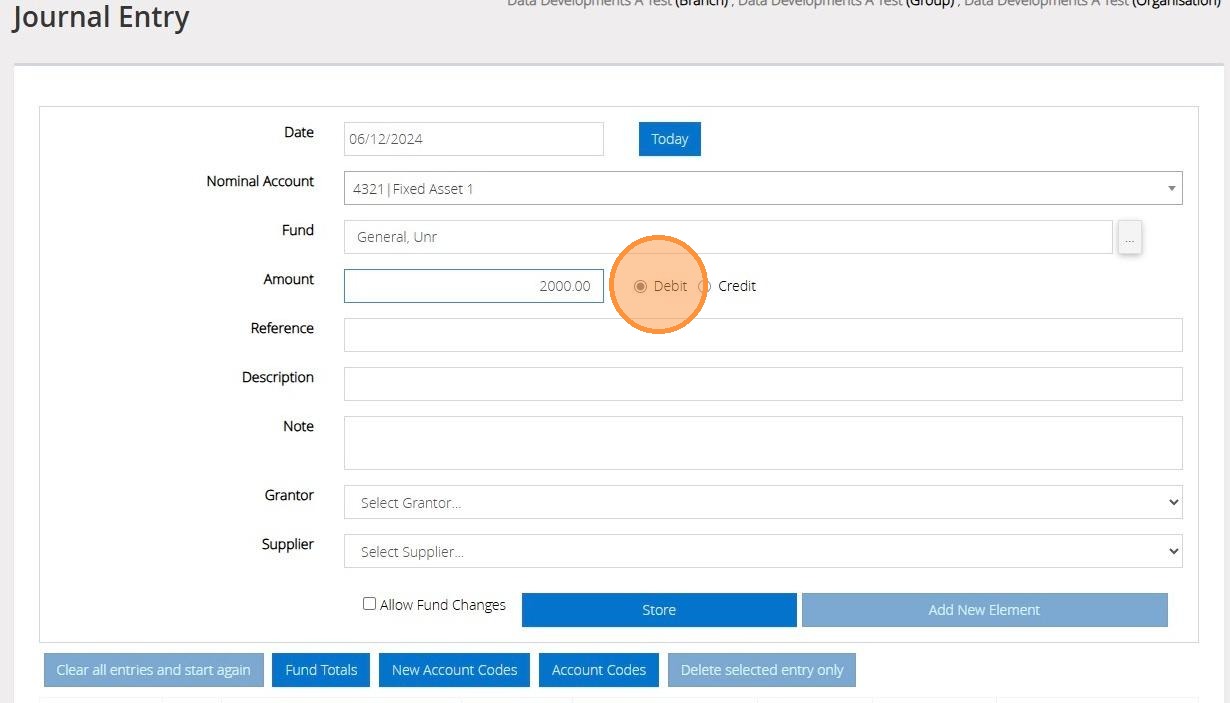
8. Enter a "reference" or any description and notes that relate to the transaction.
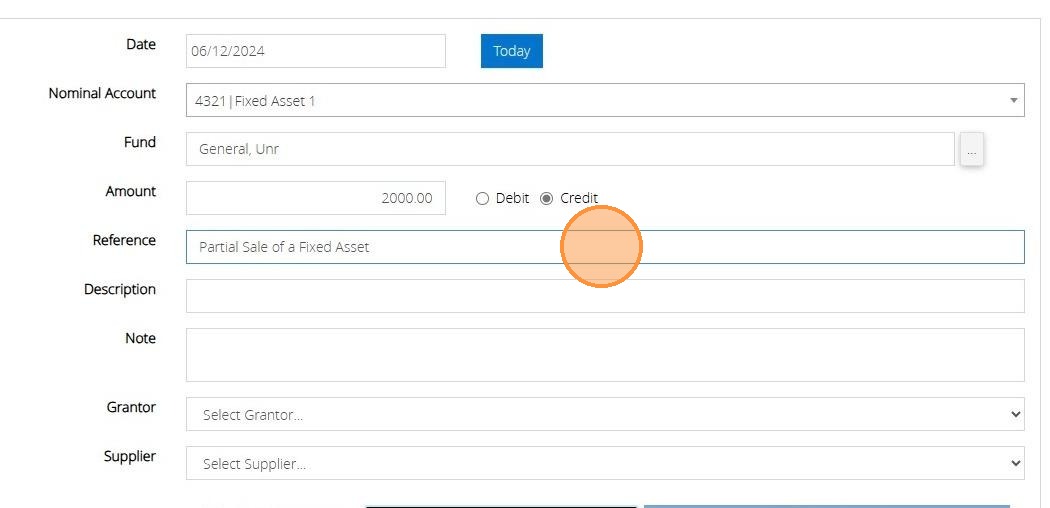
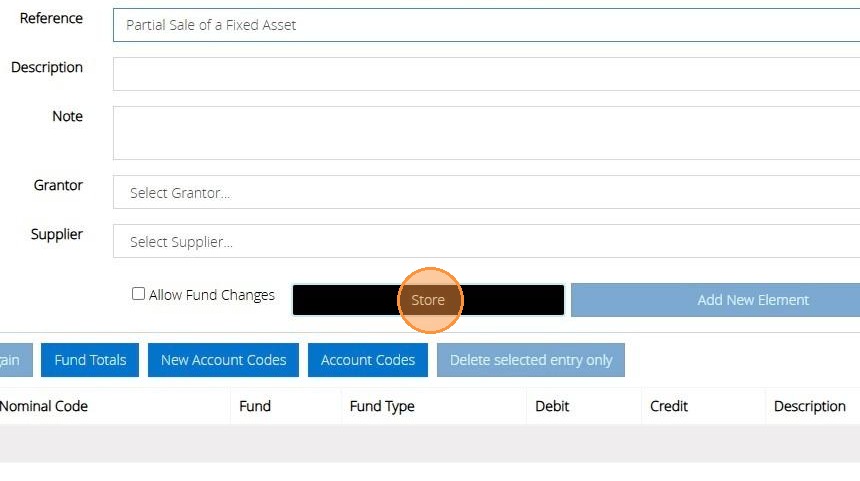
9. Click "Store"
Partial Sale - Profit
Tip: Tip! The below steps will show you how to handle a Profit made on the Sale.
10. Click "Add New Element"
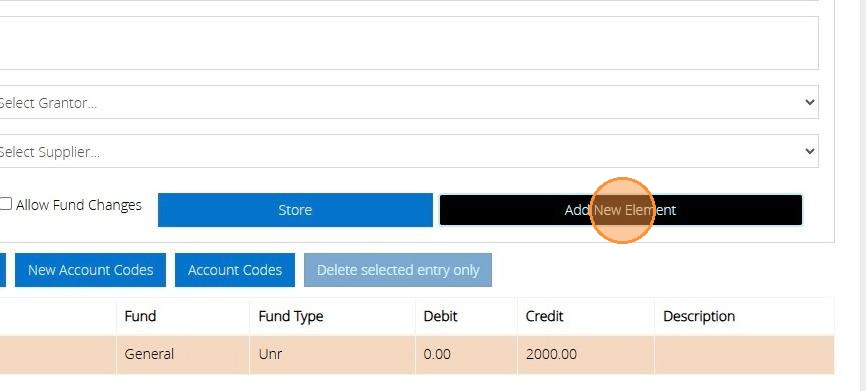
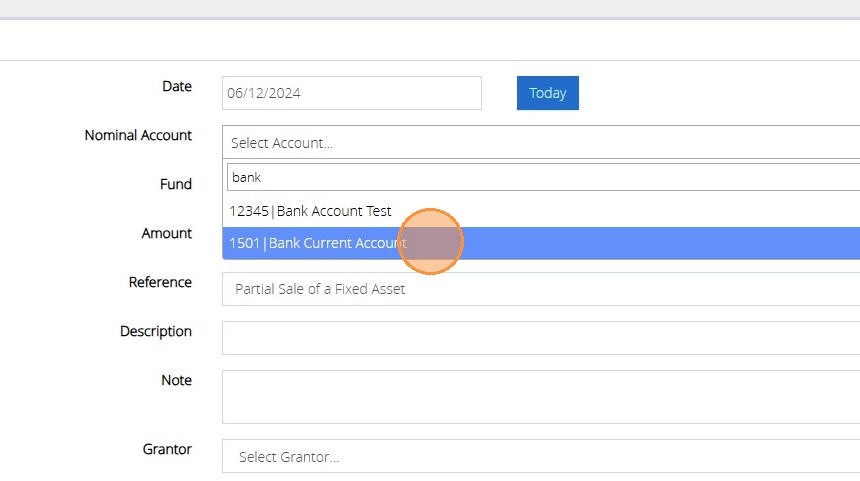
11. Select the bank account affected by the sale from your Nominal Account Menu.
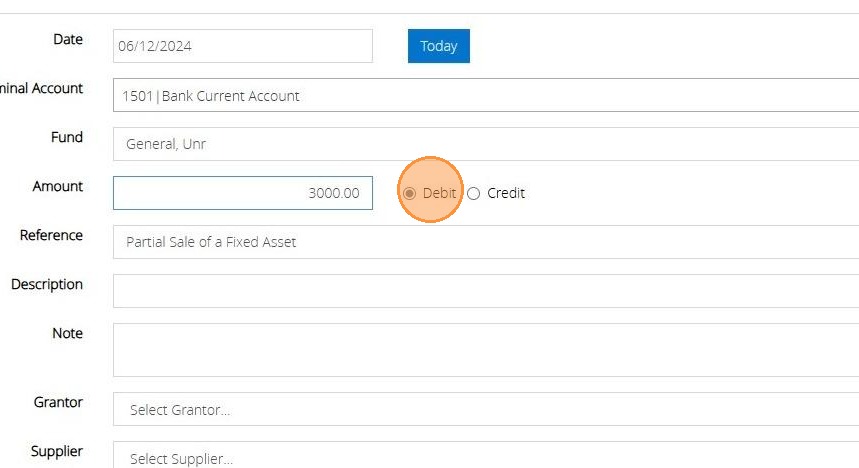
12. Enter the total amount recieved from the sale and click Debit.
13. Click "Store"
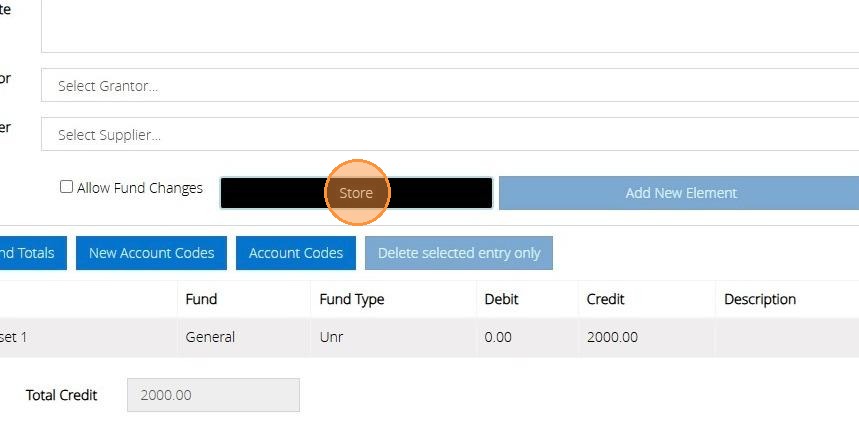
14. Click "Add New Element"
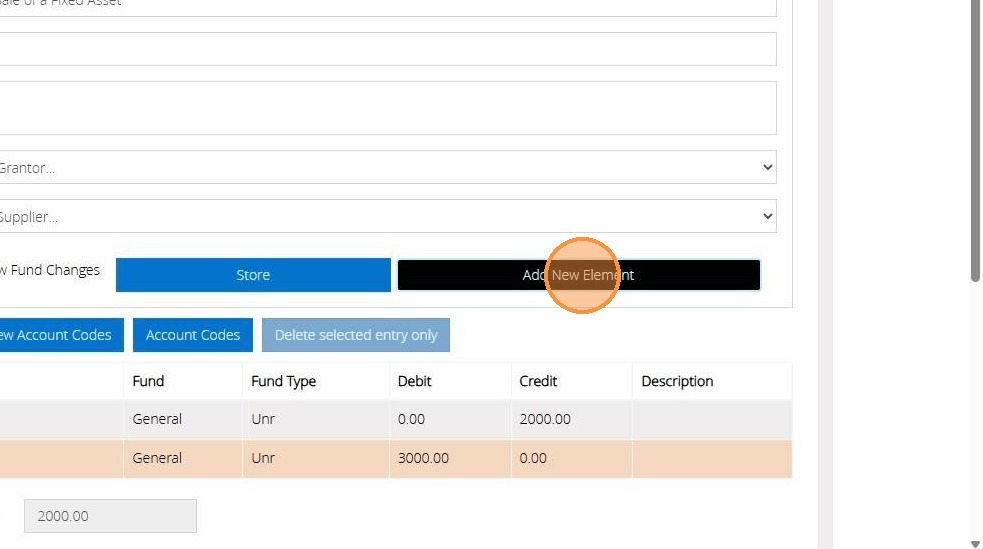
15. From your nominal account list select either an Income Code or the ZO2/Z03 code.
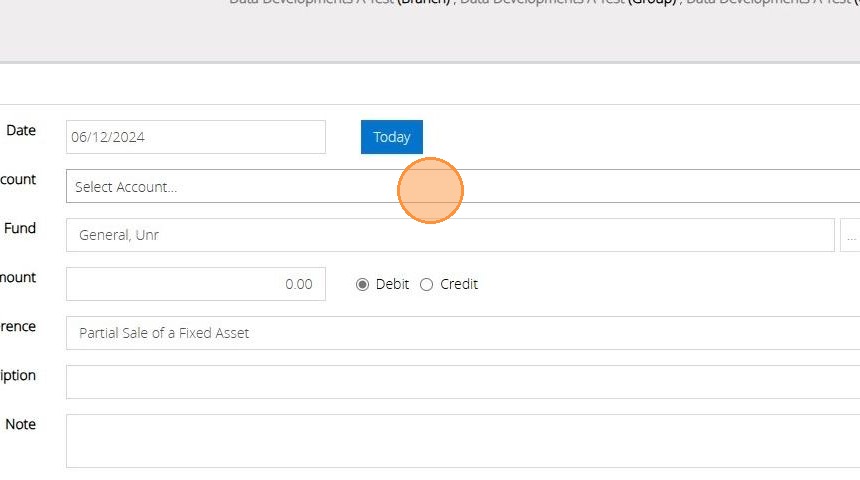
16. Select the fund that relates to the transaction.
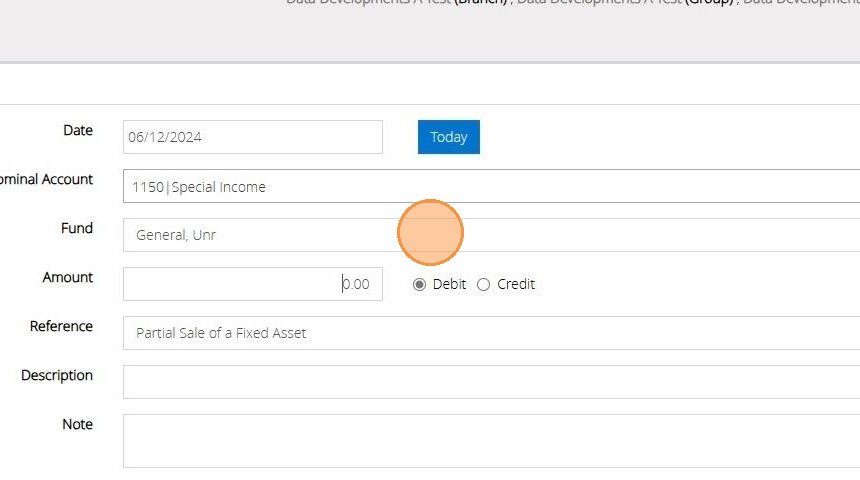
17. Enter the amount that was recieved as a Profit and select Debit.
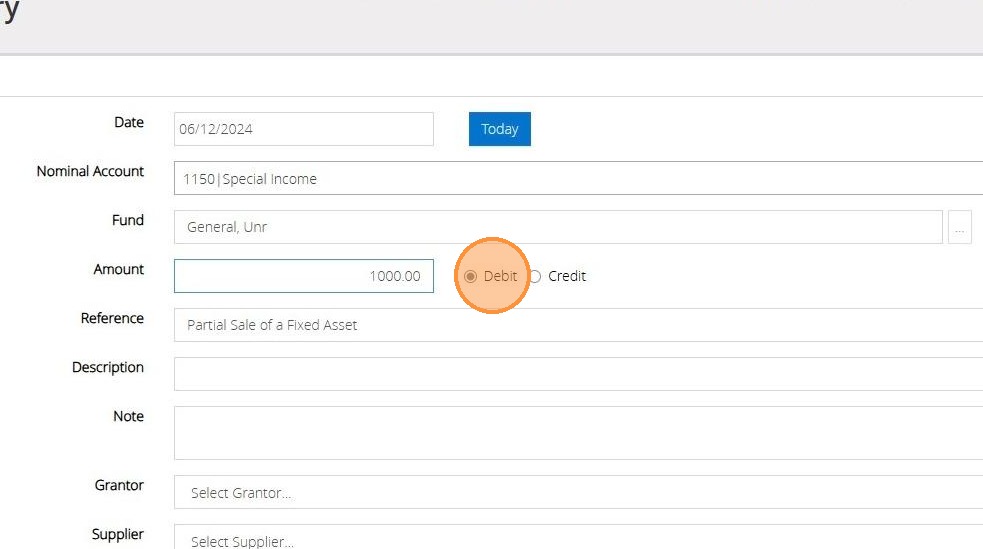
18. Enter a description and any notes that are relevant to the transaction.
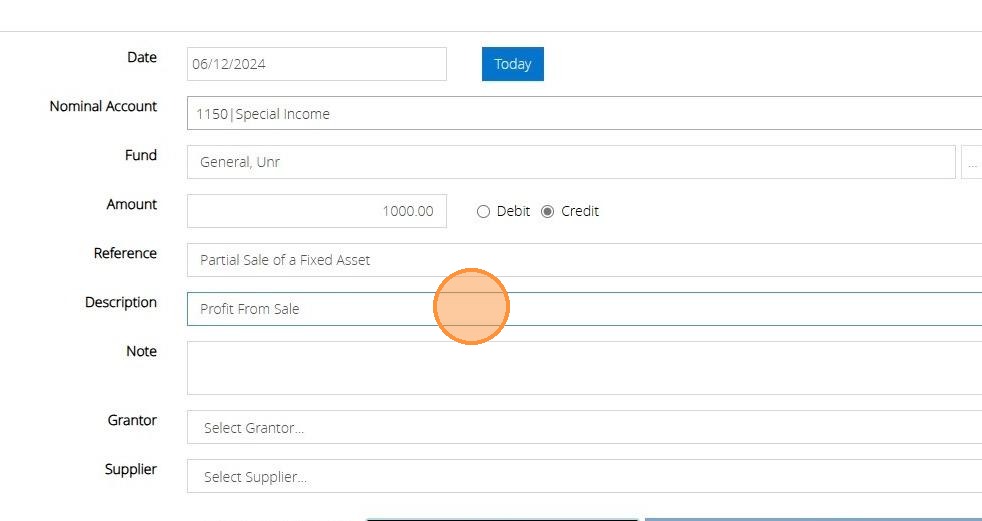
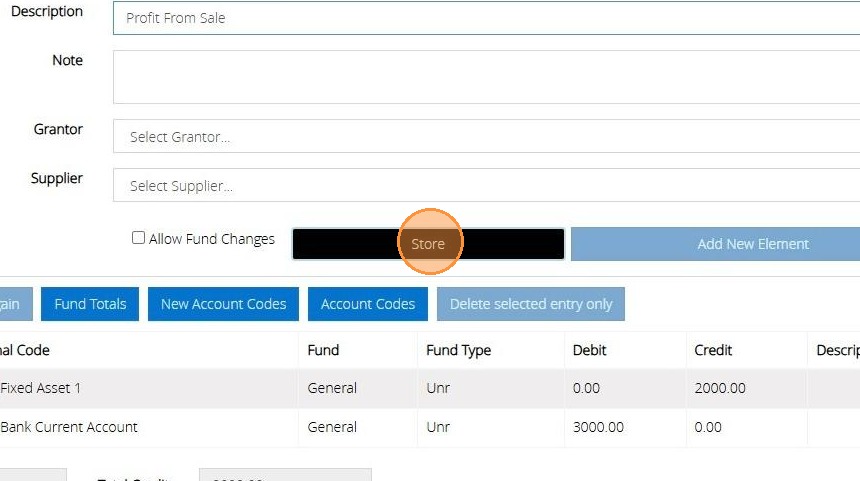
19. Click "Store"
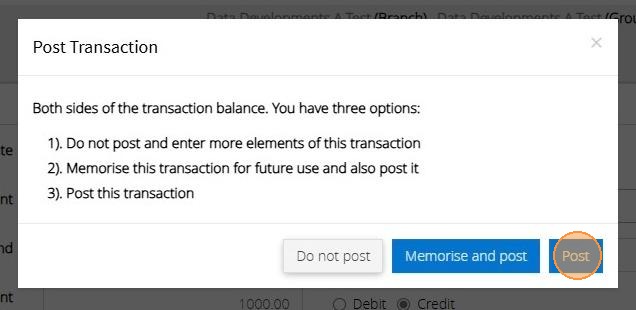
20. Click "Post"
Partial Sale - LOSS
Tip: Tip! The below steps will show you how to handle a loss on the Sale.
21. Repeat Steps 1 - 9 to enter the total value of the Fixed Asset.
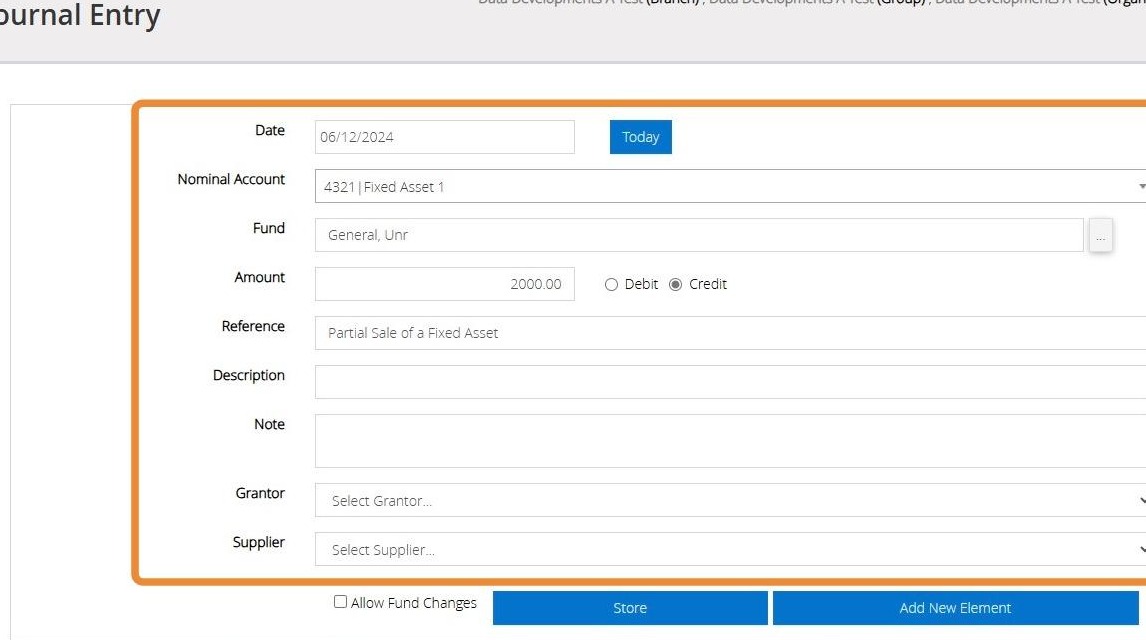
22. Click "Add New Element"
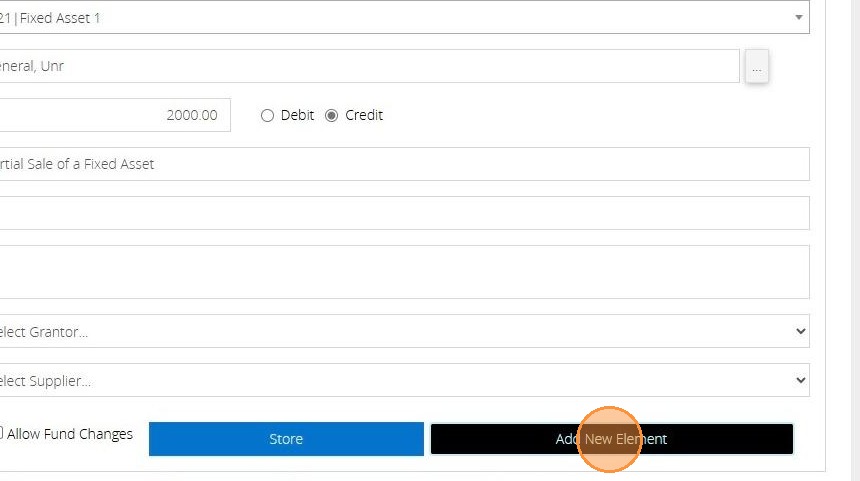
23. Select the bank account that has been affected by the transaction.
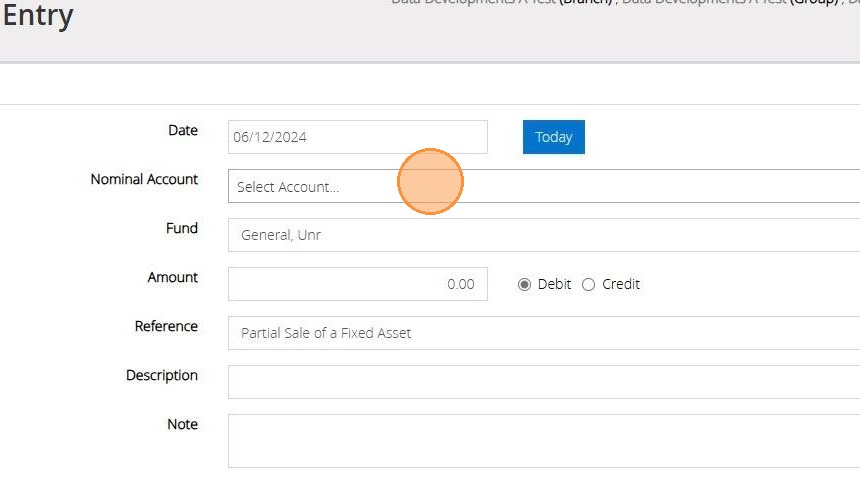
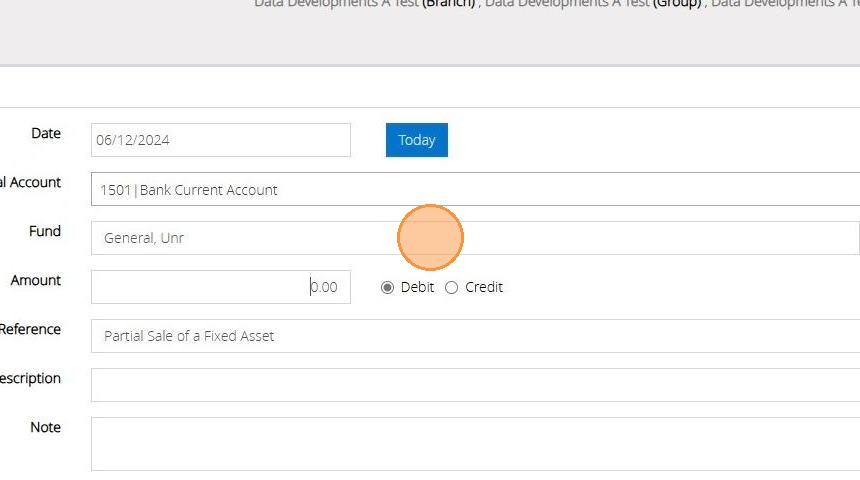
24. Select the fund that relates to this transaction.
25. Enter the amount of the Loss and then click on "Debit"
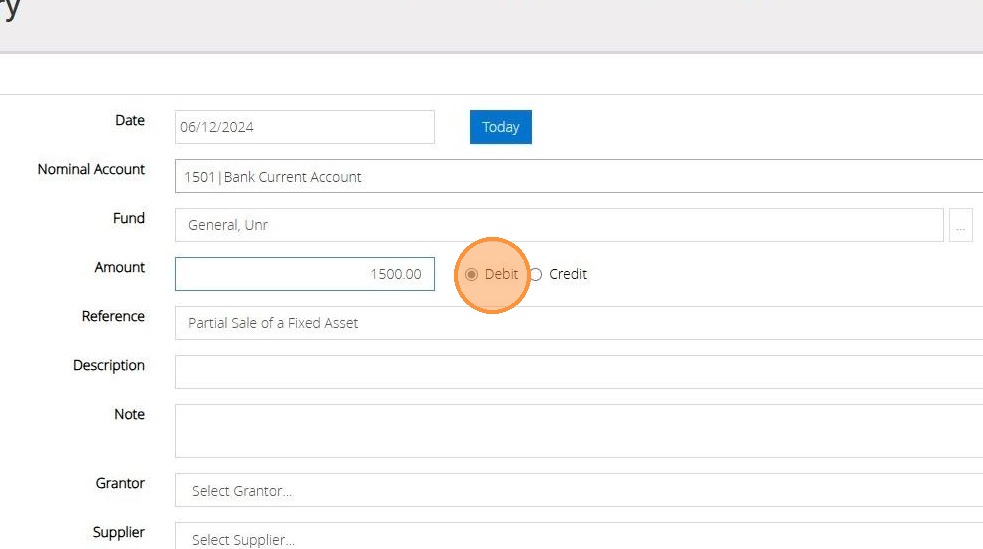
26. Click "Store"
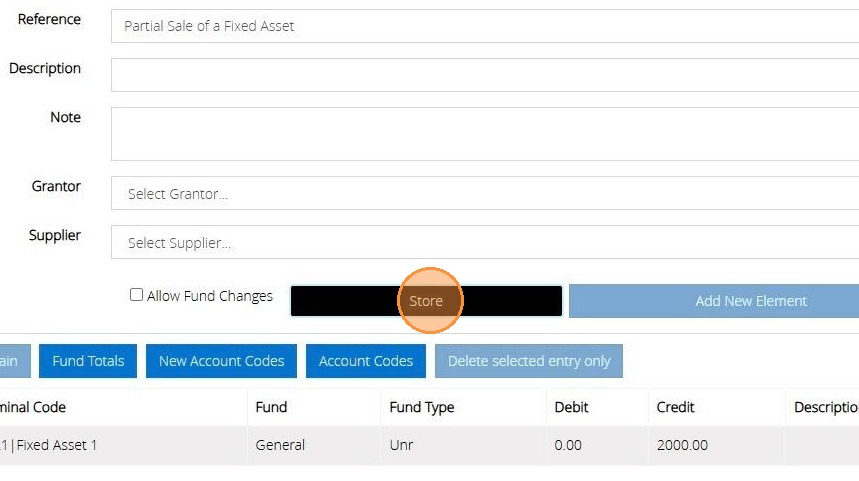
27. Click "Add New Element"
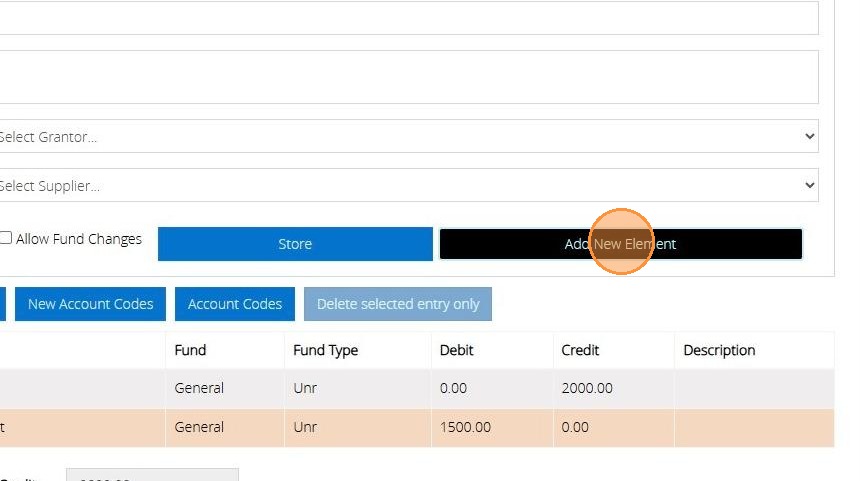
28. Select either an Expenditure code or your Z02/Z03 code that relates to the transaction.
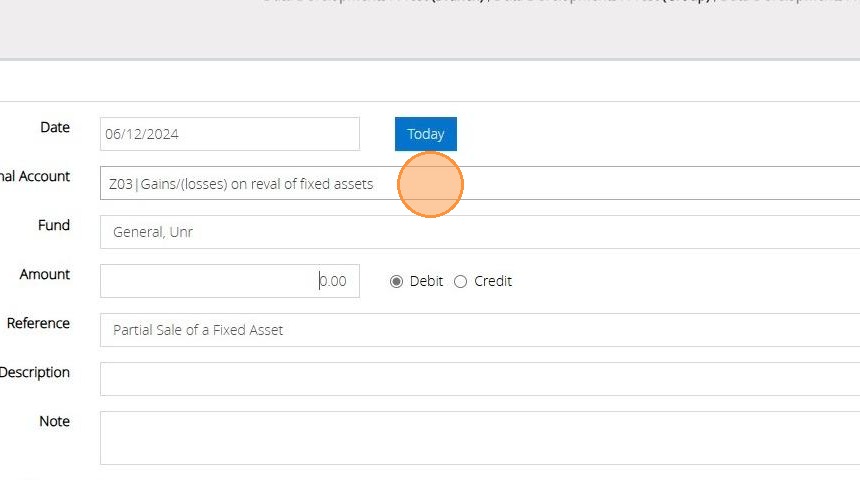
29. Select the fund that relates to the transaction.
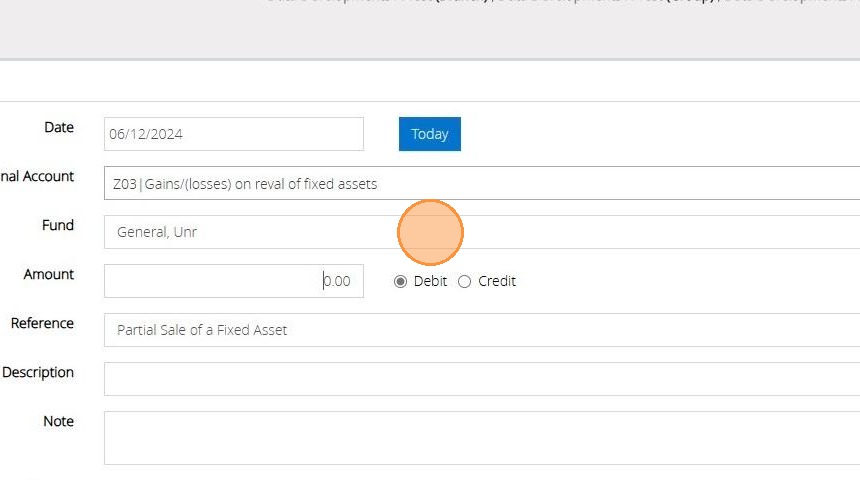
30. Enter the amount of the loss and click on "Debit".
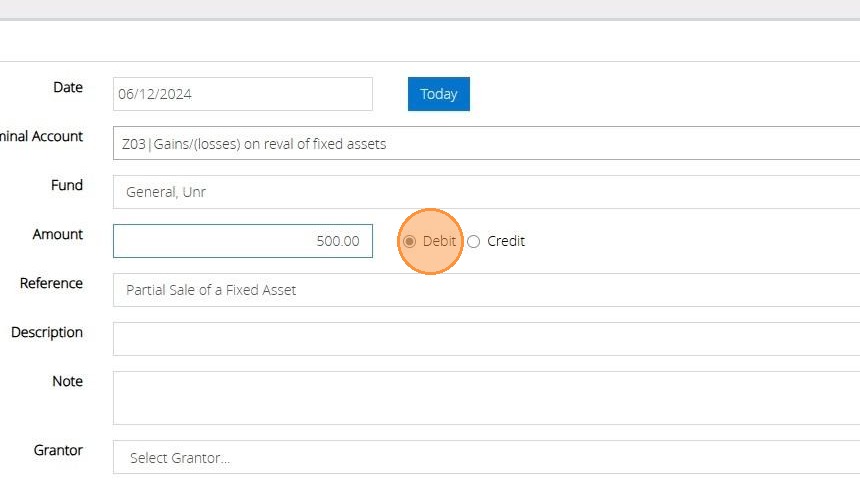
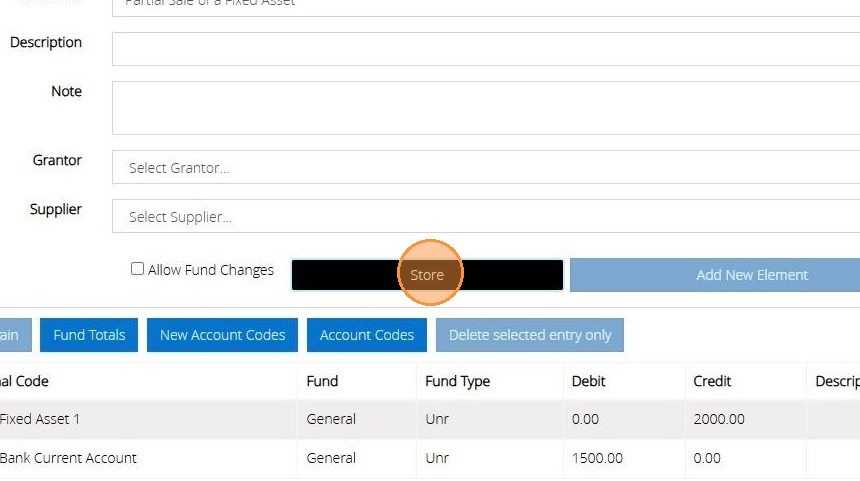
31. Click "Store"
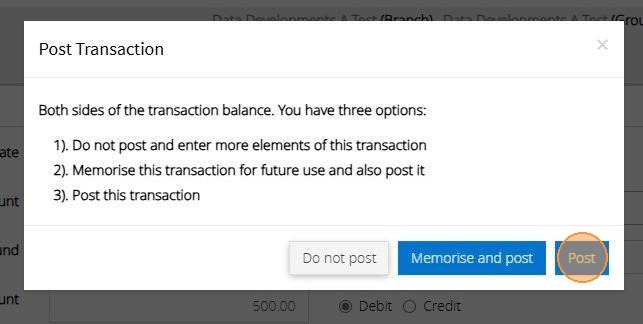
32. Click "Post"
Partial Sale of a Fixed Asset
Tip: The 'Sale or dispose of a fixed asset" assistant is concerned with the sale of the whole asset rather than the part sale of the fixed asset.
However, we suggest using the below step to record the part sale of a fixed asset.
1. Navigate to https://www.myfundaccounting.online
2. Click "Transactions"
3. Click "Journal Entry"
4. Enter the date of the sale by either free-typing, clicking the selection bar to open a calendar, or by clicking on the "Today" button.
5. Select your fixed asset code from the Nominal Account drop down menu
6. Select the fund that relates to this transaction
7. Enter the value of the Asset sold and click "Debit"
8. Enter a "reference" or any description and notes that relate to the transaction.
9. Click "Store"
Partial Sale - Profit
Tip: Tip! The below steps will show you how to handle a Profit made on the Sale.
10. Click "Add New Element"
11. Select the bank account affected by the sale from your Nominal Account Menu.
12. Enter the total amount recieved from the sale and click Debit.
13. Click "Store"
14. Click "Add New Element"
15. From your nominal account list select either an Income Code or the ZO2/Z03 code.
16. Select the fund that relates to the transaction.
17. Enter the amount that was recieved as a Profit and select Debit.
18. Enter a description and any notes that are relevant to the transaction.
19. Click "Store"
20. Click "Post"
Partial Sale - LOSS
Tip: Tip! The below steps will show you how to handle a loss on the Sale.
21. Repeat Steps 1 - 9 to enter the total value of the Fixed Asset.
22. Click "Add New Element"
23. Select the bank account that has been affected by the transaction.
24. Select the fund that relates to this transaction.
25. Enter the amount of the Loss and then click on "Debit"
26. Click "Store"
27. Click "Add New Element"
28. Select either an Expenditure code or your Z02/Z03 code that relates to the transaction.
29. Select the fund that relates to the transaction.
30. Enter the amount of the loss and click on "Debit".
31. Click "Store"
32. Click "Post"