
Tip: The below steps will guide you in removing a starting balance transaction that has been entered incorrectly.
Alert! If you are no longer in your first year of using MyFundAccounting.Online you will not be able to re-enter a Starting Balance via your Accounts Assistant. This will need to be entered using the Journal Entry Screen. For help and guidance please contact the support team.
1. Navigate to https://www.myfundaccounting.online
Starting Balances Transaction Report
Tip! To produce a starting balance report and identify the transactions that have been entered, follow the below steps.
2. Click "Reports"

3. Click "Transactions"

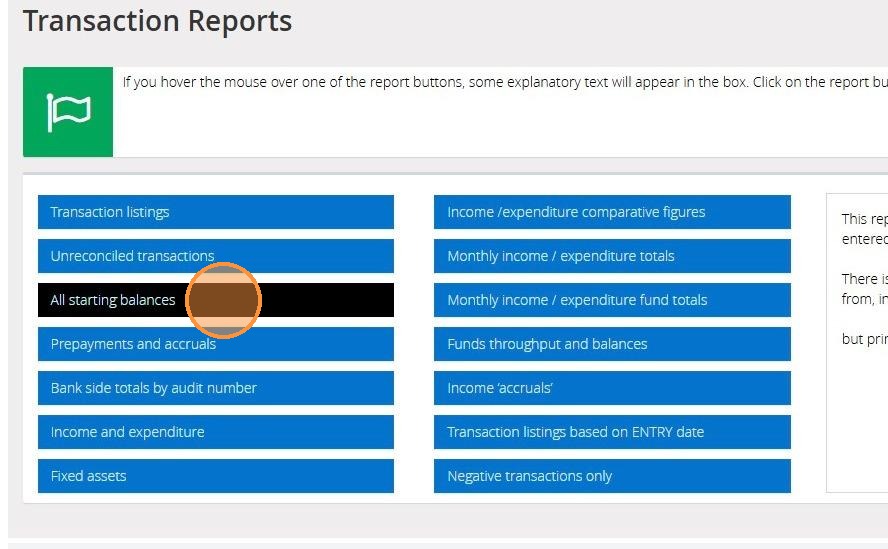
4. Click "All starting balances"
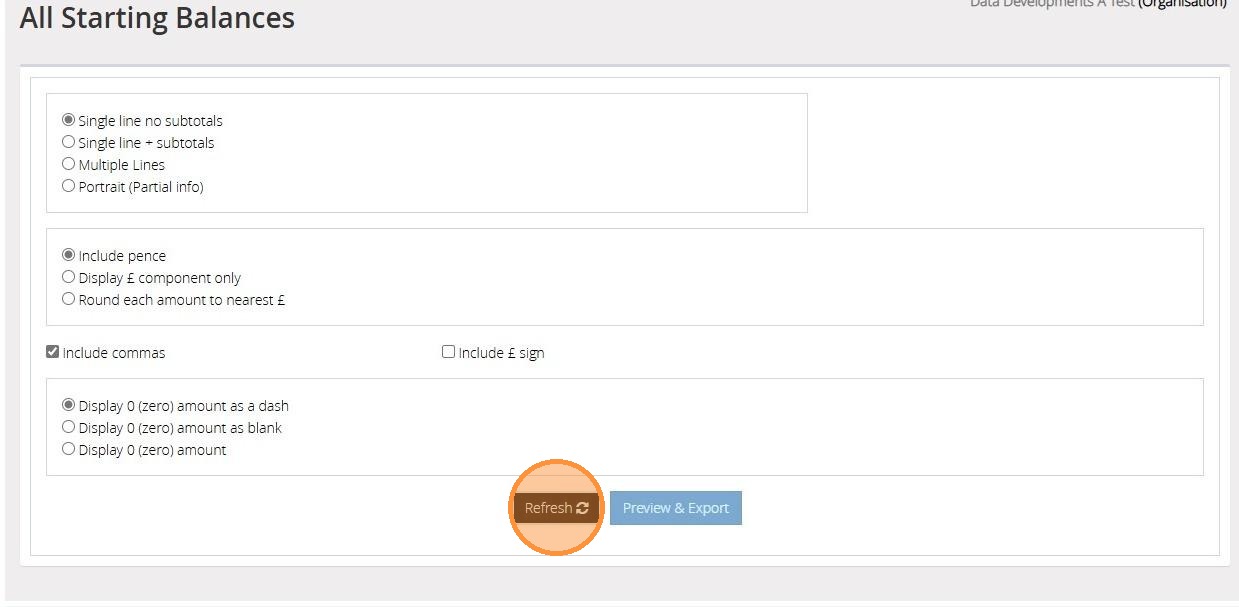
5. Click "Refresh"
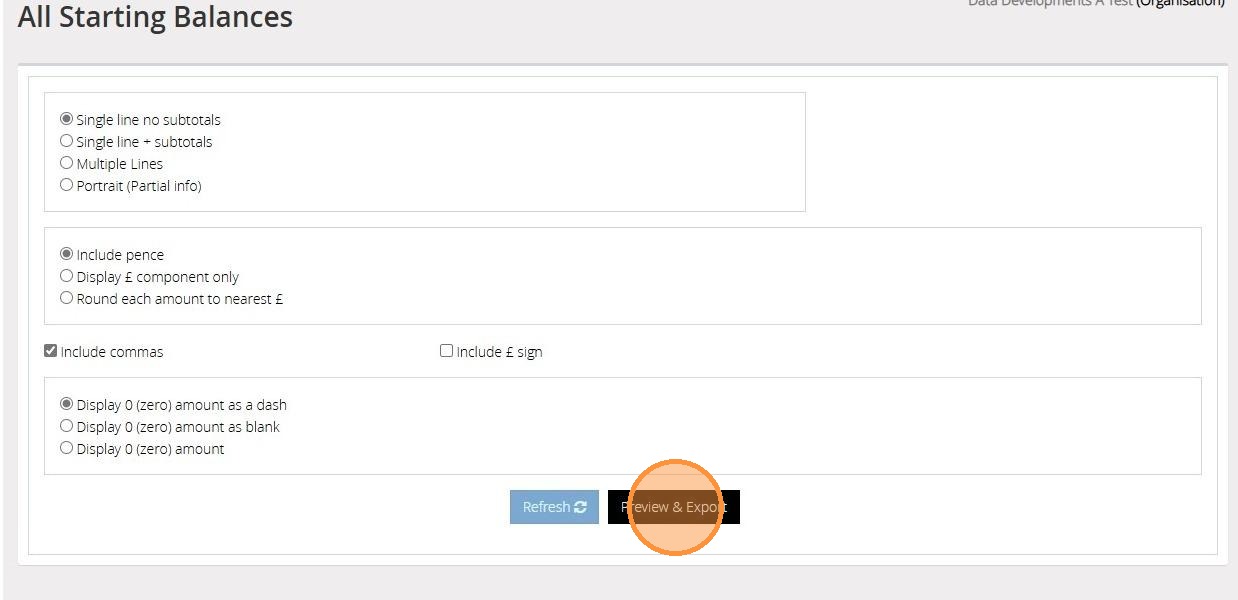
6. Click "Preview & Export"
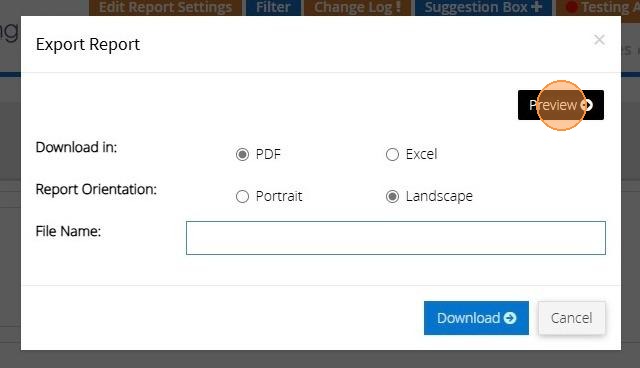
7. Click "Preview"
Remove the transaction
8. Click "Lists"
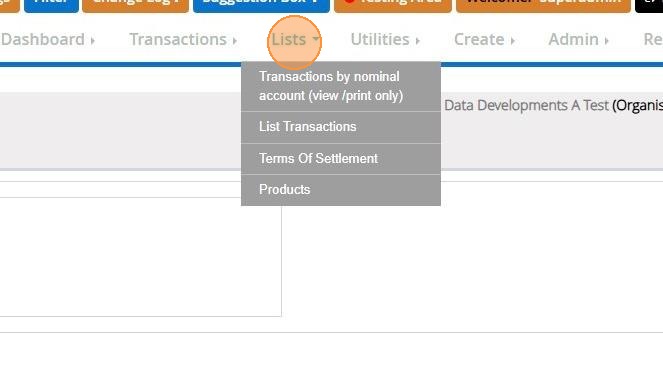
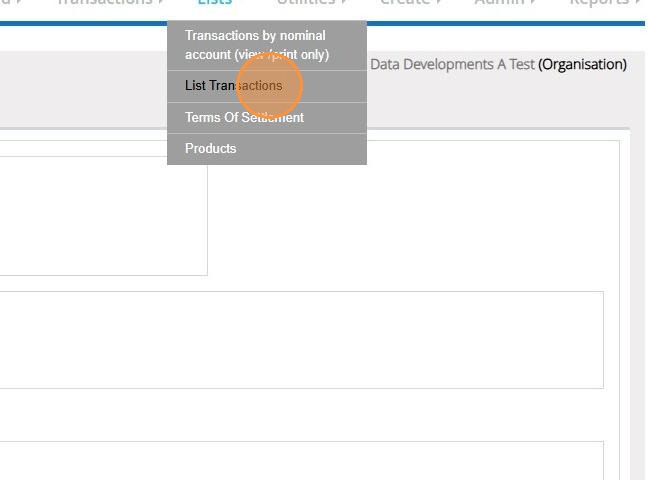
9. Click "List Transactions"
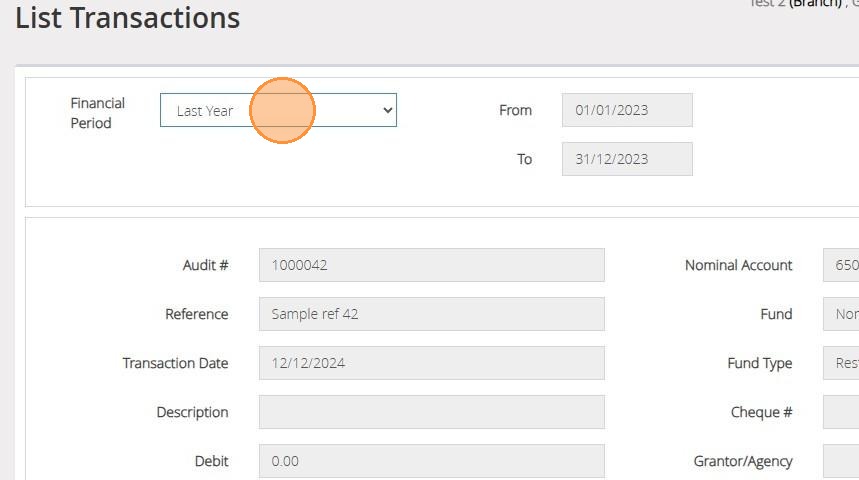
10. From the drop down menu select the Financial period that the transaction fell into. Please note that the balances will go against the last day of the financial year prior to the financial year you are starting in. For example if you accounts start on the 01/01/2024 your starting balances will be set to the date 31/12/2023.
11. All starting balances will display in red within your list of transactions.
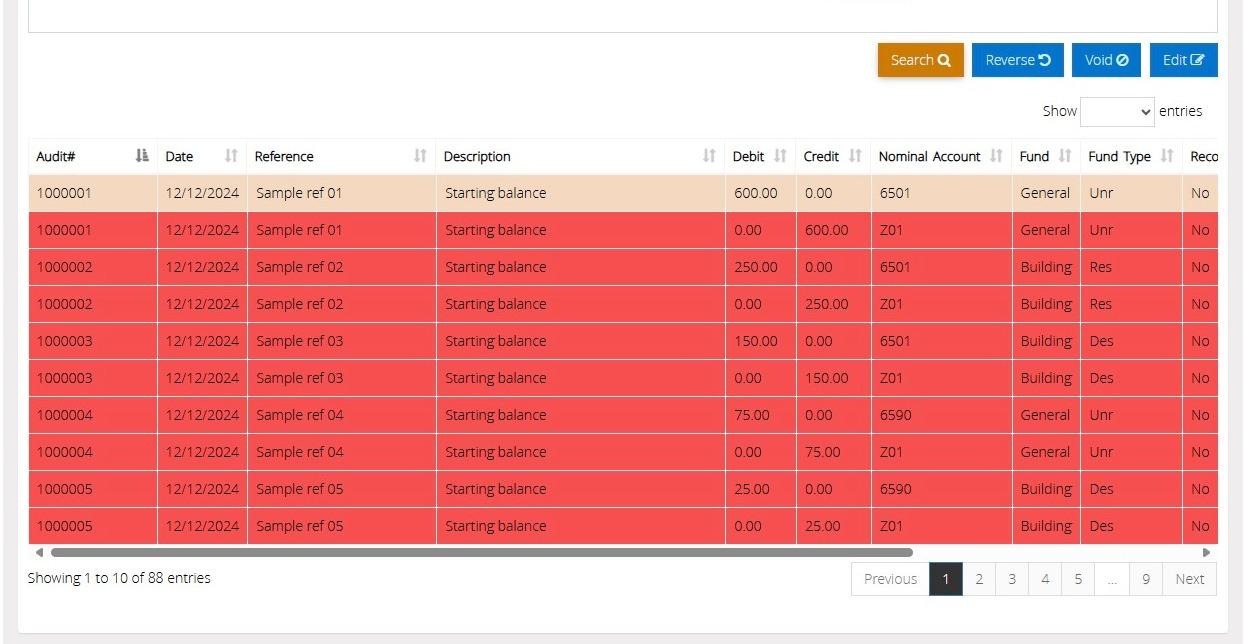
12. Alternatively, you can use the search option to search for an individual starting balance transaction. In this instance it would be useful to generate the Starting Balance report.
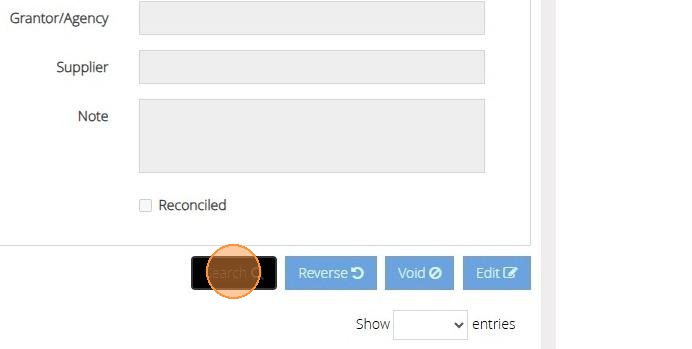
13. Once you have located the incorrect transaction click Void.
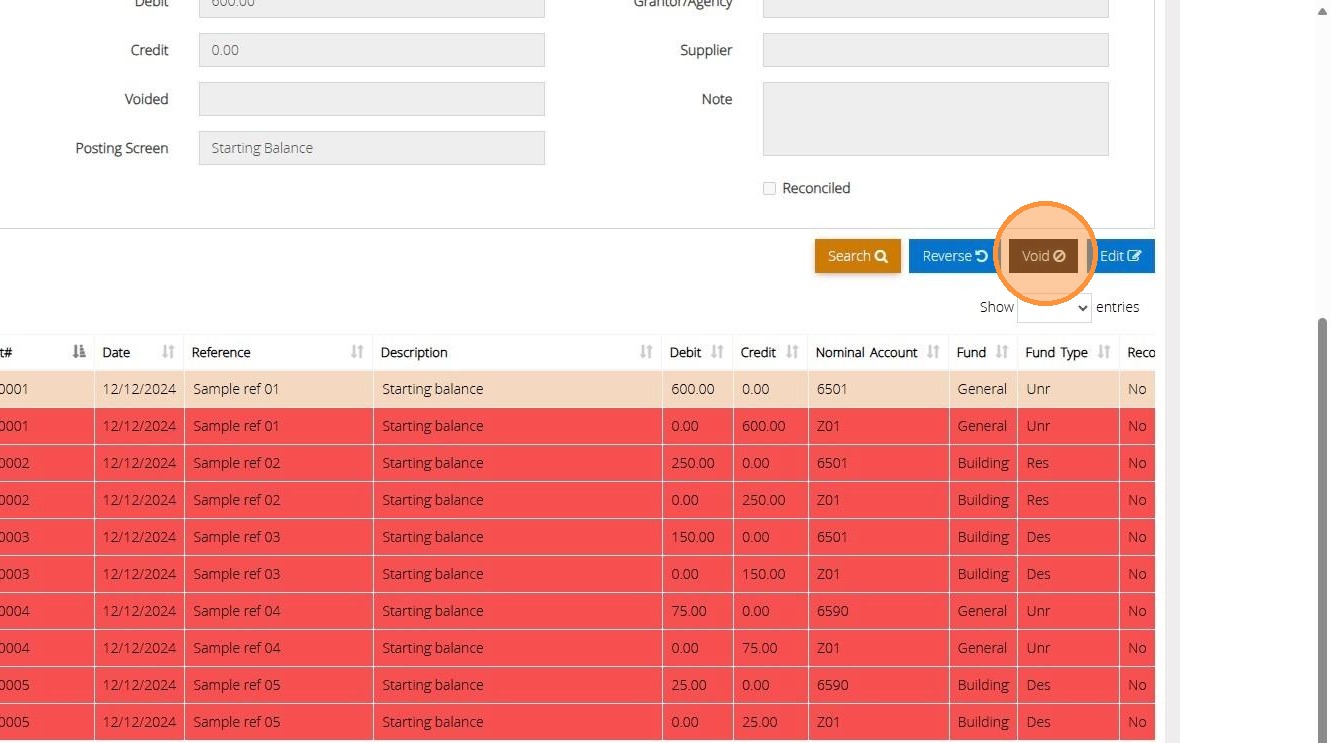
Alert! If you have performed a year end procedure you will need to select the option to "Reverse" the transaction.
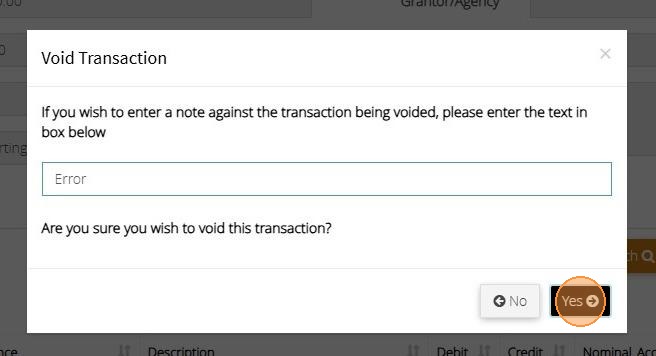
14. Enter a note to advise the reason for deletion and then Click "Yes"
15. Once the transaction has been removed you will receive the below success message.