1. The Unusual Bank Reconciliation feature enables the reconciliation of transactions without requiring an opening or closing balance. This is particularly helpful for correcting entries that cannot be edited and must be reversed and re-entered.
Alert: Alert! Please exercise caution when using the Unusual Bank Reconciliation. It is important to ensure that your accounts remain balanced during reconciliation, as any miscalculation could cause an imbalance in future reconciliations.
How to locate the unusual bank reconciliation
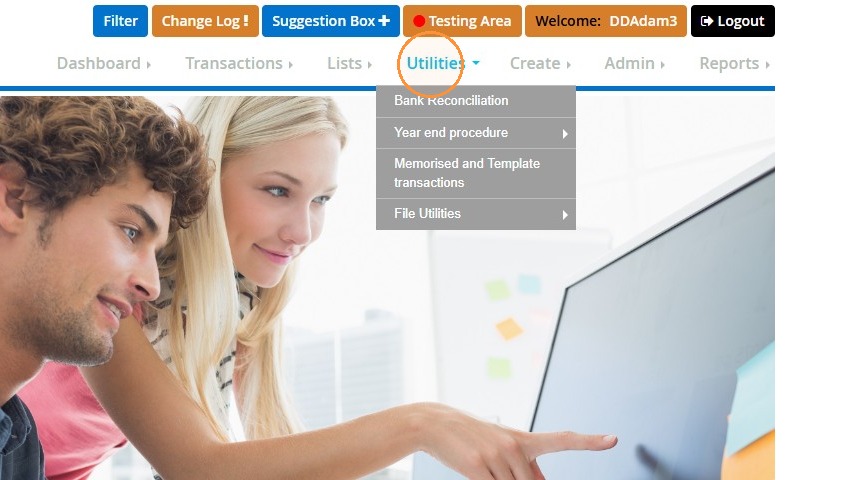
2. Hover over "Utilities".
">
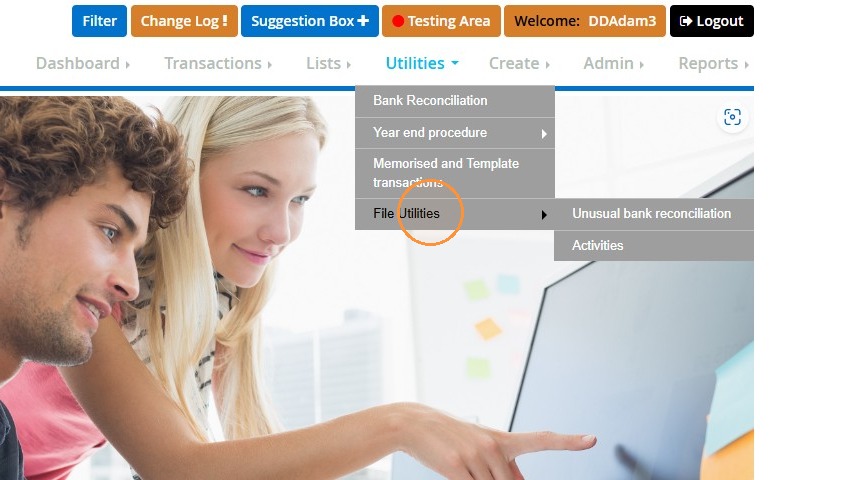
3. Next go to "File Utilities".
">
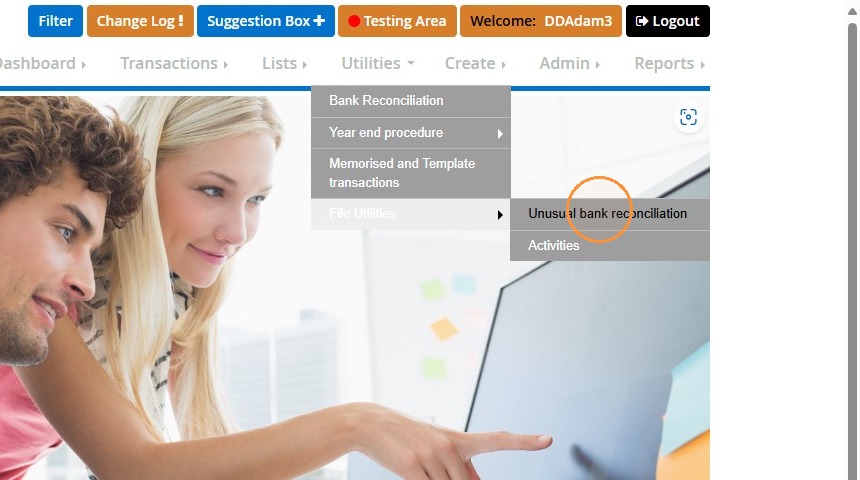
4. Click "Unusual bank reconciliation".
">
Unusual Bank Reconciliation Walkthrough
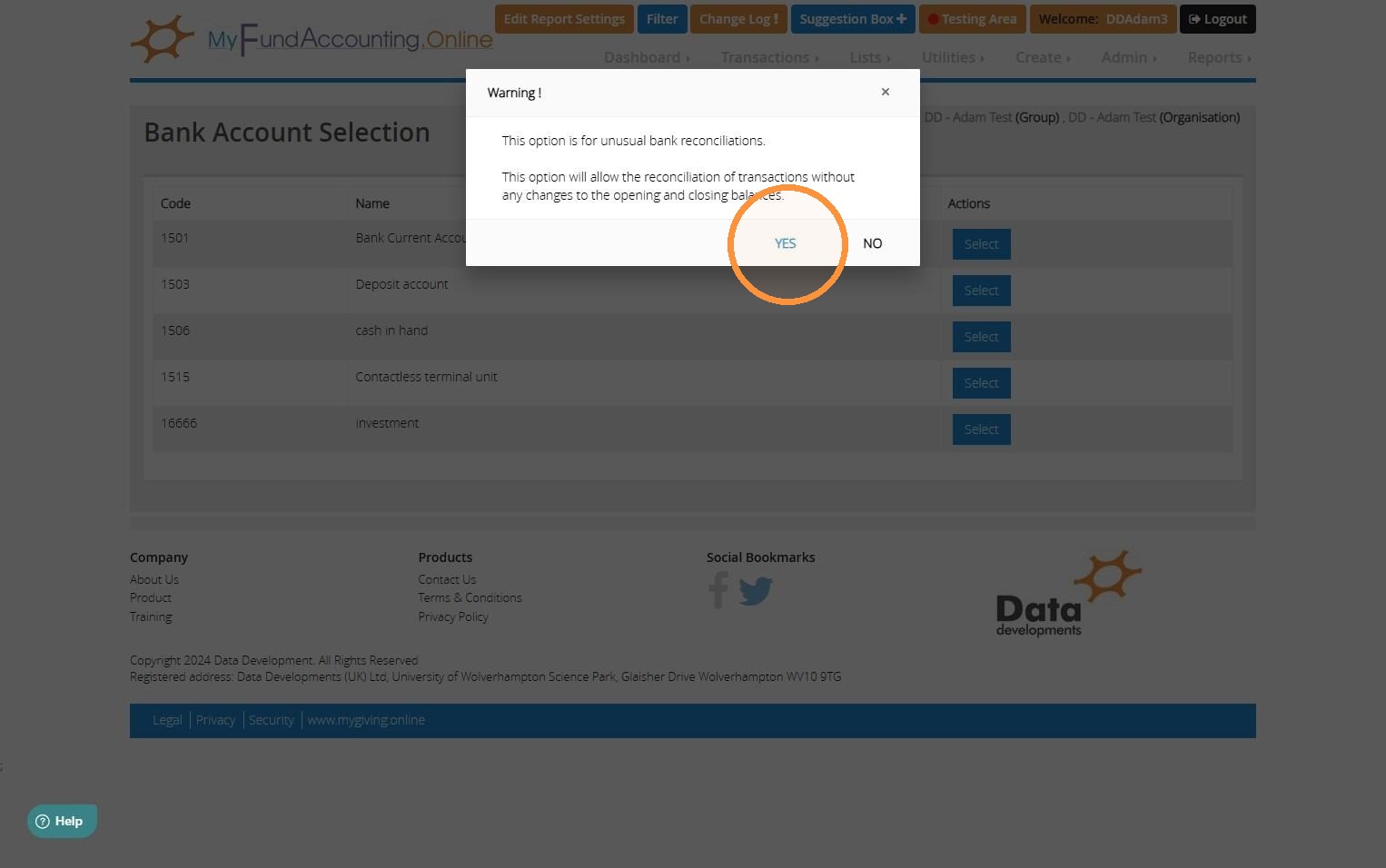
5. There will be a warning that will appear to explain that: "This option will allow the reconciliation of transactions without any changes to the opening and closing balances". Choose "YES" to continue.
">
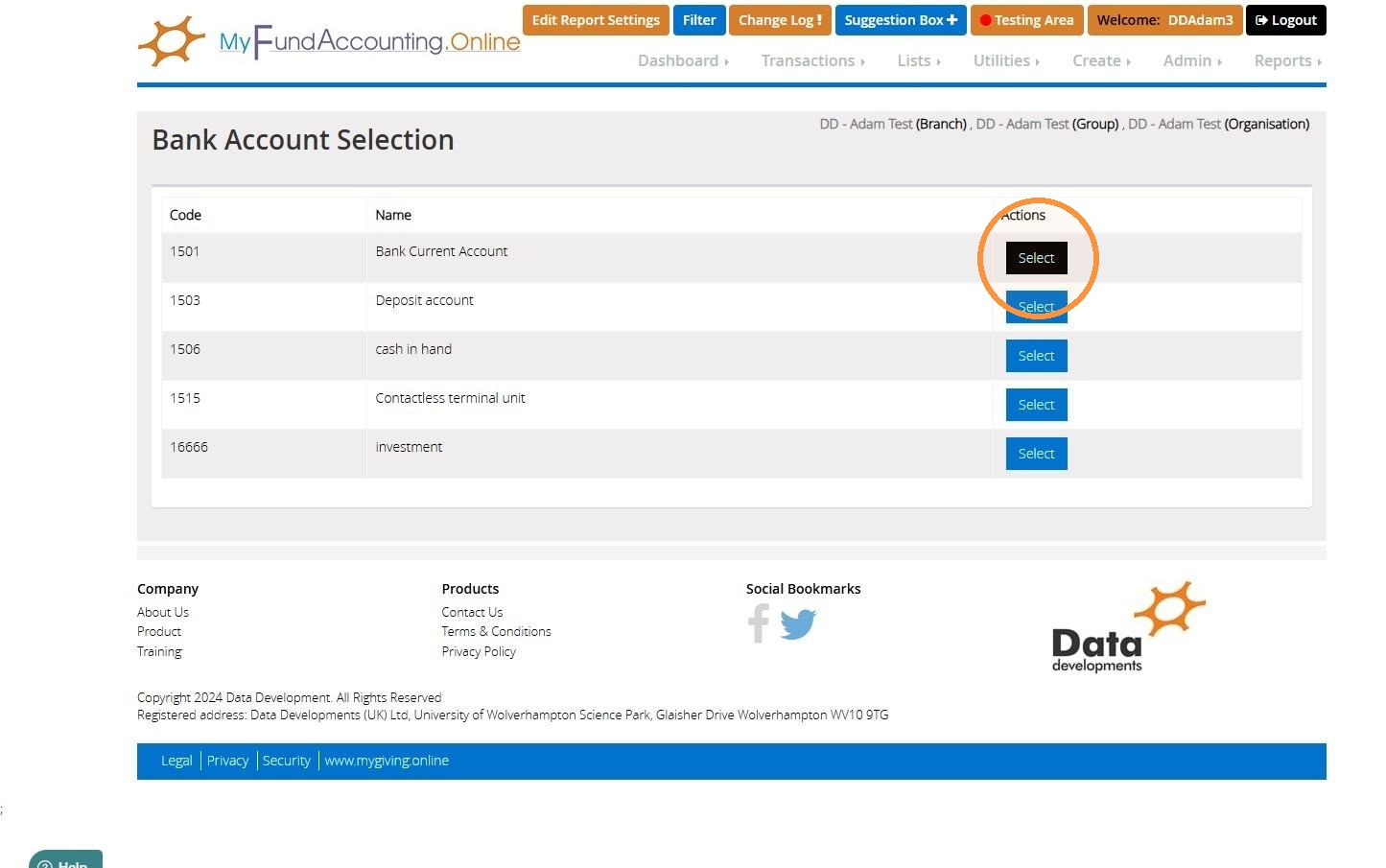
6. Next select the bank account containing the transactions you wish to reconcile.
">
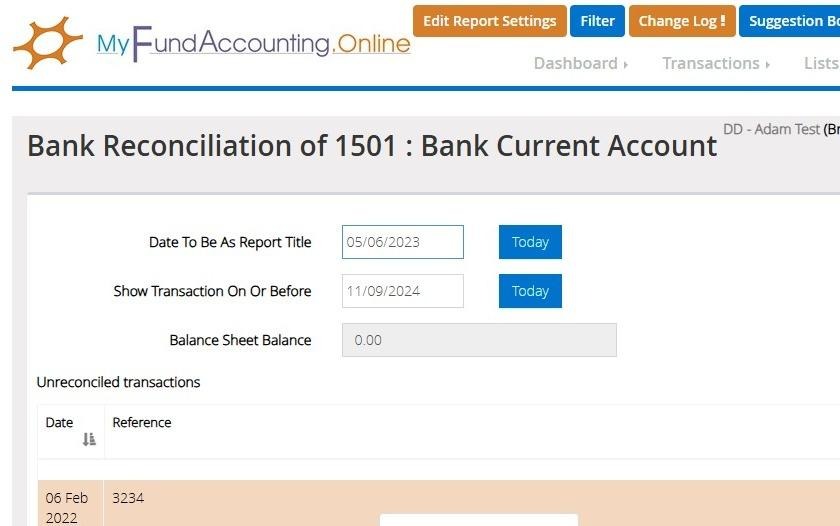
7. Choose the "Date to be as Report title and "Show Transaction On Or Before".
">
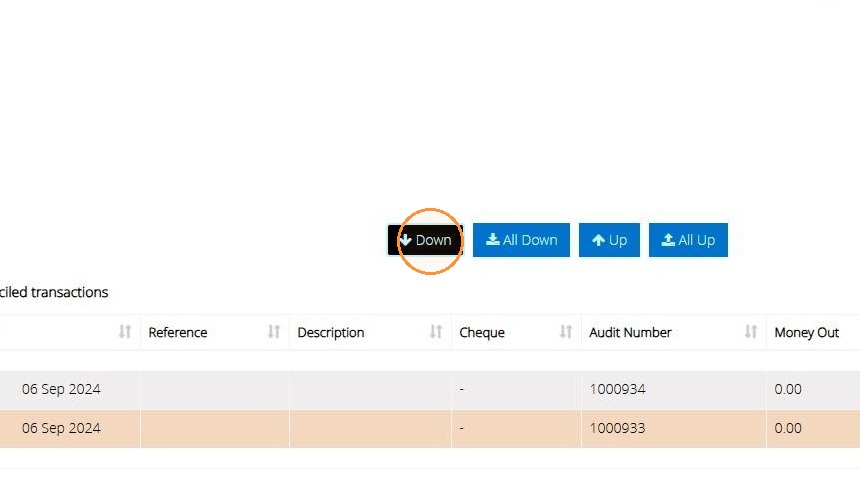
8. Select the transactions in the unreconciled transactions box that you wish to reconcile one by one. Then move them into the reconciled box using the 'Down' button.
">
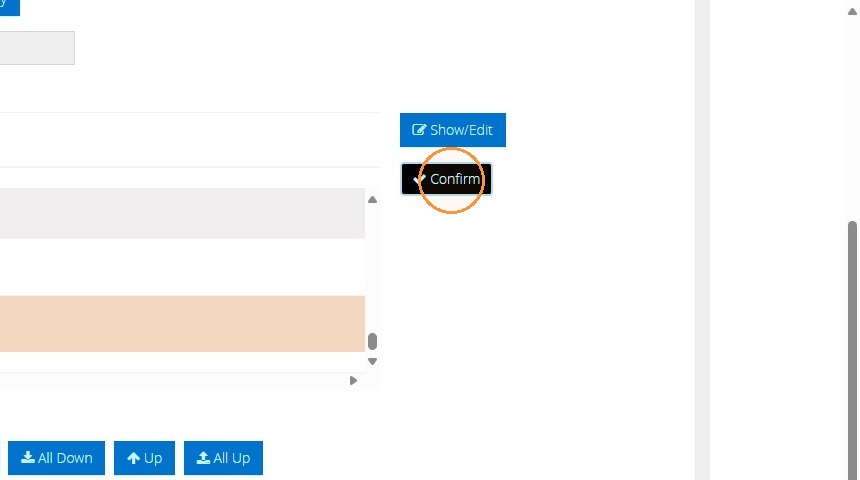
9. Once you have moved the transactions down, click 'Confirm' to complete the reconciliation. Make sure you've moved the correct transactions down before doing so. Make sure there are no other transactions within the reconciled transaction section other than your corrections.
">
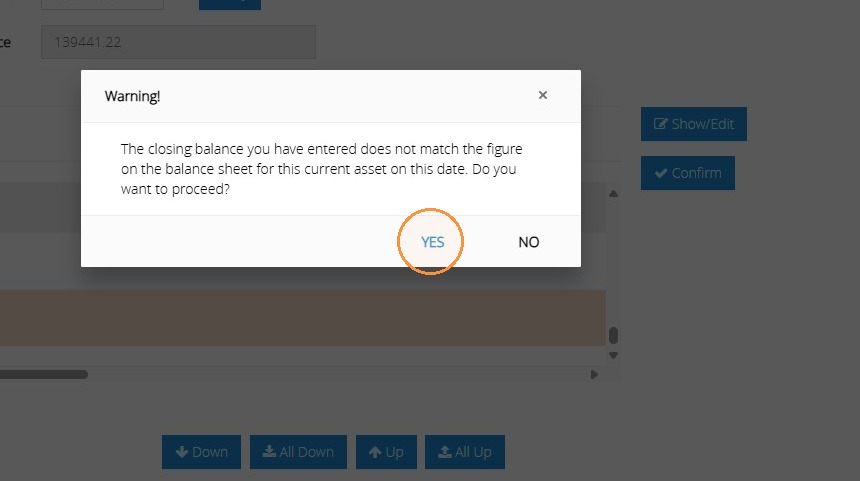
10. If the balance sheet balance doesn't match the closing balance, the following warning message will appear. You can select 'No' to go back to the Unusual Bank Reconciliation screen if you wish to double-check the balances before proceeding. Otherwise, select 'Yes' to confirm the reconciliation.
If you know the balance is correct to the bank statement, you are fine to proceed with the reconciliation.
">
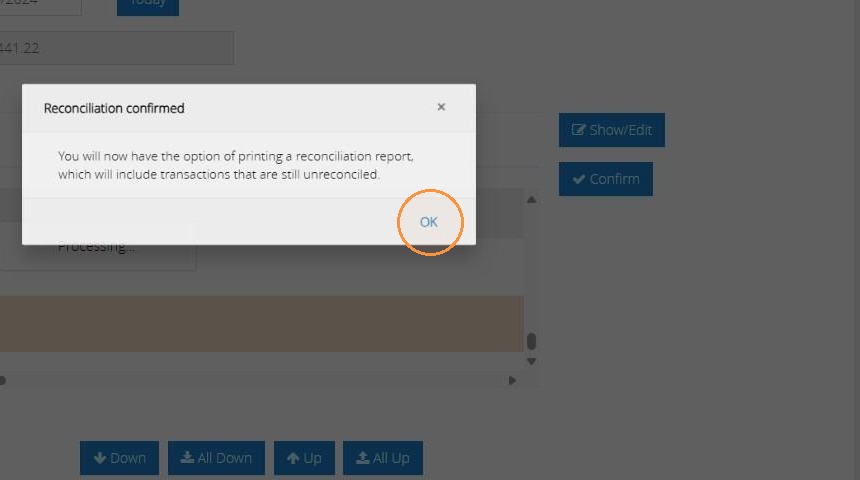
11. Once completed there will be an option to print a report. Click "OK". This will be stored in the previous reconciliation reports.
">
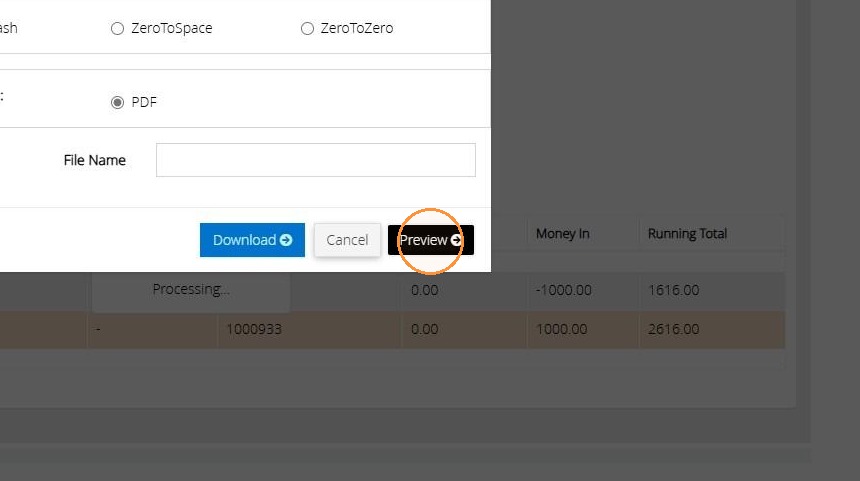
12. To preview the report, select 'Preview'. To download the report, select 'Download'. If you don't want to view or download the reconciliation report, select 'Cancel'.
You can access a copy of the unusual bank reconciliation report at any time under the 'Previous Bank Reconciliations' option in the Reports dropdown menu alongside your usual reconciliations.
">