
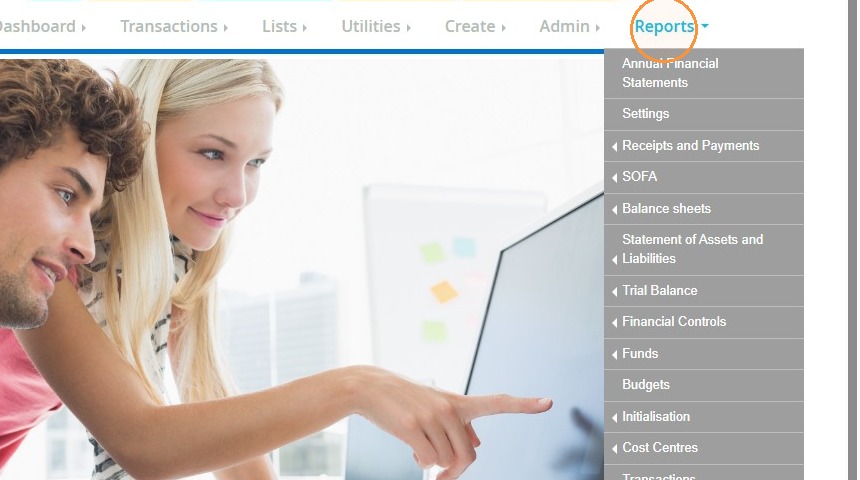
1. Hover over "Reports".
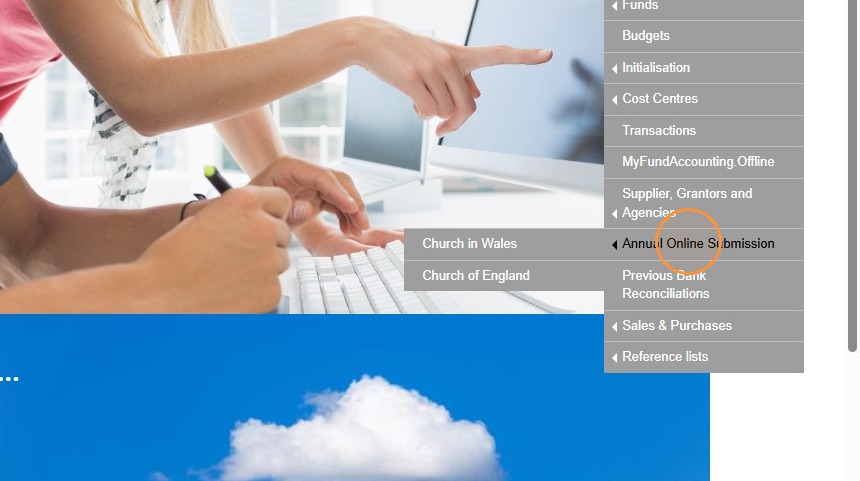
2. Go to "Annual Online Submission".
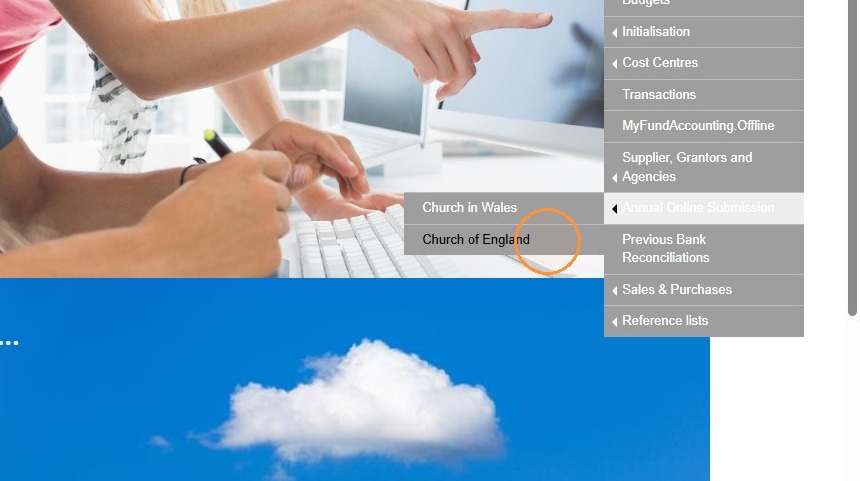
3. Choose "Church of England".
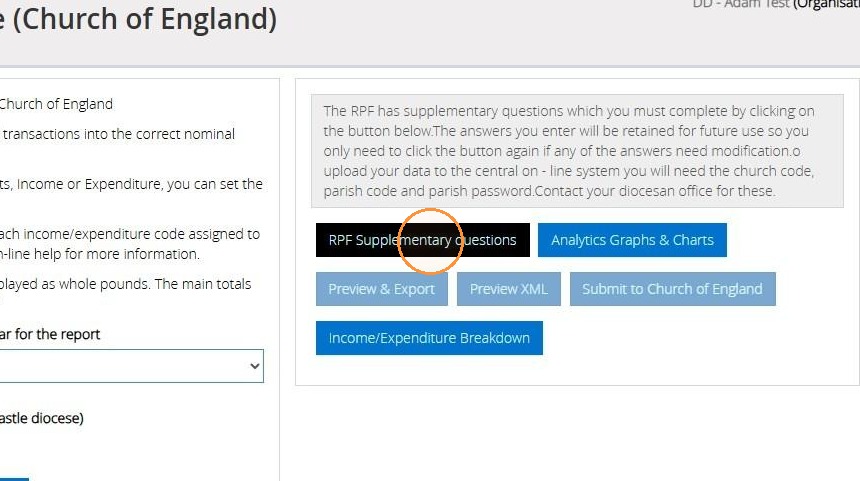
4. First of all, fill out the Supplementary questions. Select "RPF Supplementary questions".
5. Enter your "Diocese", "Deanery", and "Parish". Afterwards, you can choose the applicable church.
You will also need to fill in the "Number of Tax-Efficient Planned Givers", "Number of Other Planned Givers", "Number Of New Legacies Received", your "Name", "'Position", 'Enter Date' for submission, and email or telephone number.
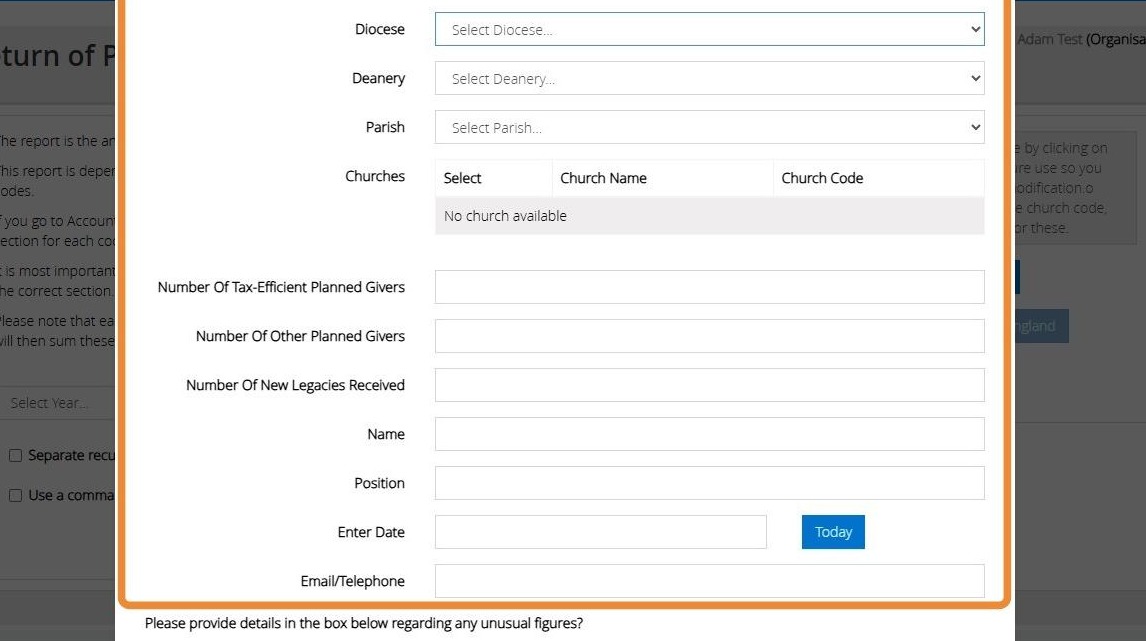
6. If there are any unusual figures in your accounts that you believe need explaining, you will need to provide their details in the textbox below.
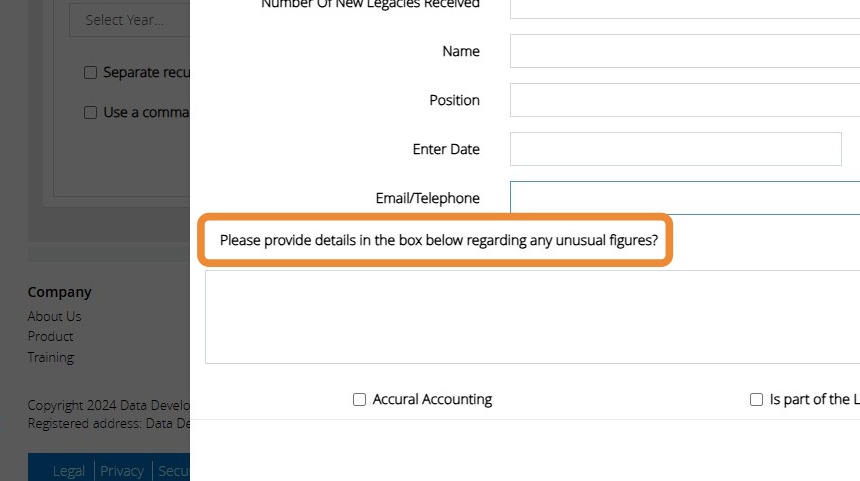
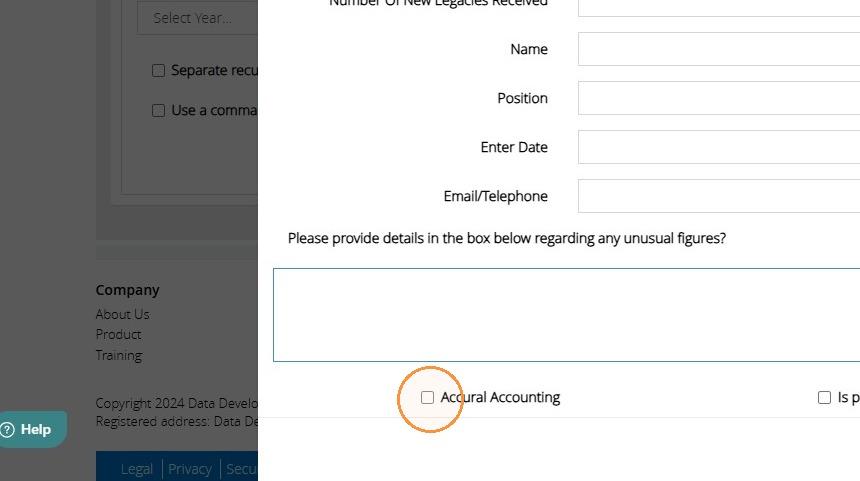
7. You can opt for "Accrual Accounting" if it aligns with your bookkeeping. Tick this box if this applies to you.
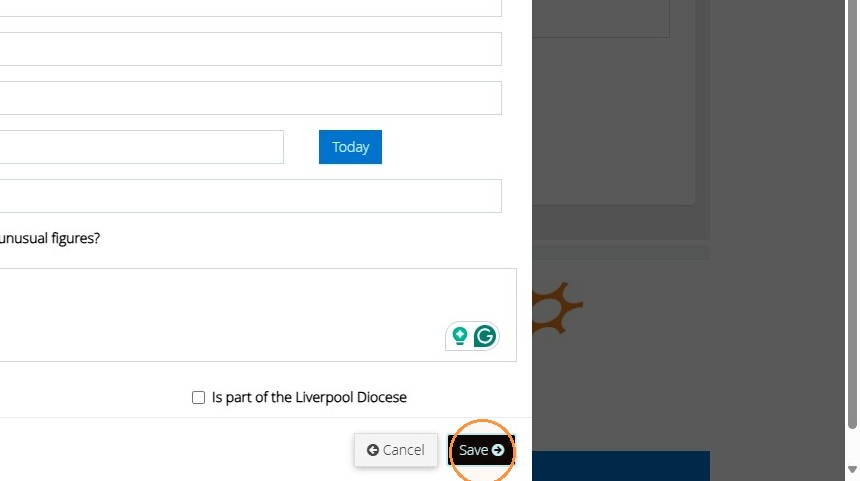
8. If you are part of Liverpool Diocese, make sure you tick the box labelled 'Is part of the Liverpool Diocese'.
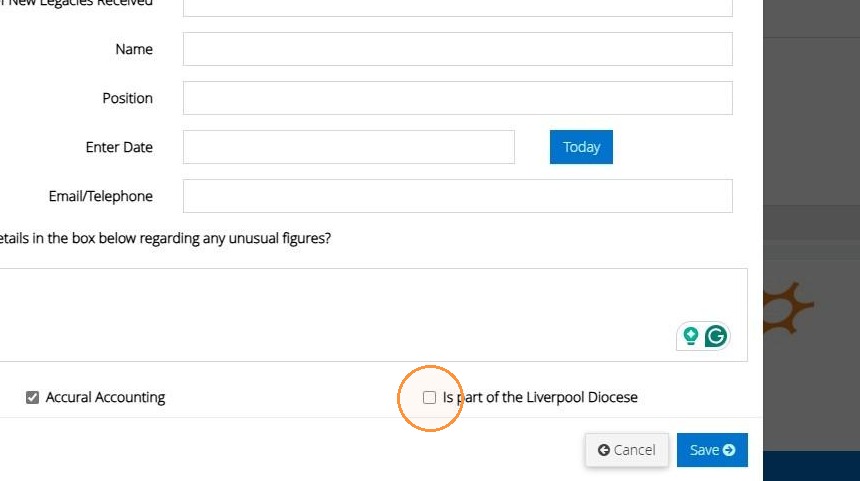
9. Once complete click "Save".
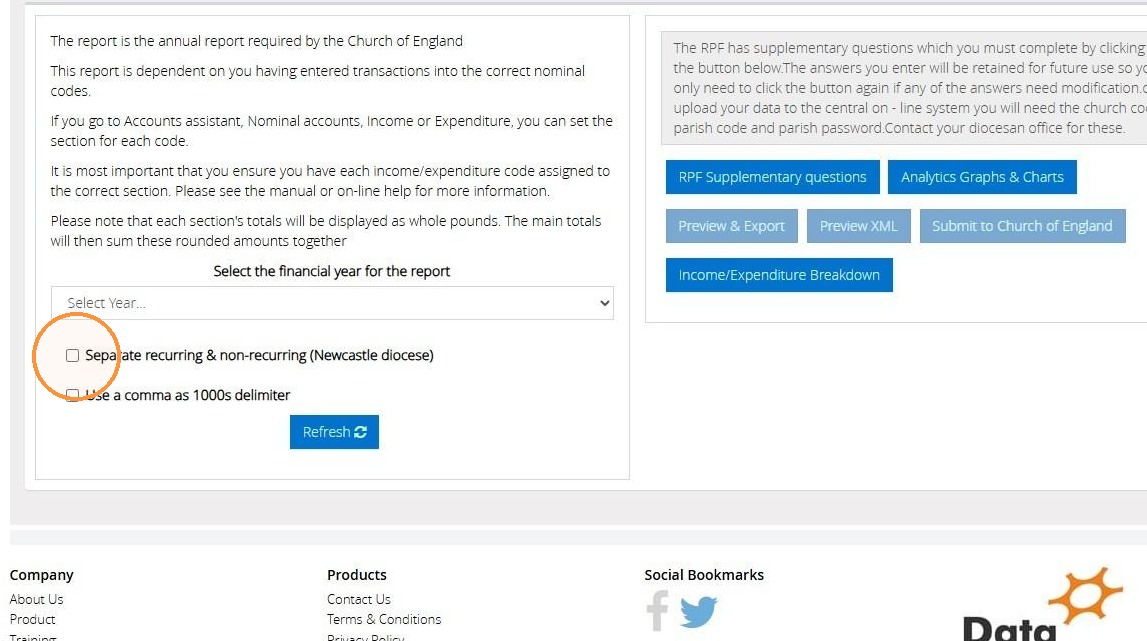
10. When generating the report, you can tick the boxes below to apply them to the report.'
"Separate recurring & non- recurring ( Newcastle Diocese)".
"Use a comma as 1000s delimiter".
Choose the year you wish to produce the report for.
Afterwards, click "Refresh".
Then select "Preview & Export".
Click "Preview" to view the Annual Report.
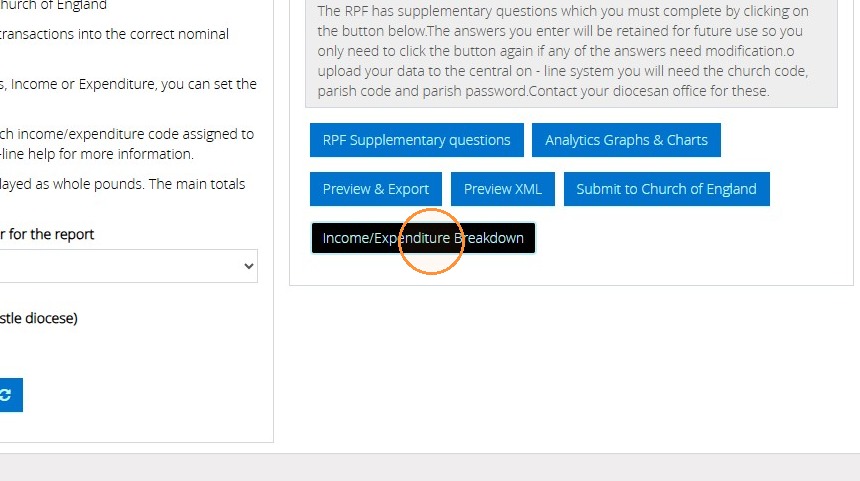
11. You can also view the nominal accounts comprising the income and expenditure, along with their assigned note numbers, by clicking on "Income/Expenditure Breakdown."
After selecting this option, choose the financial year you wish to produce the report for.
Click "Refresh". Then Click "Preview & Export".
Then "Preview" to view the "Income and Expenditure Breakdown."
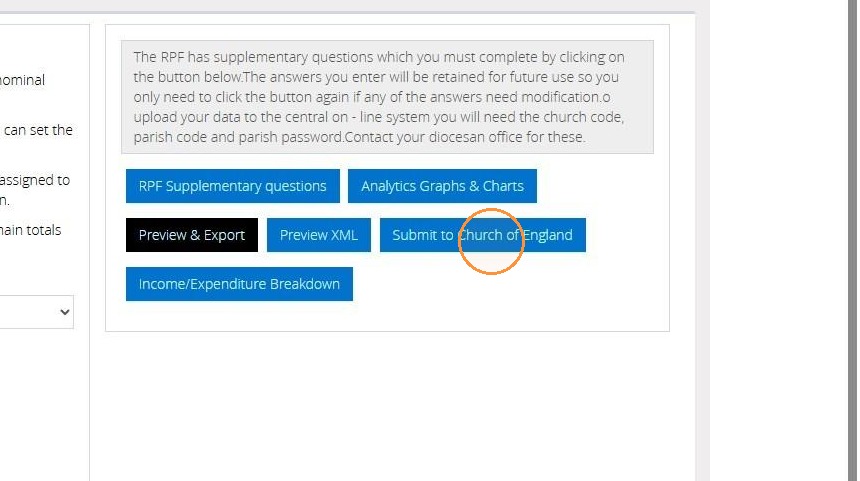
12. Once you have checked the information and made sure it's correct, you can choose the option to "Submit it to Church of England."
Tip: We hope you found this guide helpful and easy to follow. If you require any further assistance, please contact our support team by telephone on 01902 714030 or by email at support@datadevelopments.co.uk.