
1. Click "Transactions".
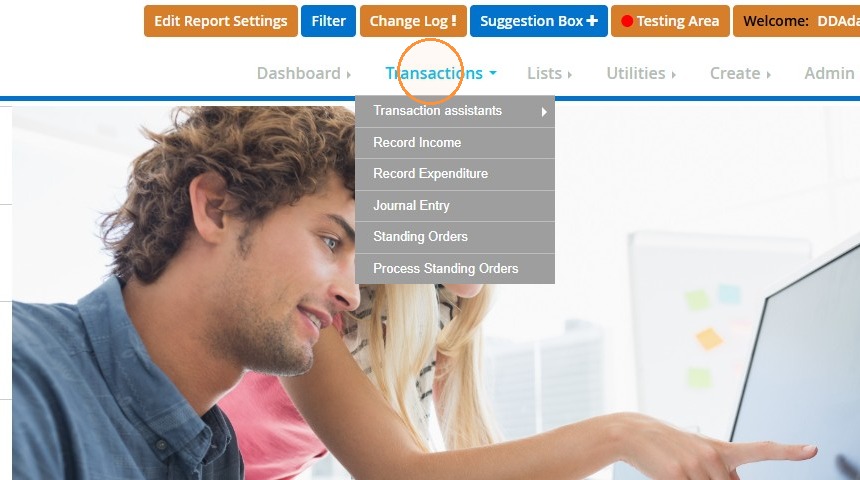
2. Select "Transaction assistants".
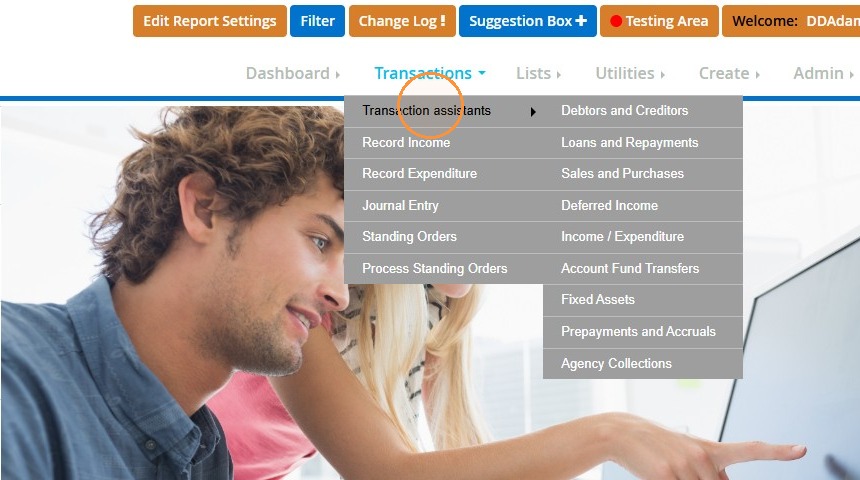
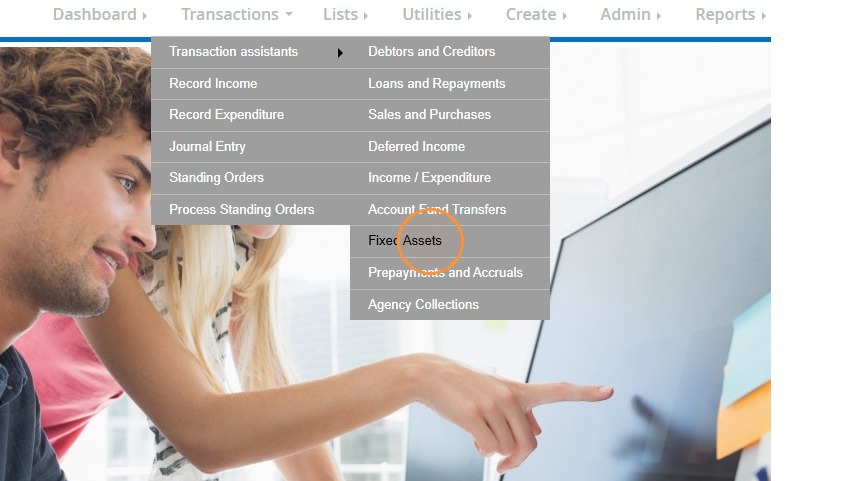
3. Choose "Fixed Assets".
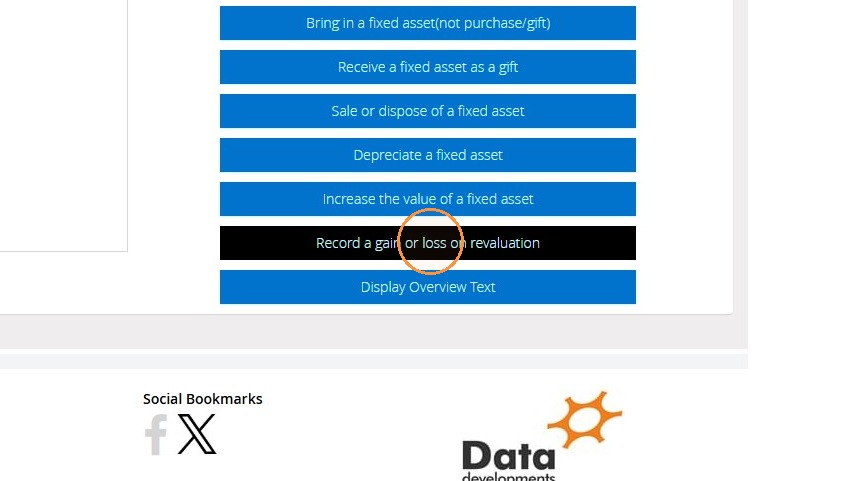
4. Select the option "Record a gain or loss on revaluation".
5. Select your fixed asset that needs revaluating.
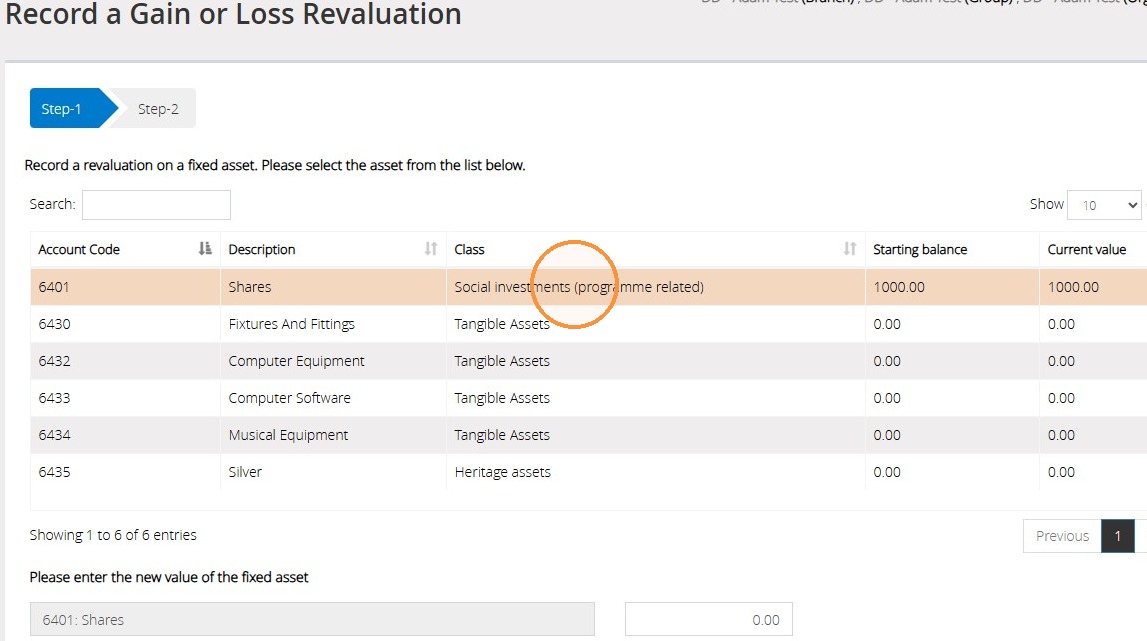
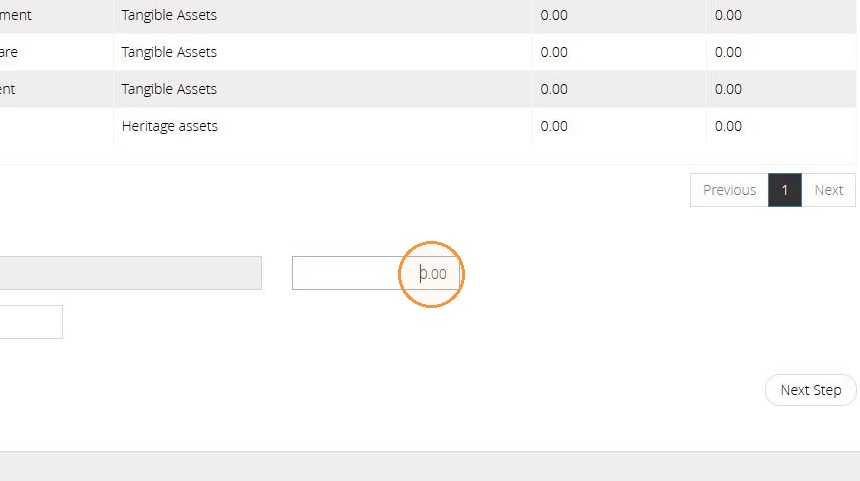
6. Enter the new full "Amount" of the asset.
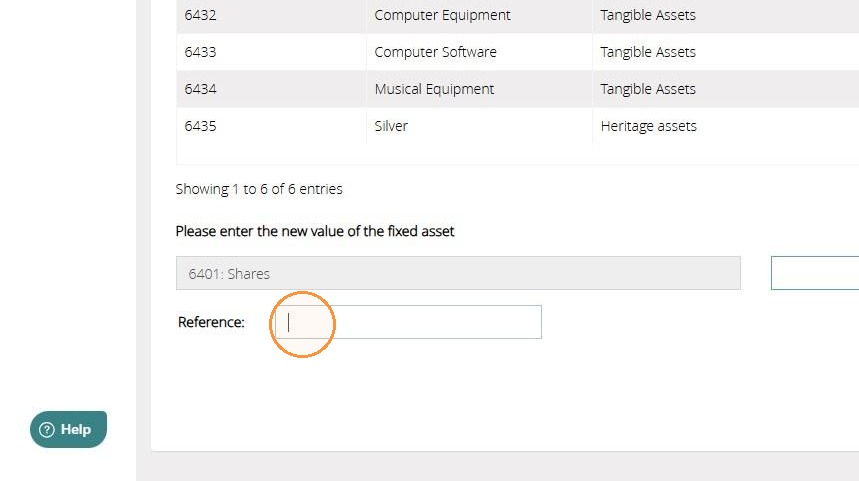
7. You may enter a "Reference" if required.
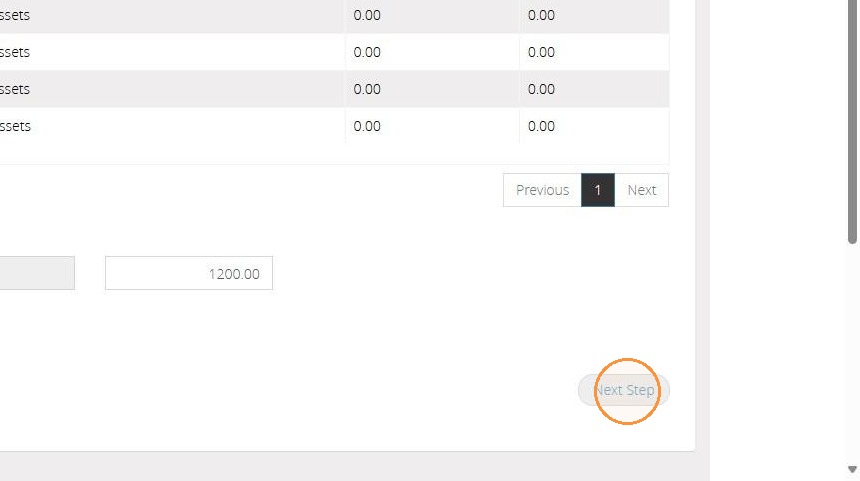
8. Then click "Next Step".
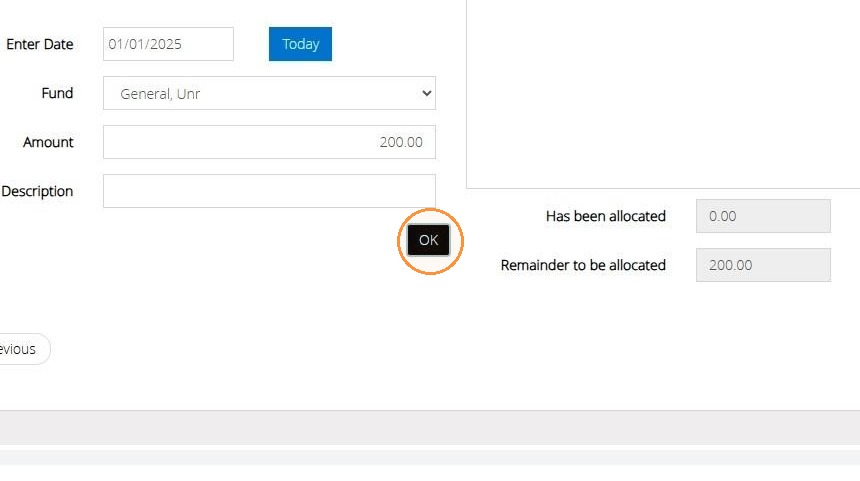
9. Enter the "Date" the revaluation has taken place.
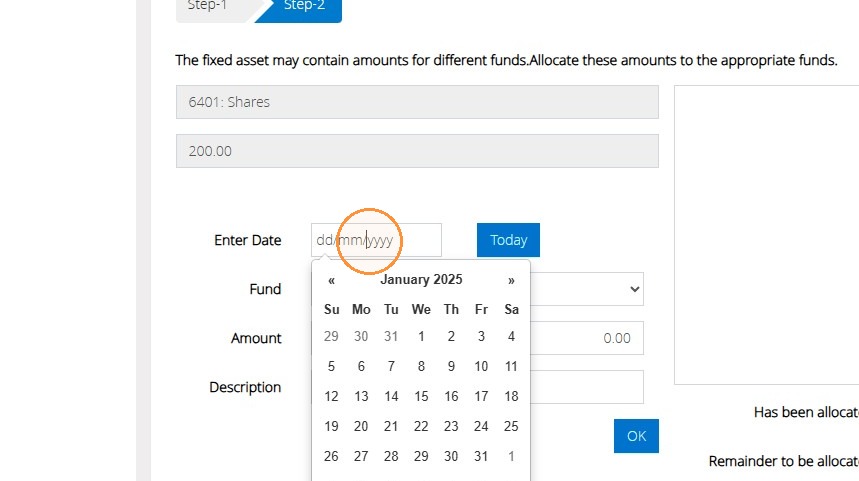
10. Choose the "Fund" associated with this asset.
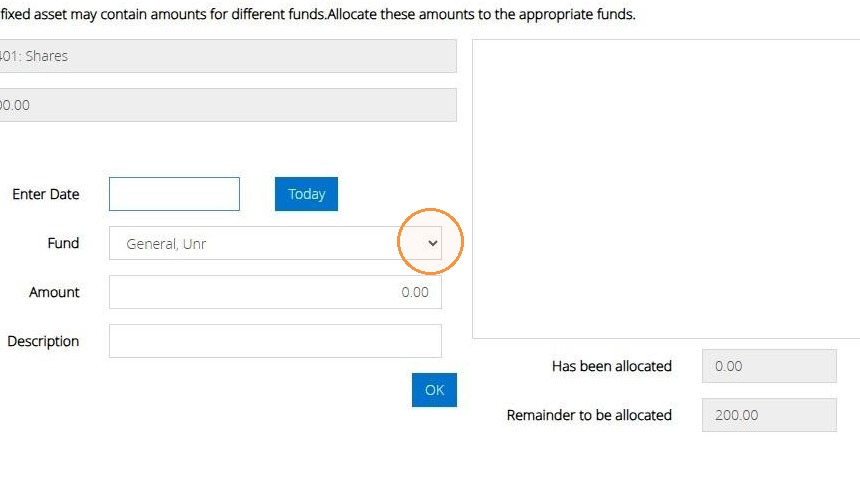
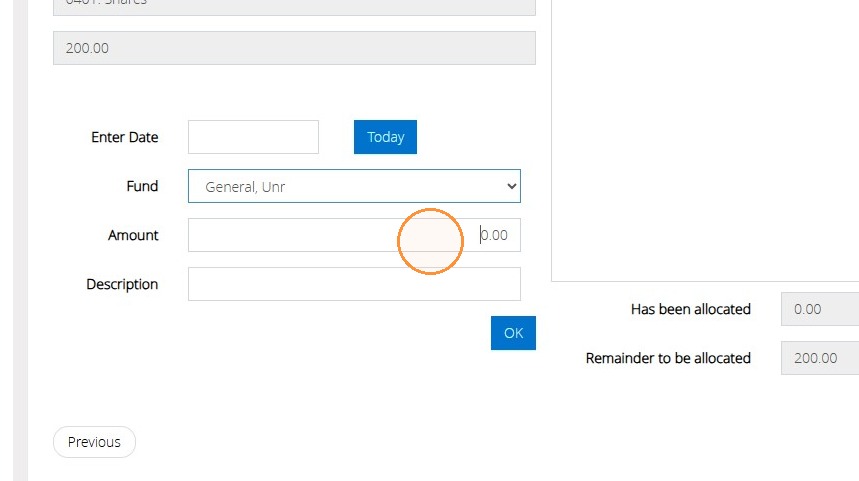
11. Enter the difference between the old amount and the new amount. This will appear in "Remainer to be allocated". Regardless of whether this is a gain or loss, you can enter this as a positive amount. The system will work out if it's a gain or a loss based on the previous valuation.
12. You can enter a "Description" if required.
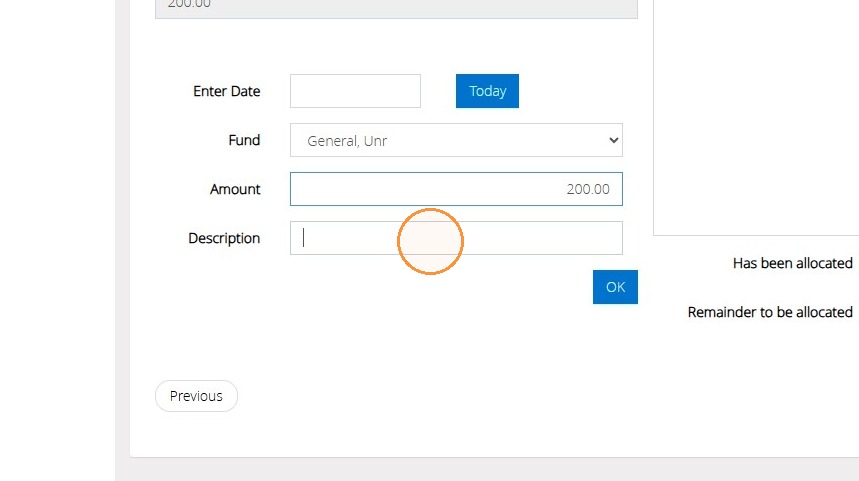
13. Once completed click "OK"
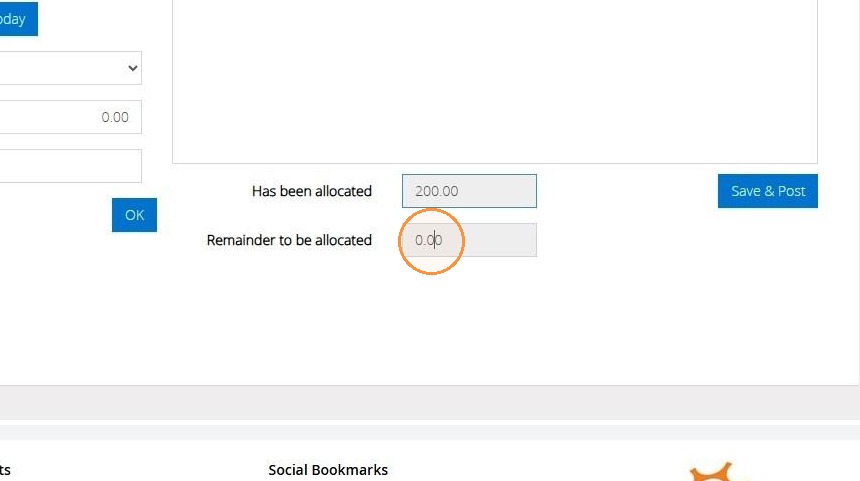
14. Once you have allocated the full amount, the "Remainder to be allocated" will be 0 and "Has been allocated" will have the full amount allocated.
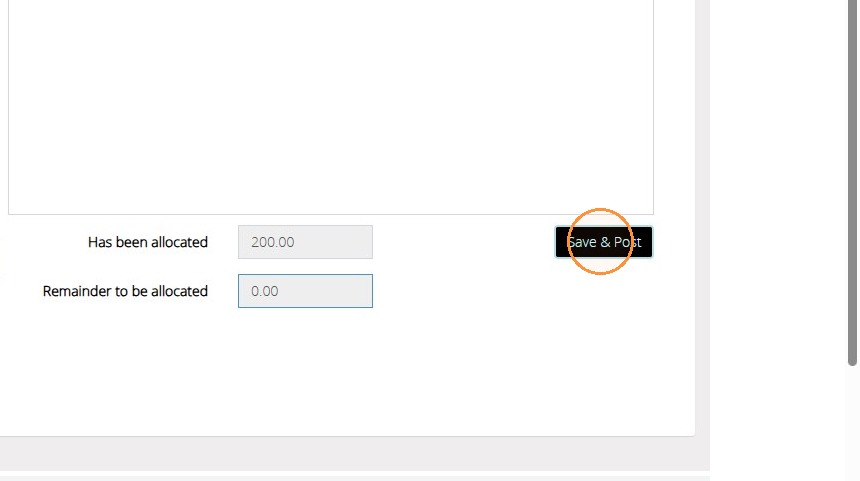
15. Once you have allocated the full amount you will be able to click "Save & Post".
We hope you found this guide helpful and easy to follow. If you require any further assistance, please contact our support team by telephone on 01902 714030 or by email at support@datadevelopments.co.uk