
This guide provides a step-by-step walkthrough for updating a member's contact information within MyRollCall.Online. Follow these instructions to associate a new location, such as a university address for example, with a specific individual profile.
1. Start by going to the MyRollCall.Online dashboard and logging in to your accounthttps://www.myrollcall.online/dashboard

2. Click 'Member'.

3. Click 'View and Edit Members'.

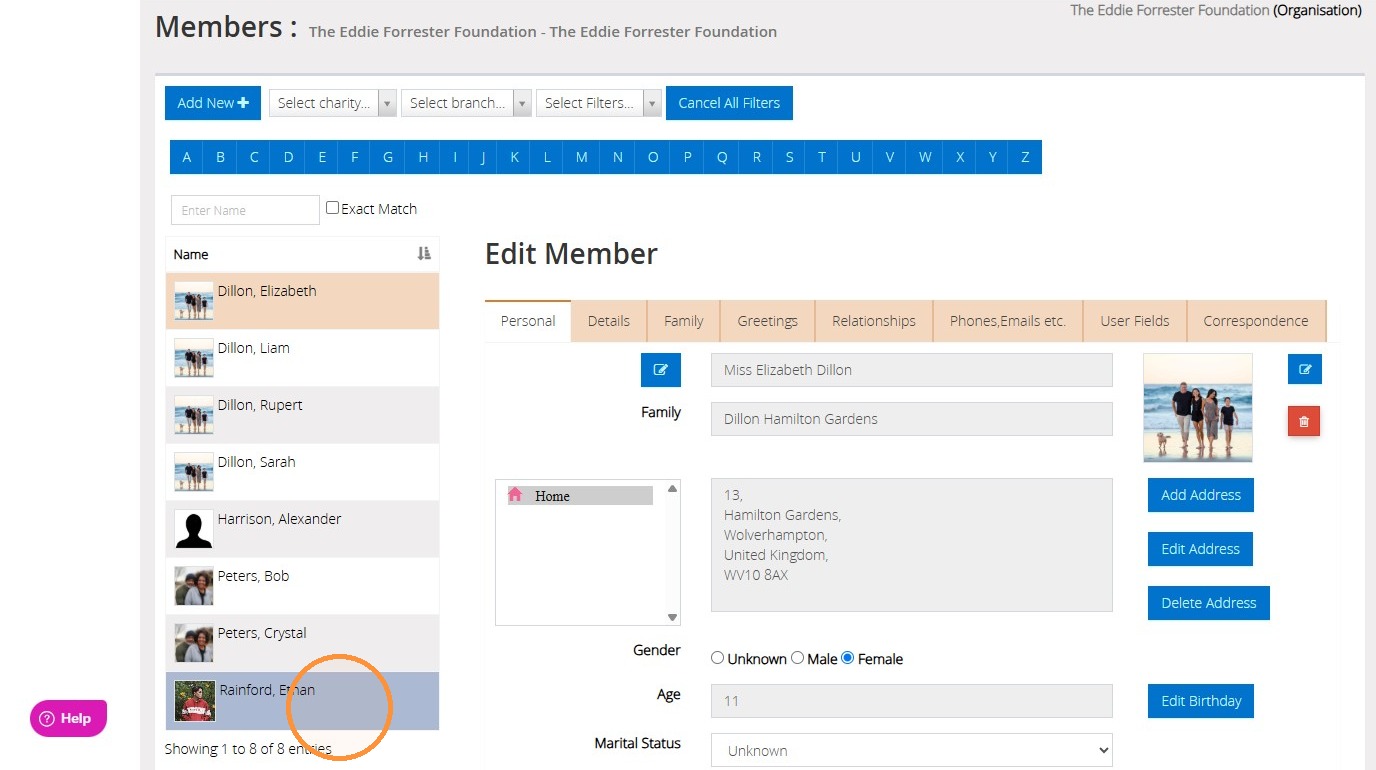
4. Using the sidebar, navigate to the record you wish to update.
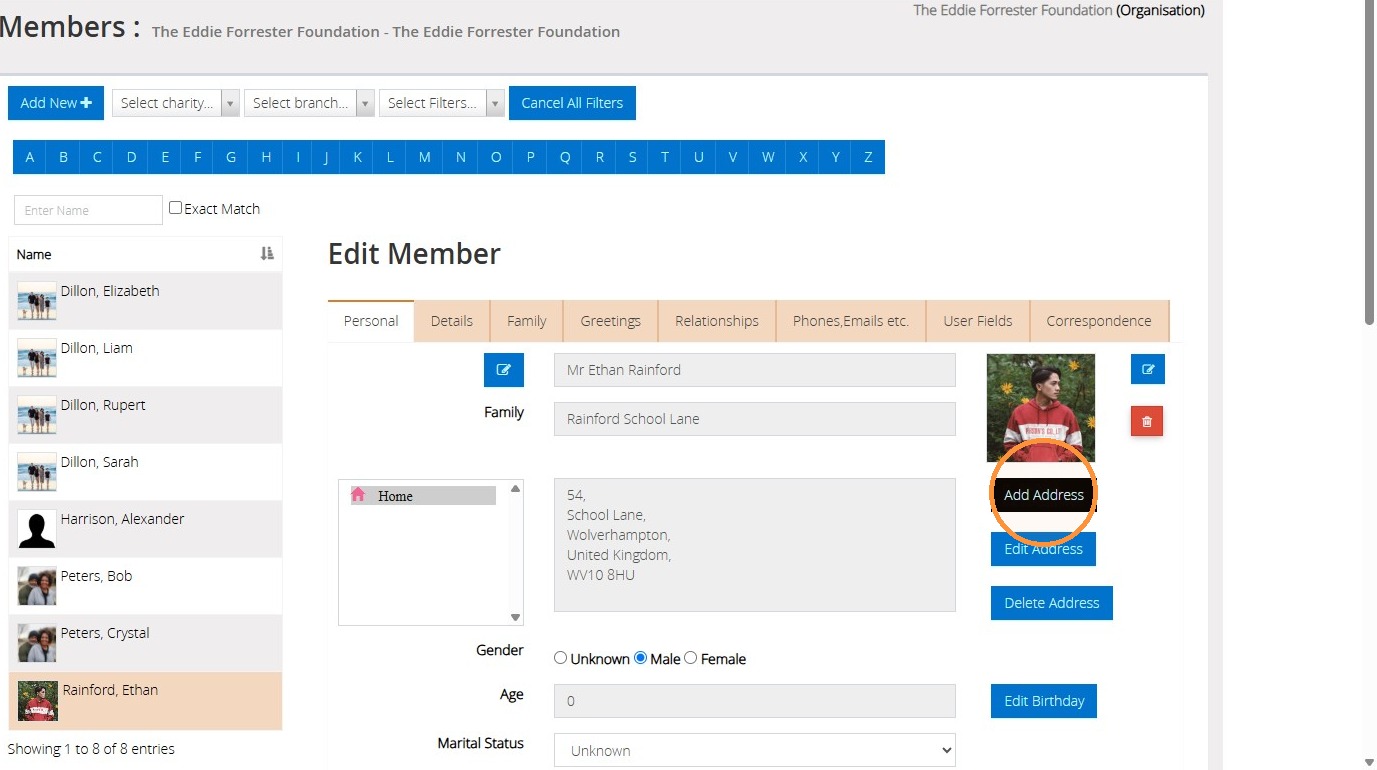
5. Click 'Add Address'.
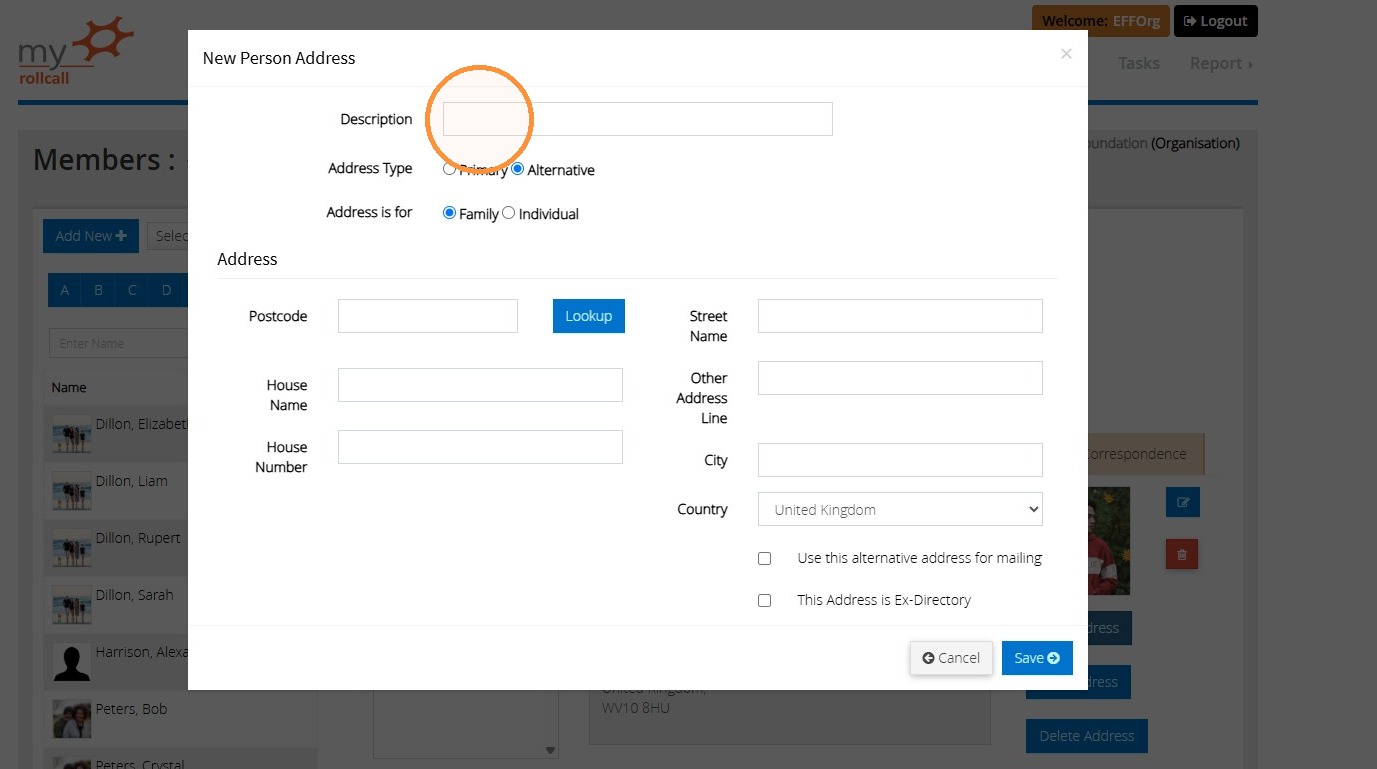
6. Enter an appropriate name for this address in the Description Field.
For this example, we will be using 'University'.
7. Here you can select whether this new address should be treated as the 'Primary' address (for e.g., the person's/families' main residence), or as an 'Alternative' address (for e.g., an address in addition to the one where they would normally reside).
You can also choose whether this address should be applied to the whole family, or just the individual whose record you are currently updating.
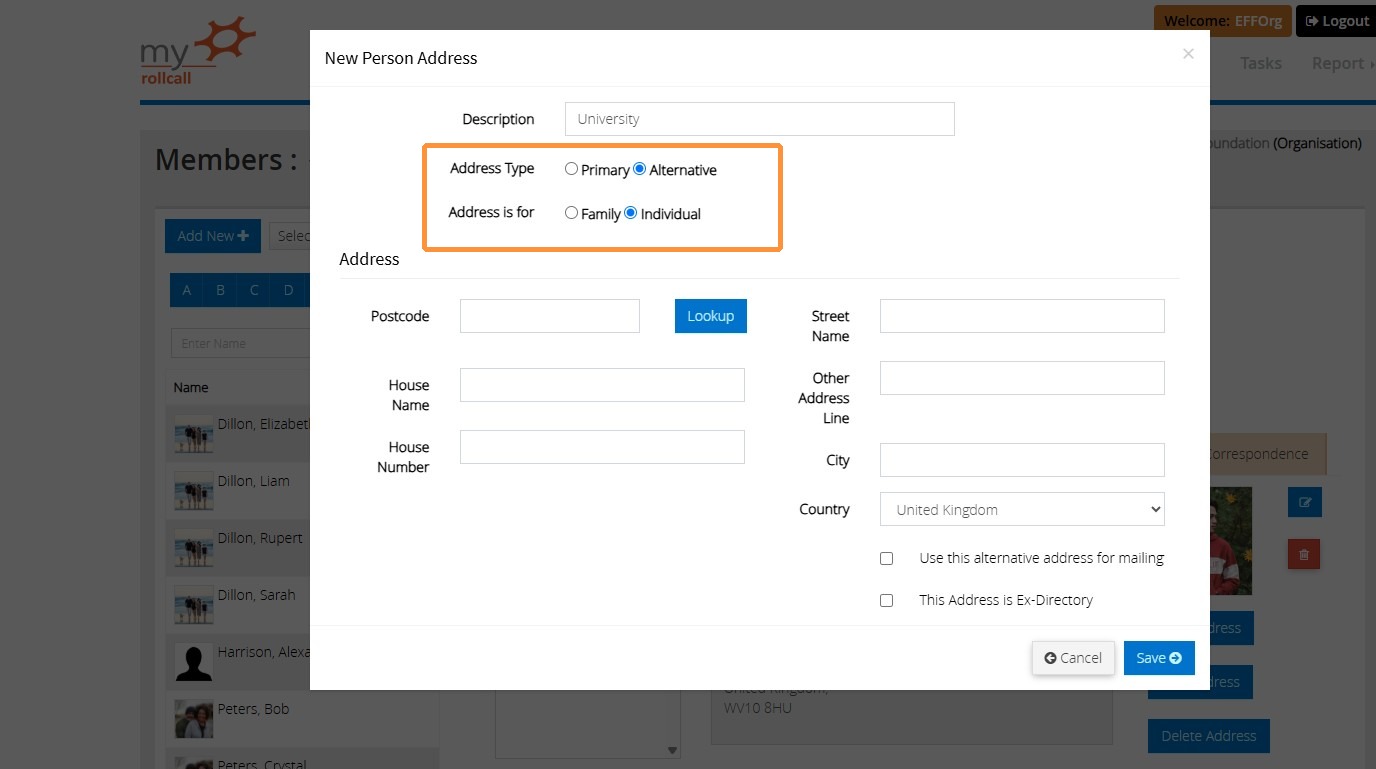
Tip: Tip! You can use this feature to record as many additional addresses for an individual or a family as you wish to. For example, you could use it to record work or school addresses.
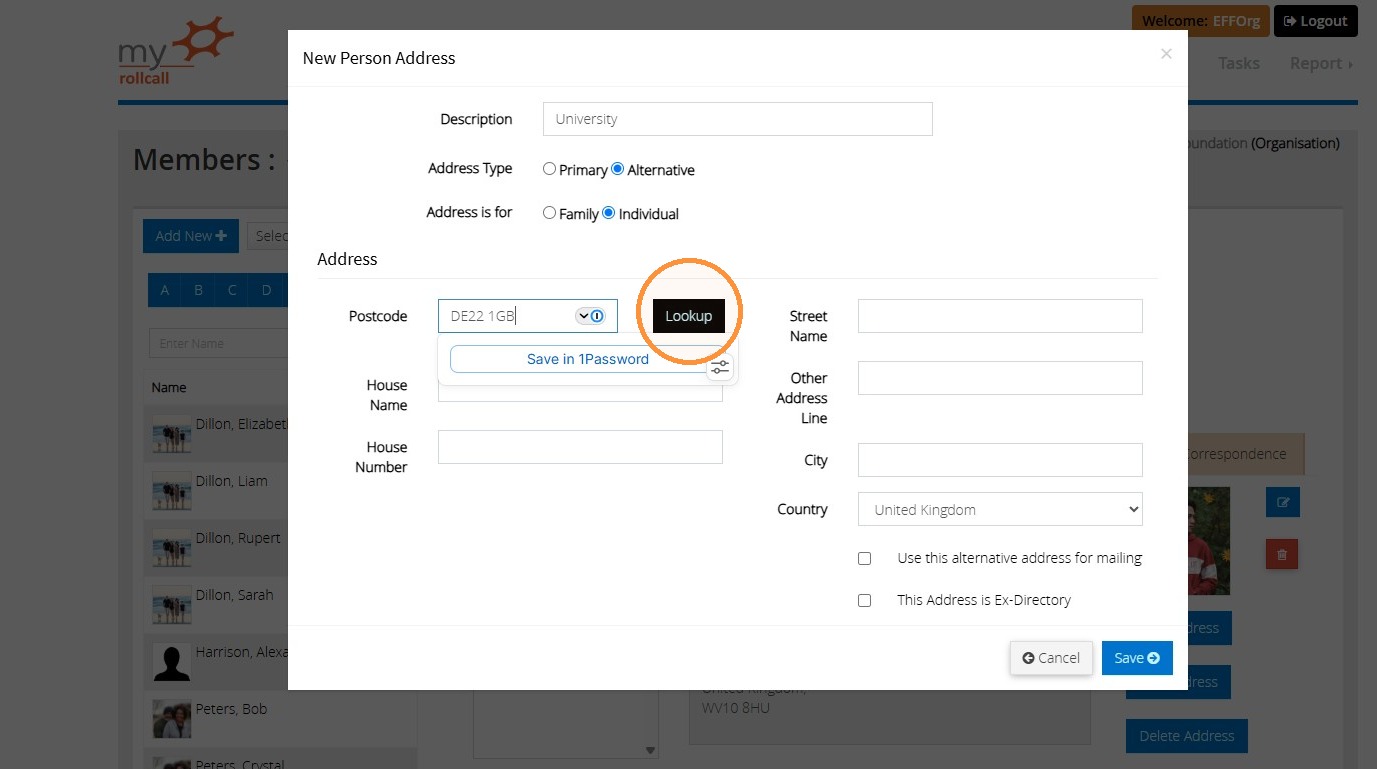
8. Enter the postcode of the address and then click 'Lookup'.
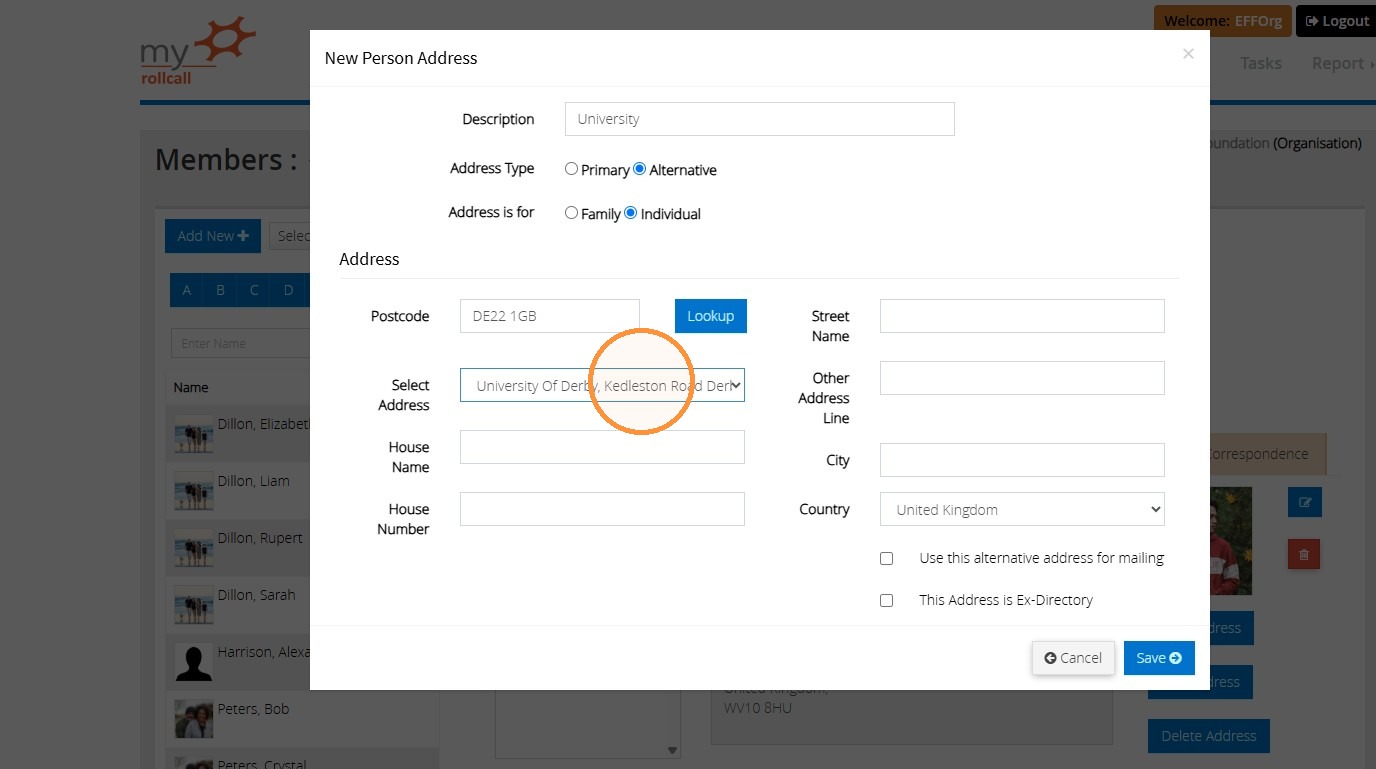
9. Select the correct address from the 'Select Address' dropdown list.
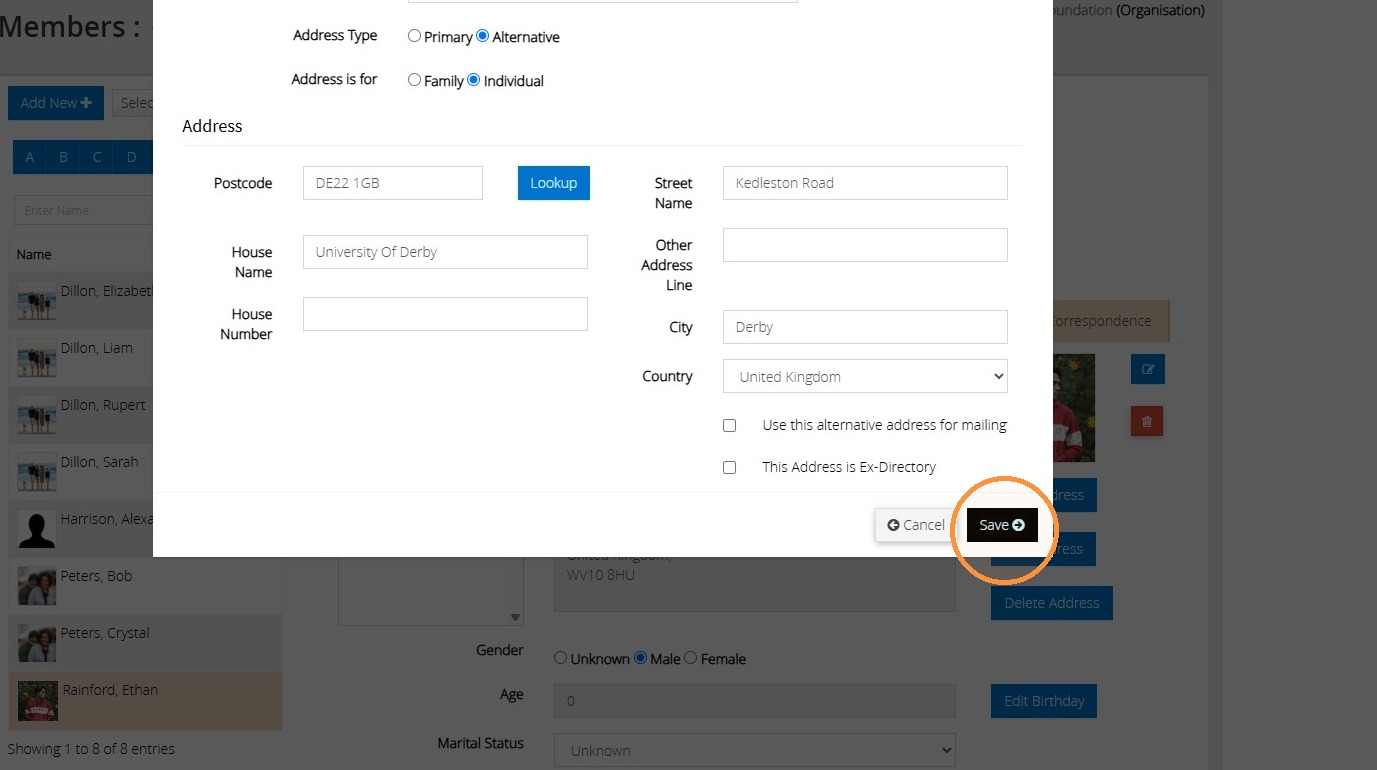
10. Once complete, click "Save".
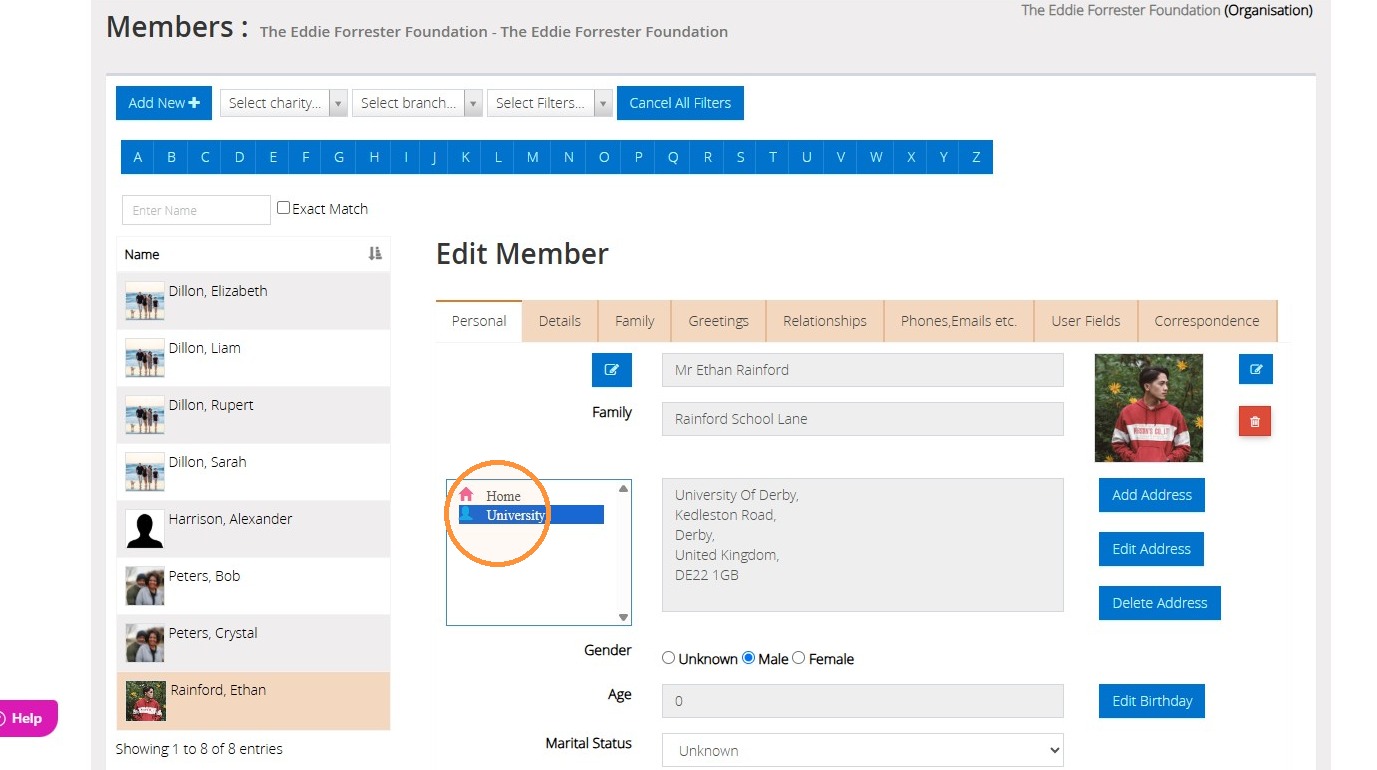
11. You will now see this new address listed on the member's record, and you can switch between them as needed.
The 'Silhouette' icon indicates that this is an address for this individual only, whilst the 'House' icon shows that it is an address associated with the family.
We hope you found this guide helpful and easy to follow. If you require any further assistance, please contact our support team by telephone on 01902 714030 or by email at support@datadevelopments.co.uk