
How to locate the Transfer facility
1. Choose "Transactions"
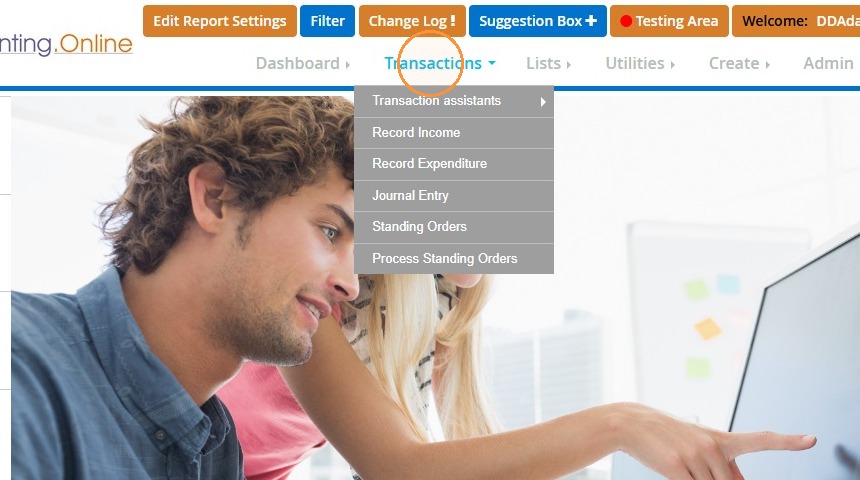
2. Hover over "Transaction assistants"
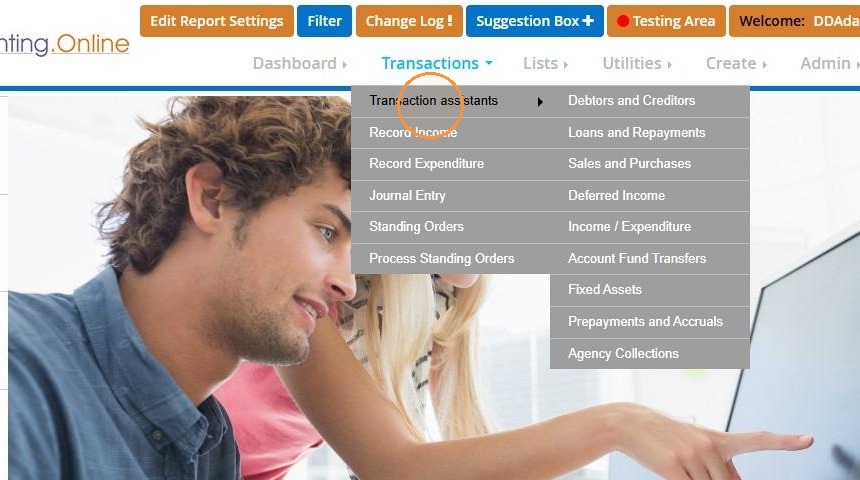
3. Click on "Account Fund Transfers"
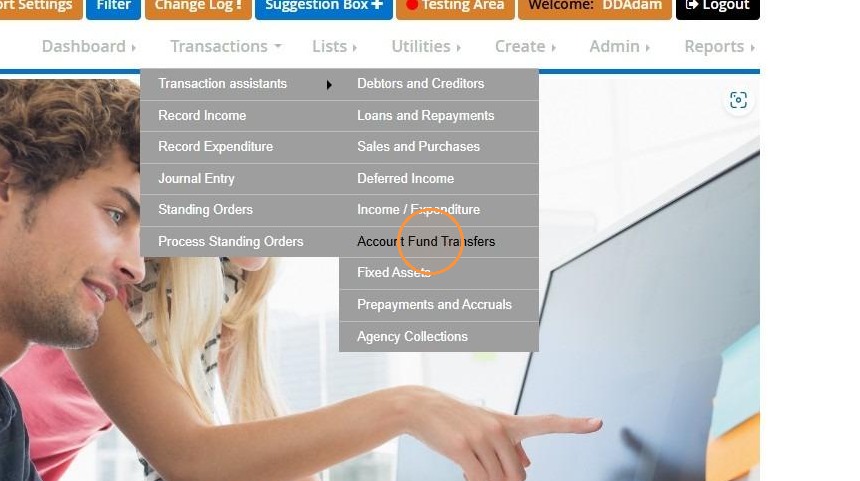
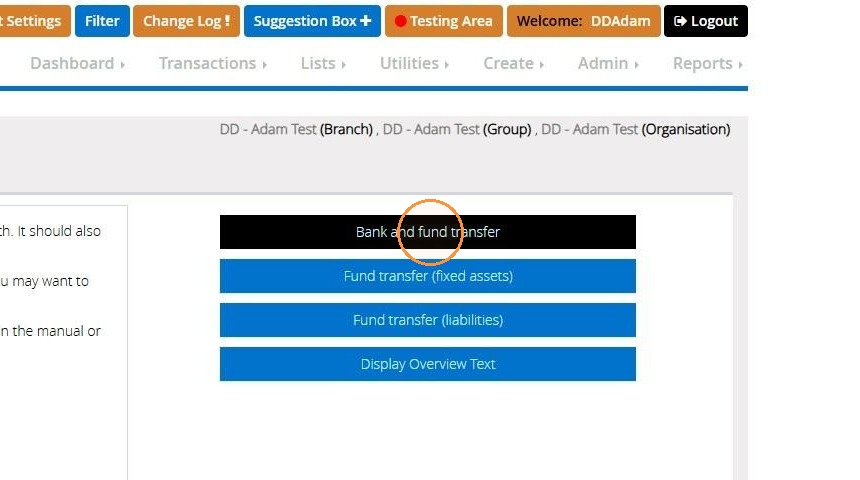
4. This will bring you to a list of 3 Types of transfers : Bank and Fund Transfer, Fund Transfer (Fixed assets) and Fund Transfer (Liabilities)
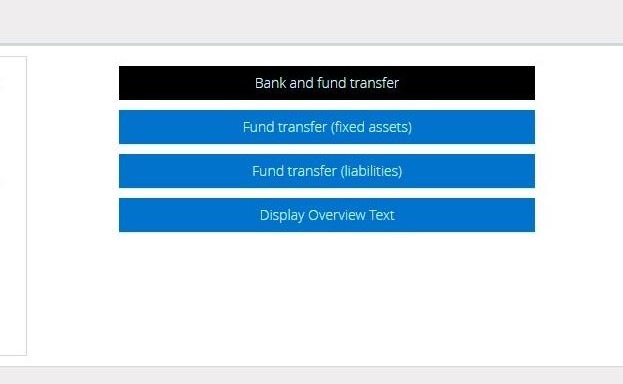
Bank and Fund Transfers
5. First on the list is "Bank and fund transfer," which relates to any current asset held in MyfundAccounting.Online.
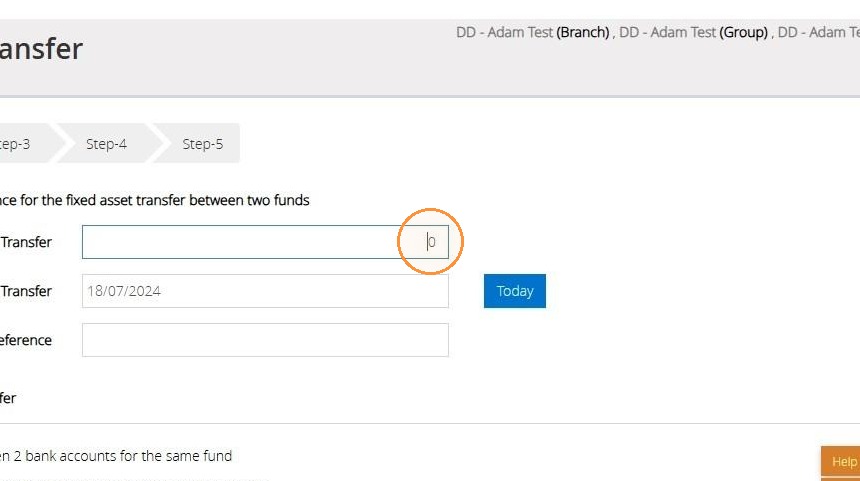
6. On step 1 you will enter the amount you require to be transferred.
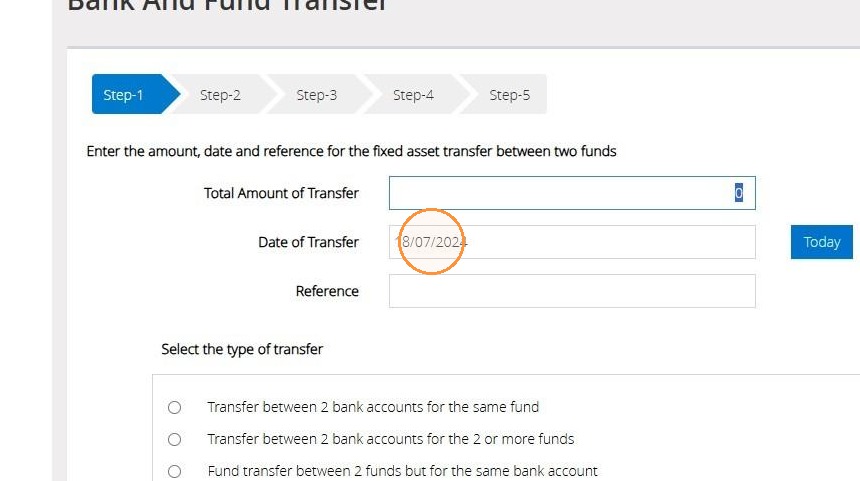
7. Next select the date of your transfer.
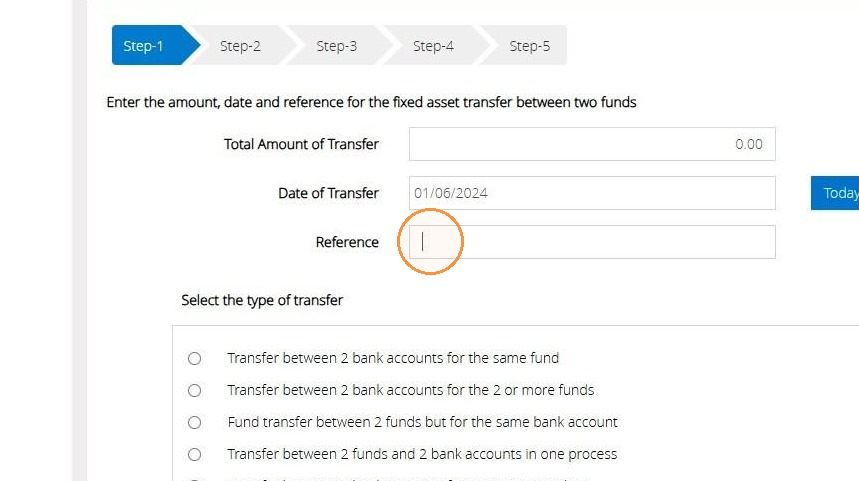
8. You may choose to enter a Reference.
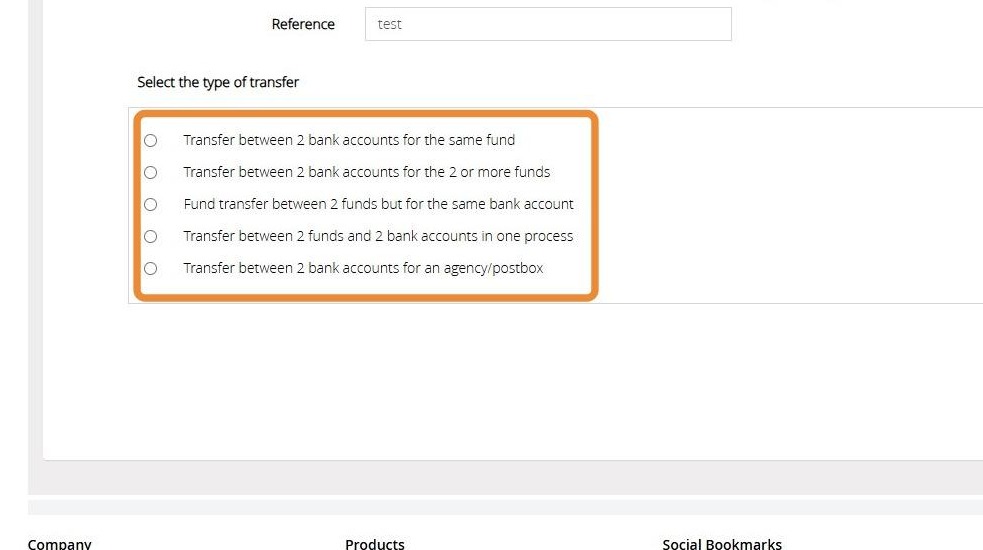
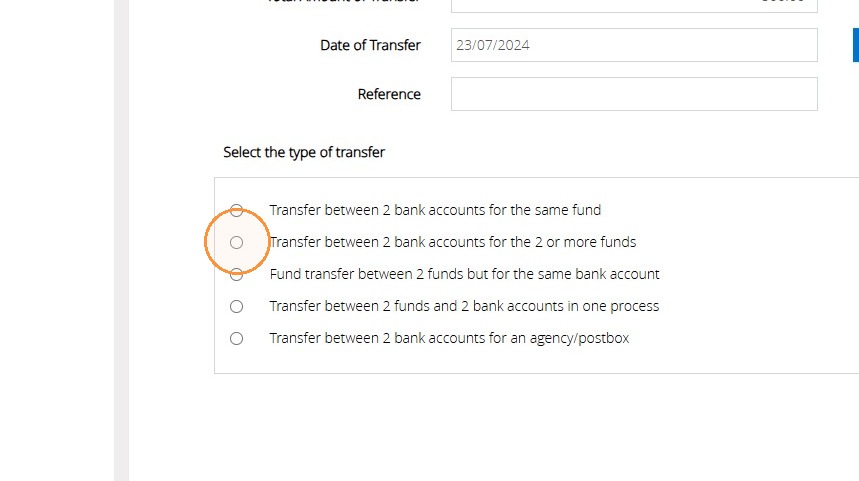
9. For the final portion of step one, you need to select the type of transfers you wish to make.
The transfer types include:
- Transfer between 2 bank accounts for the same fund.
- Transfer between 2 bank accounts for the 2 or more funds.
- Fund Transfer between 2 funds but for the same bank account.
- Transfer between 2 funds and 2 bank accounts in one process.
- Transfer between 2 bank accounts for an agency/postbox.
The transfer options are designed for specific types of fund transfers, allowing us to record them directly without the necessity for journal entries.
Transfer Type 1 -Transfer between 2 bank accounts for the same fund
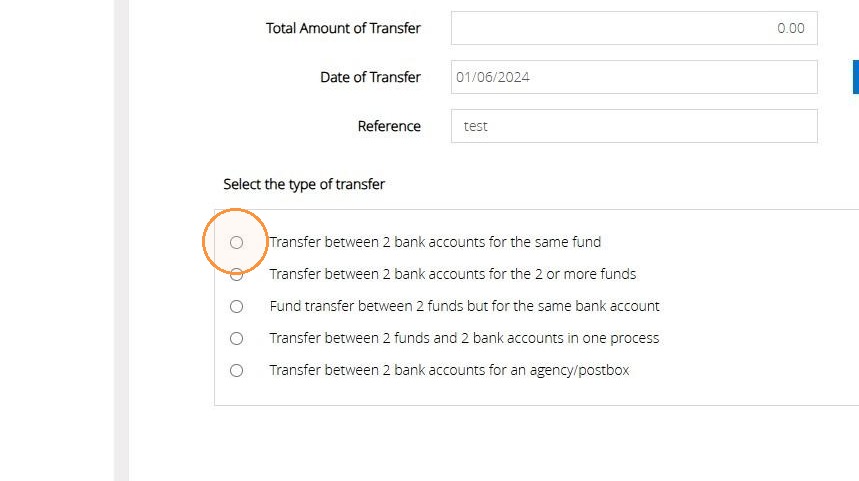
10. Click "Transfer between 2 bank accounts for the same fund". Then select "Next Step".
11. On Step 2.
Select the account the money is being transferred out of.
On this step, at the bottom, you have the option to add a "Description" to the transfer. Then click "Next Step".
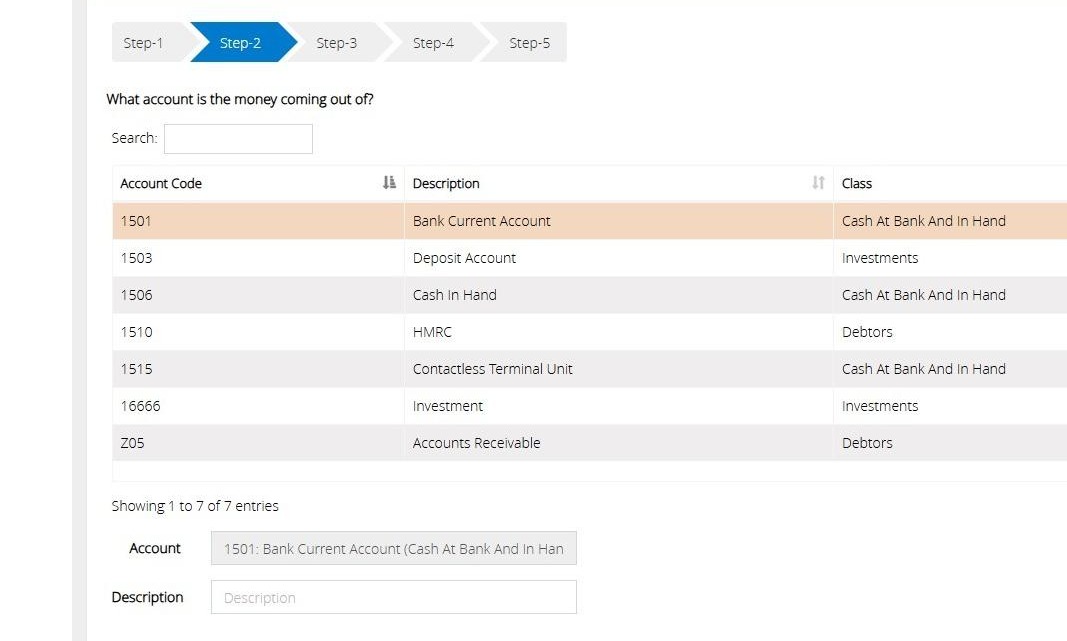
Tip: Tip: If the asset you are looking for is not visible, please note that there is a "Next" button available above the "Next step" button, as only 10 assets are displayed on the screen when entering this step. You can increase the displayed list by selecting the "Show entries" drop down.
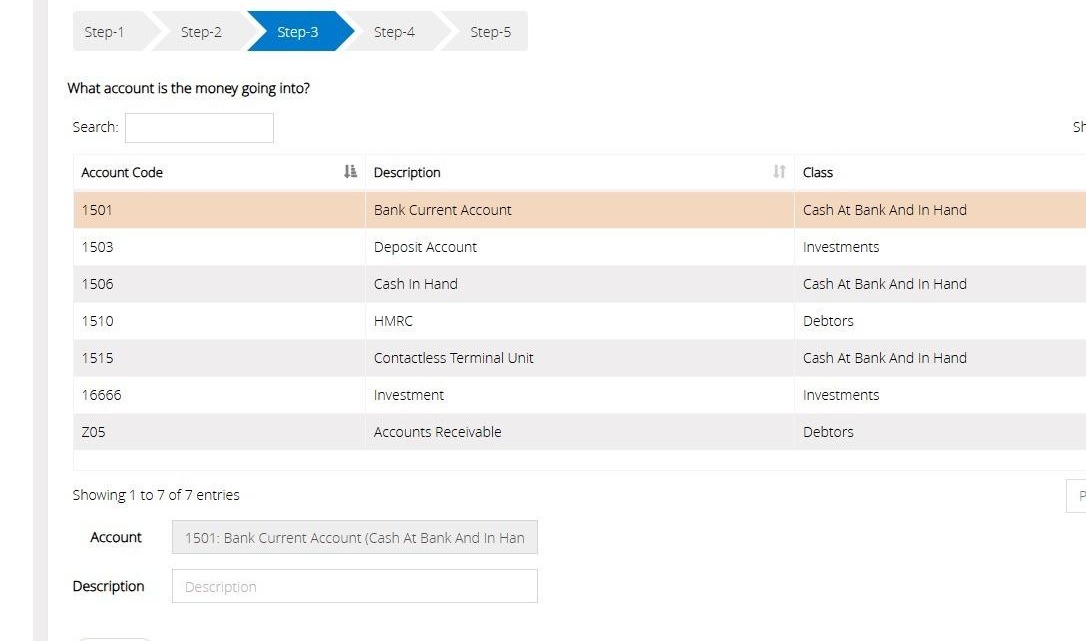
12. On Step 3.
Select the account the money is being transferred into.
Then click "Next Step".
13. On Step 4.
"Select the fund that this money belongs to."
Then click "Next Step"
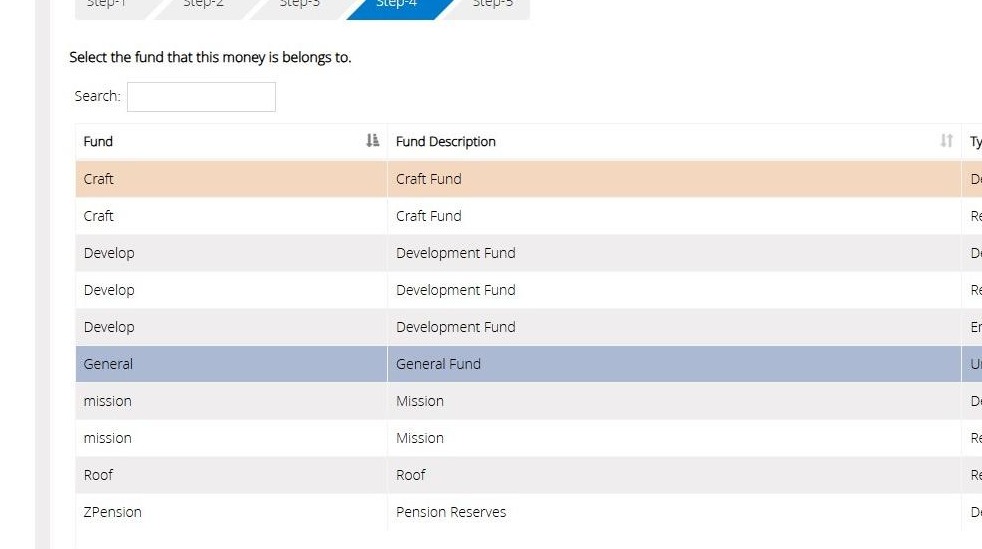
Tip: Tip: Please note that if a fund is not visible on the fund list mentioned above, you can click the 'Next' button located above 'Next Step' to access further funds on the next page. Alternatively, you can use the 'Show Entries' dropdown menu to increase the entries appearing on a single page.
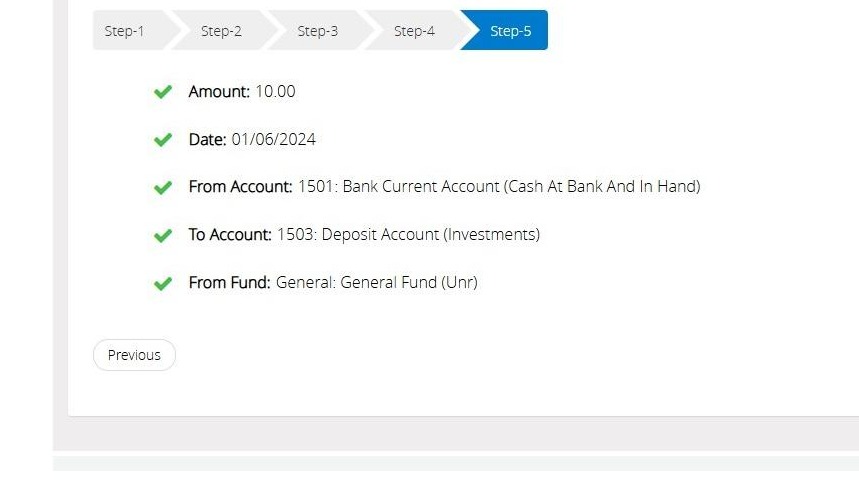
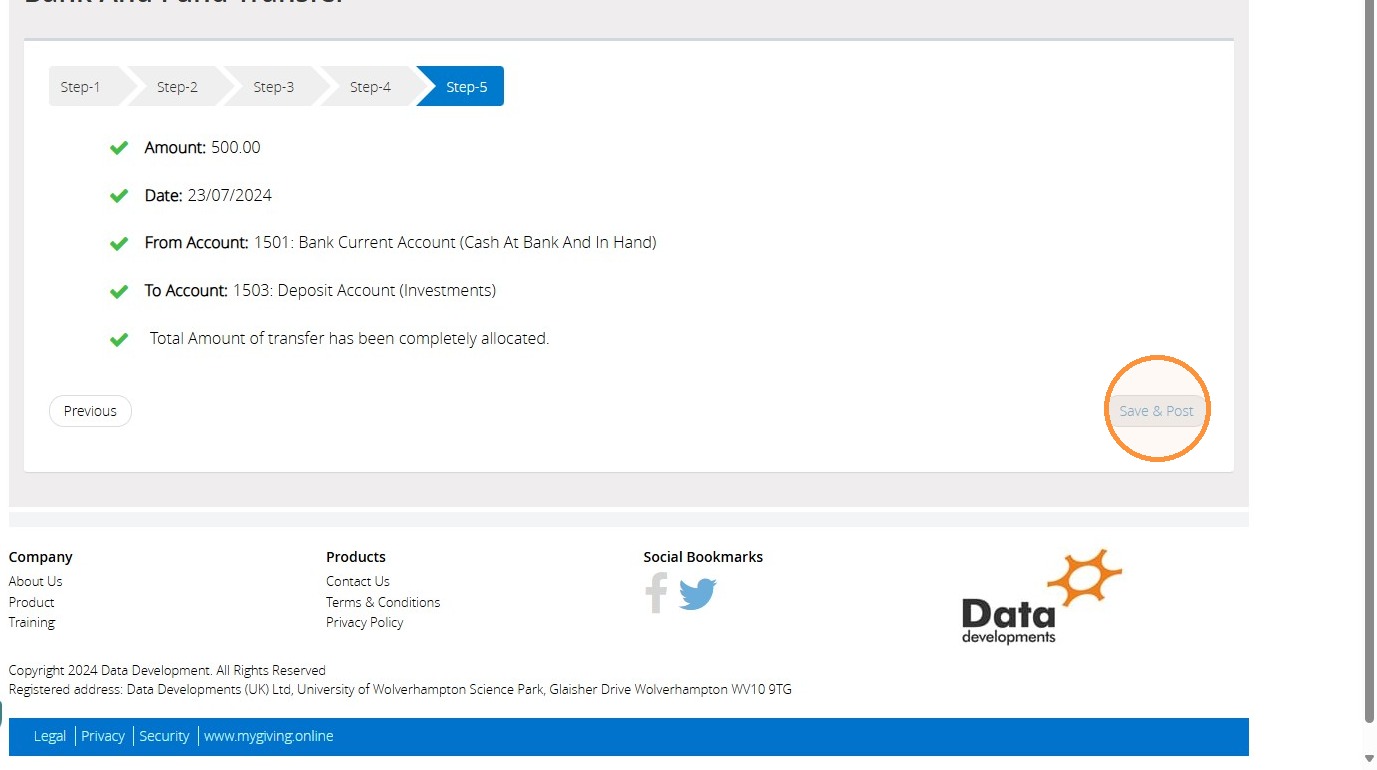
14. On step 5.
Review all the information you entered on the previous steps. Click 'Save & Post' to confirm this information. Otherwise, select 'Previous' to return to the previous steps..
Transfer Type 2 - Transfer between 2 bank accounts for the 2 or more funds.
Tip: Tip! This type of transfer is very useful, if you need to transfer to more than one fund between two bank accounts.
15. Select the "Transfer between 2 bank accounts for the 2 or more funds" option. Then click "Next Step".
16. On Step 2.
Select the account the money is being transferred out of.
Here you may add a "Description".
Then click "Next Step"
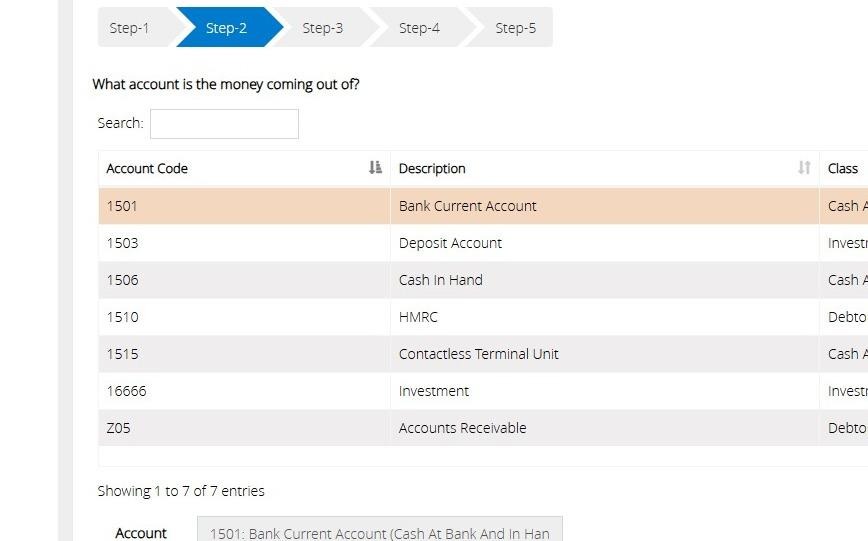
Tip: Tip: If the asset you are looking for is not visible, please note that there is a "Next" button available above the "Next step" button, as only 10 assets are displayed on the screen when entering this step. You can increase the displayed list by selecting the "Show entries" drop down.
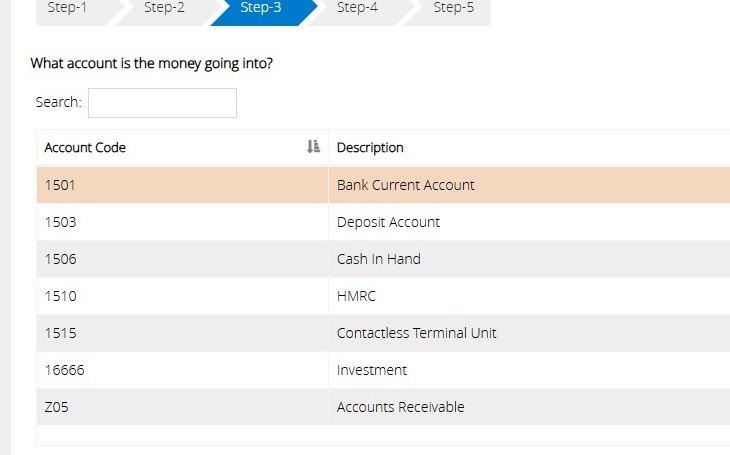
17. On step 3.
Select the account the money is being transferred into.
Here you may add a "Description".
Then click "Next Step".
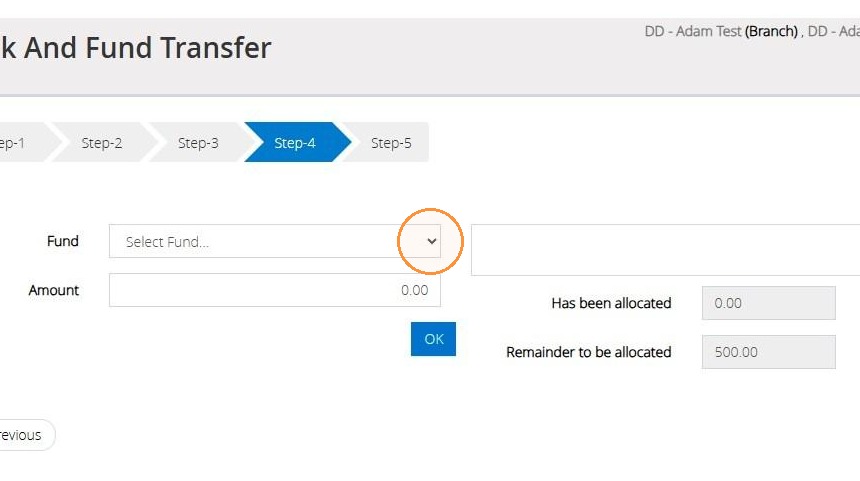
18. On Step 4.
You will need to select the funds you wish to transfer to one at a time via the dropdown menu.
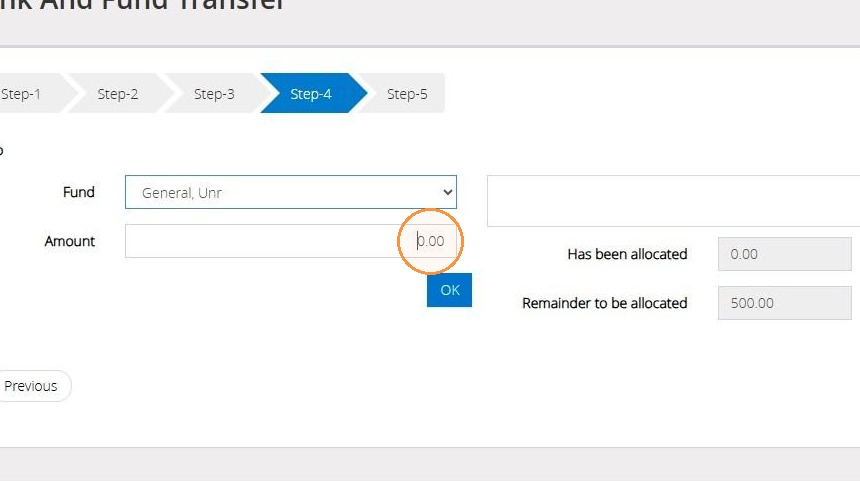
19. After selecting the first fund, enter the amount you wish to transfer to it. Then click 'OK'.
20. This will move the transfer amount to the right-hand side. Additionally, the "has been allocated" section will update with the amount you've entered and the "remainder to be allocated" will correspondingly decrease by the amount entered.
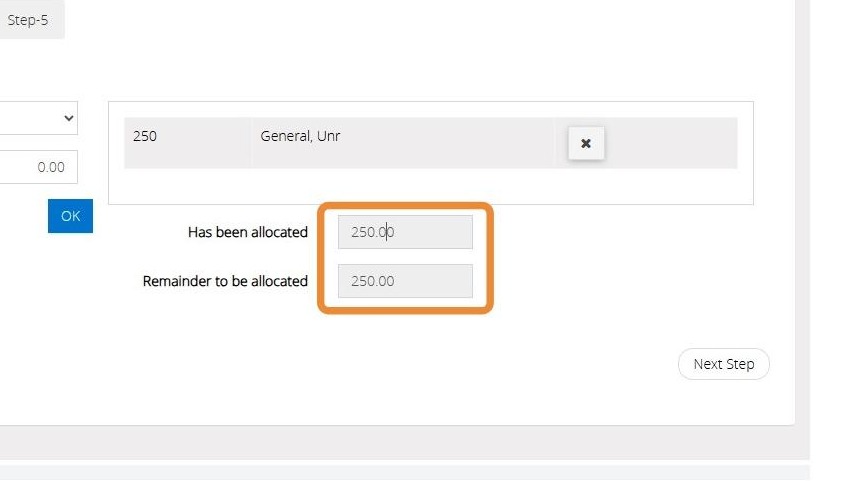
21. Repeat the steps above until all the funds you require have been allocated. Then click "Next Step".
22. On step 5.
Review all the information you entered on the previous steps. Click 'Save & Post' to confirm this information. Otherwise, select 'Previous' to return to the previous steps.
Transfer Type 3 - Fund Transfer between 2 funds but for the same bank account.
Tip: Tip! This type of Transfer is very useful for moving funds within the same bank account if the distribution is incorrect.
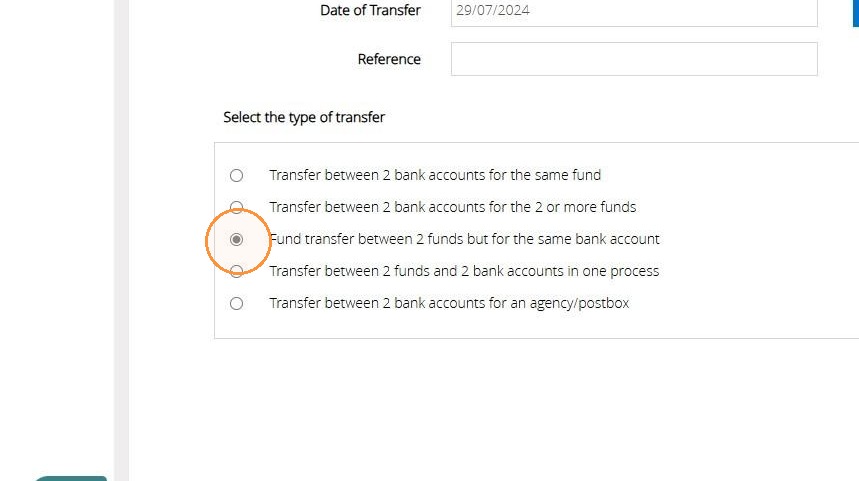
23. Enter an Amount to be transferred, Date of Transfer and Reference if required. Select "Fund transfer between 2 funds but for the same bank account". Then click "Next step".
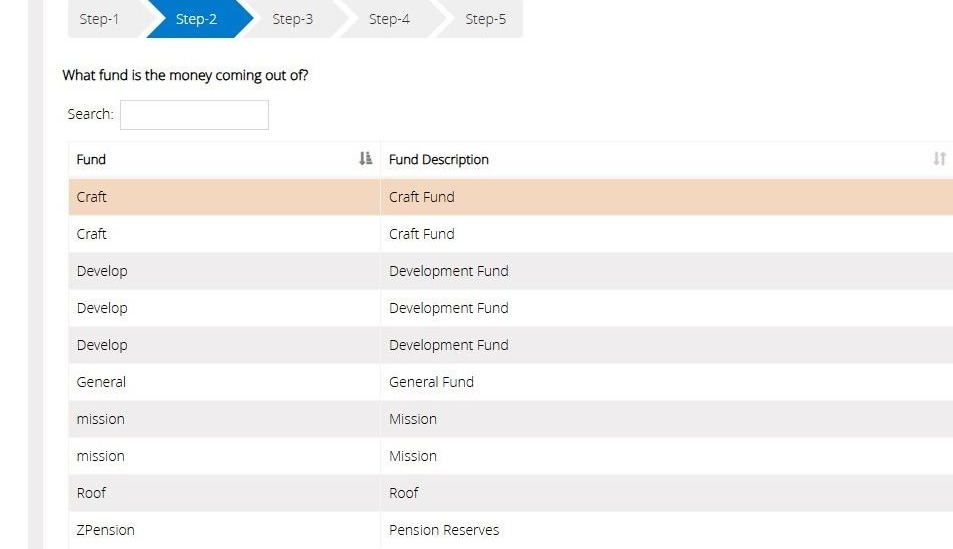
24. On step 2.
Select the fund the money is being transferred out of.
*Then click "Next Step".
Tip: Tip: Please note that if a fund is not visible on the fund list mentioned above, this is because the entries are limited to 10 funds per page. To view more funds, please click the "Next" button located above the "Next step" button. Or use the "Show Entries" drop-down to increase the list.
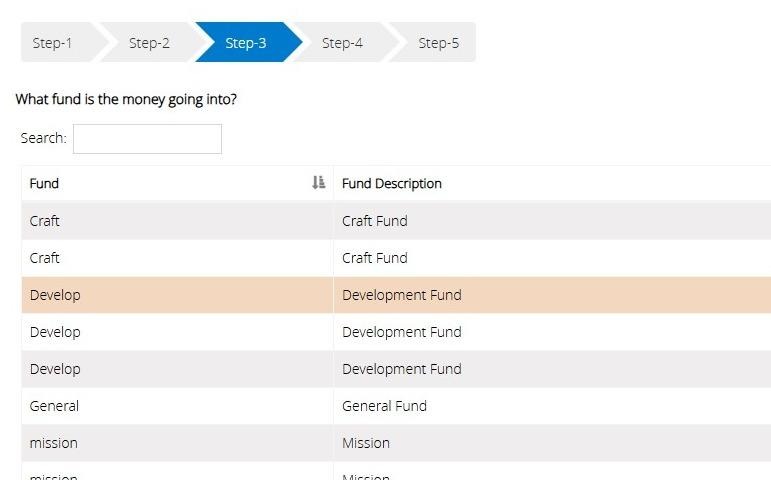
25. On step 3.
Select the fund the money is being transferred into.
Then click "Next Step".
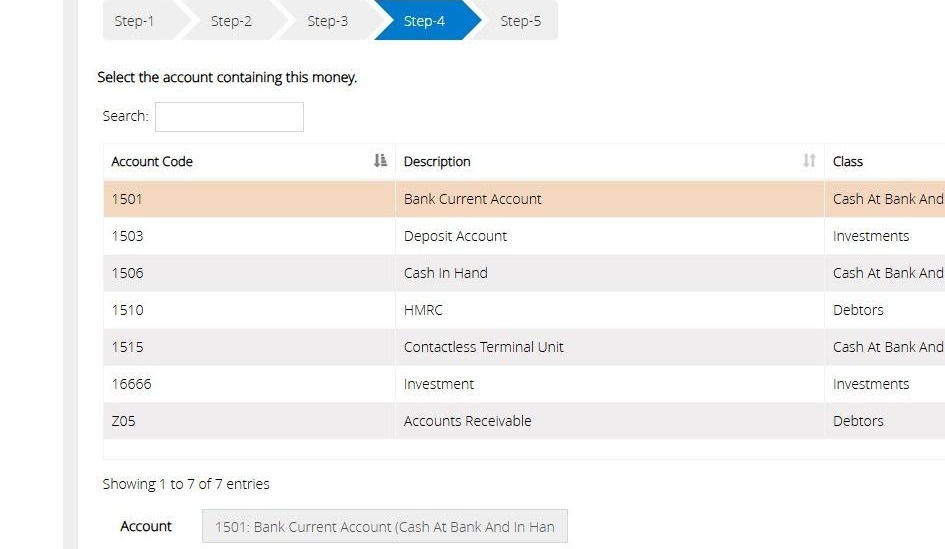
26. On step 4.
Select the account the money relates to.
Then click "Next Step".
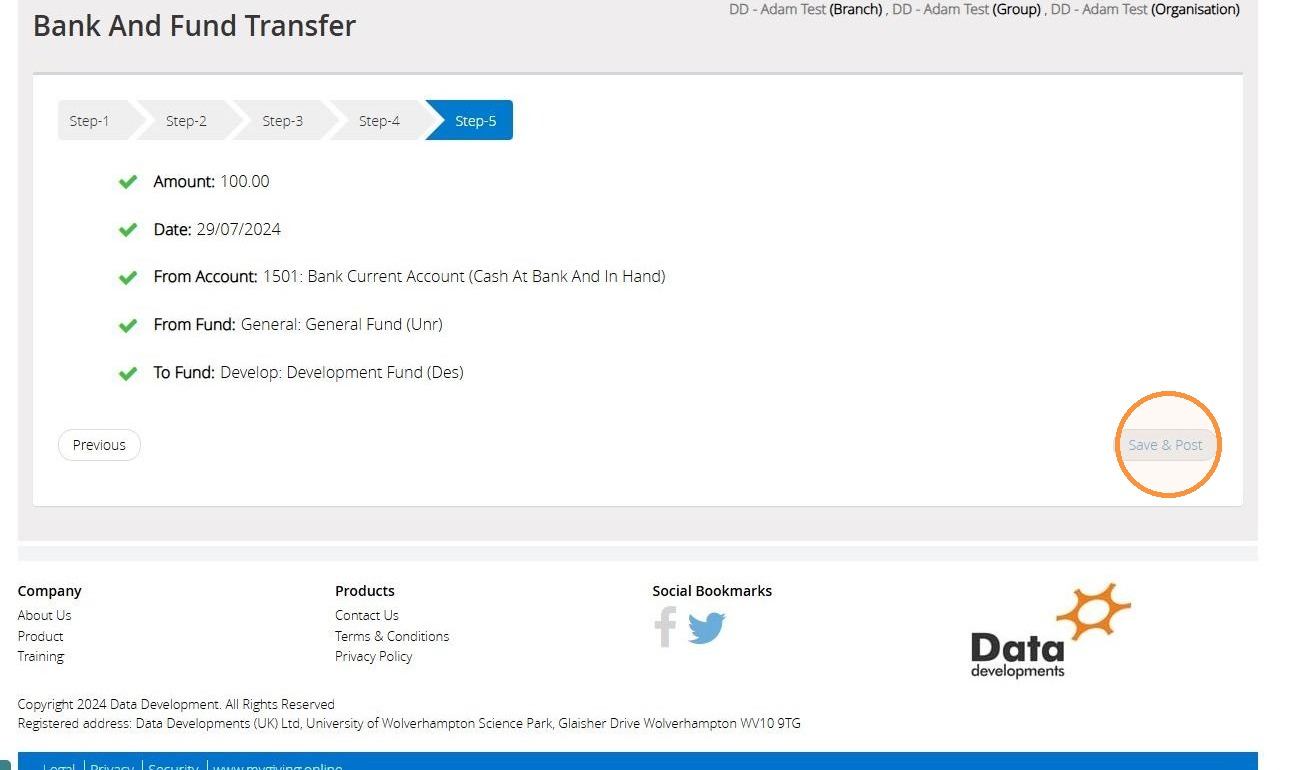
27. On step 5.
Review all the information you entered on the previous steps. Click 'Save & Post' to confirm this information. Otherwise, select 'Previous' to return to the previous steps.
Transfer Type 4 - Transfer between 2 funds and 2 bank accounts in one process
Tip: Tip! This transfer is recommended for moving money from both one fund to another and from one bank account to another.
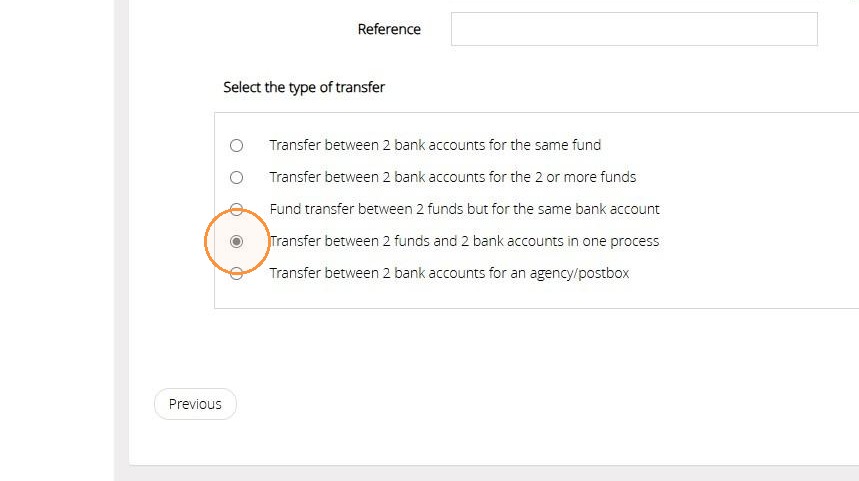
28. Enter an Amount to be transferred, Date of Transfer and Reference if required.
Then click the "Transfer between 2 funds and 2 bank accounts in one process".
Afterwards, select "Next Step".
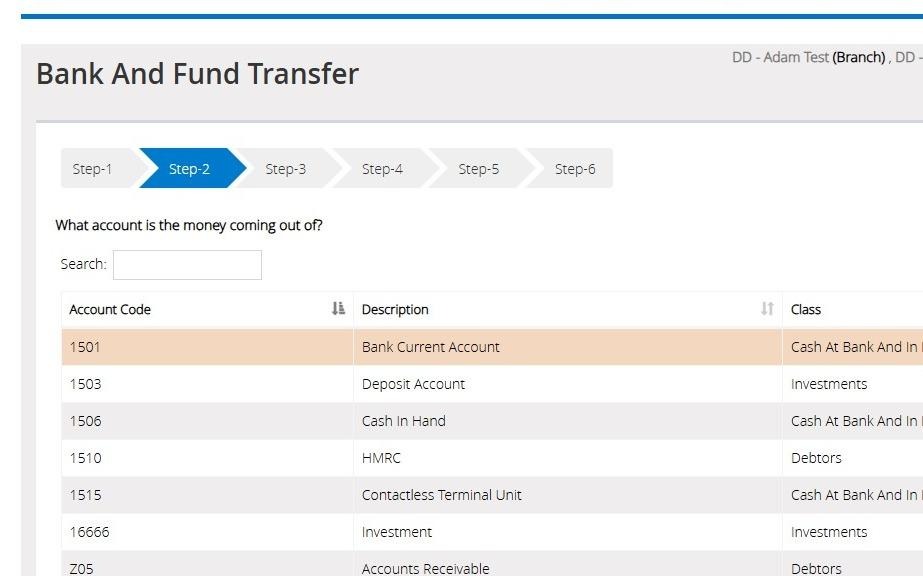
29. On step 2.
Select the account the money is being transferred out of.
Here you may add a "Description".
Then click "Next Step".
Tip: Tip: If the asset you are looking for is not visible, please note that there is a "Next" button available above the "Next step" button, as only 10 assets are displayed on the screen when entering this step. You can increase the displayed list by selecting the "Show entries" drop down.
30. On step 3.
Select the account the money is being transferred into.
Here you may add a "Description".
Then click "Next Step".
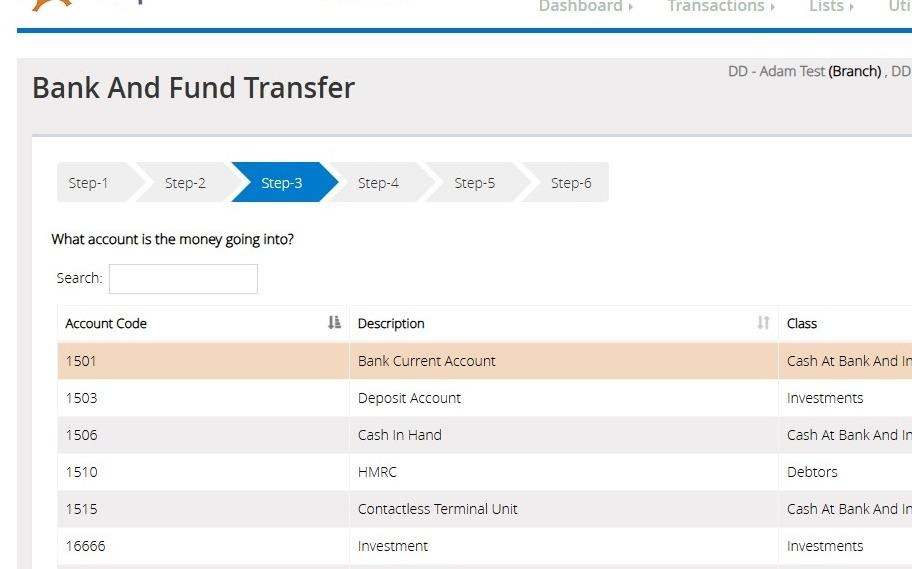
31. On Step 4.
Select the fund the money is being transferred out of.
Then click "Next Step".
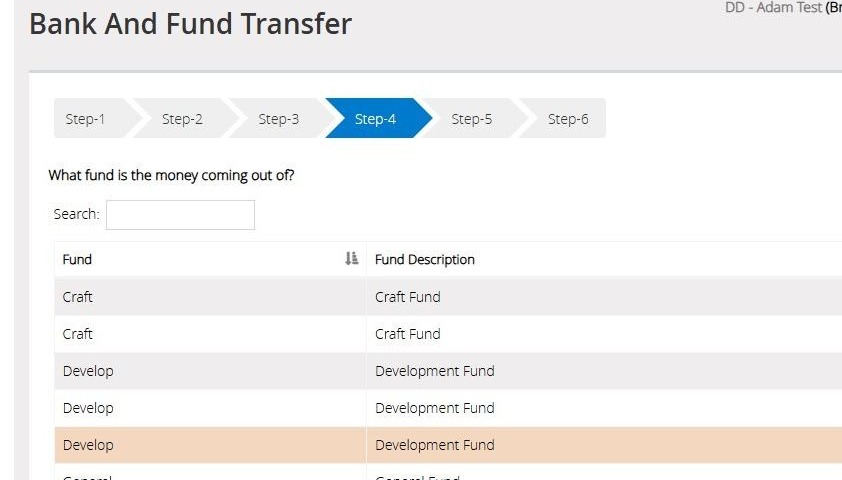
Tip: Tip: Please note that if the fund list as mentioned above if a fund is not visible, the list is limited to 10 funds. To view more funds, please click the "Next" button located above the "Next step" button. Or use the "Show Entries" drop down to increase the list.
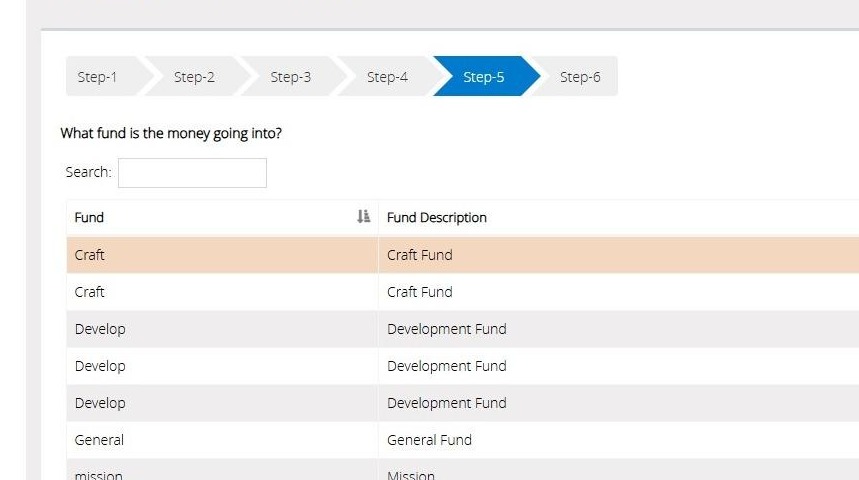
32. On Step 5
Select the fund the money is being transferred into.
Then click "Next Step"
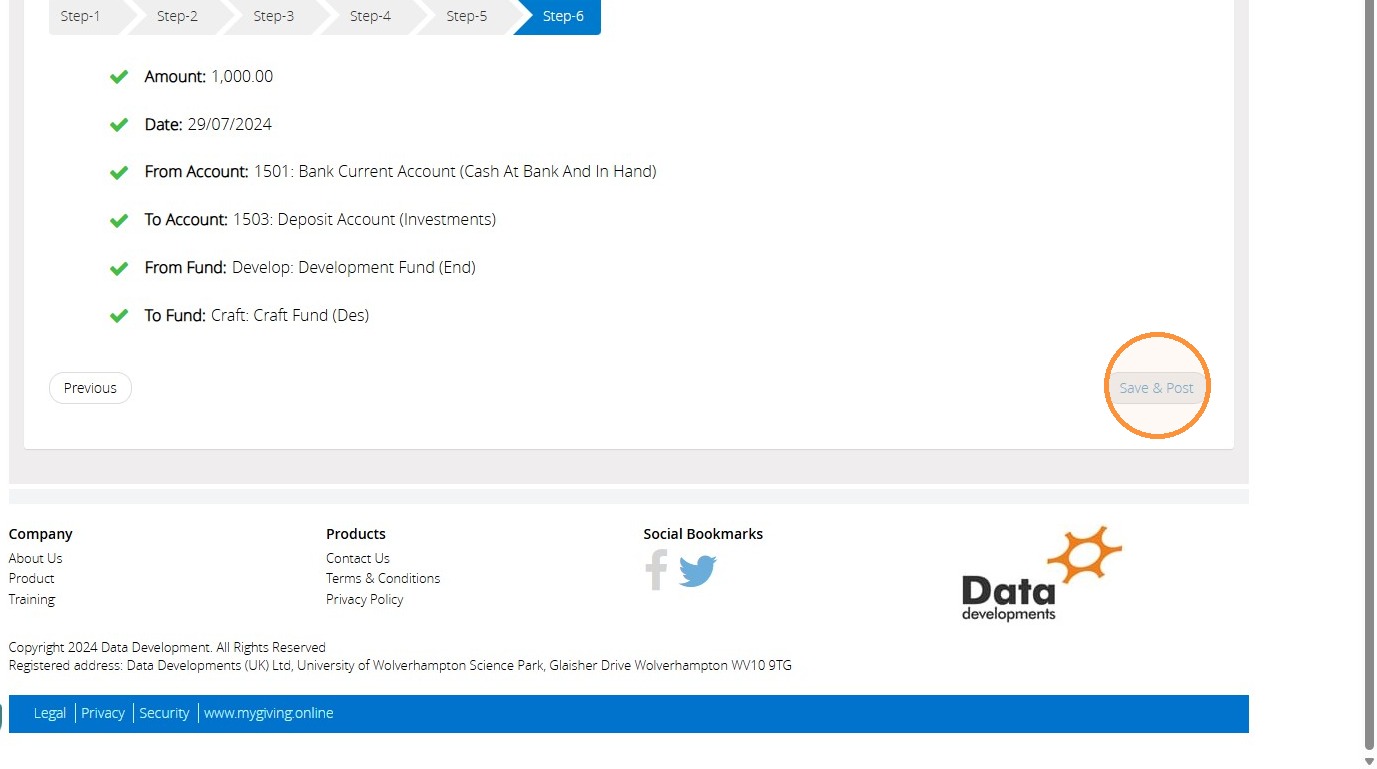
33. On step 6, review all the information you entered on the previous steps.
Click 'Save & Post' to confirm this information. Otherwise, select 'Previous' to return to the previous steps.
Transfer Type 5 - Transfer between 2 bank accounts for an agency/postbox.
34. Enter an Amount to be transferred, Date of Transfer and Reference if required.
Then select "Transfer between 2 bank accounts for an agency/postbox" field.
Click "Next Step".
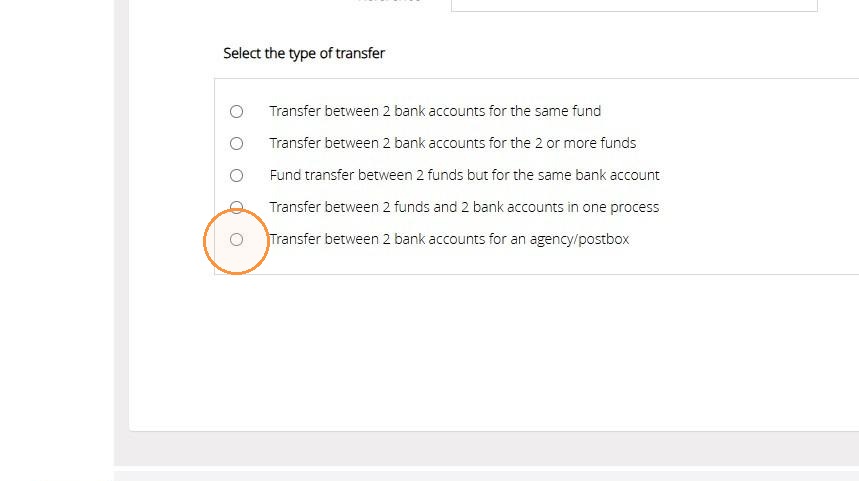
35. On step 2.
Select the account the money is being transferred out of.
Here you may add a "Description".
Then click "Next Step"
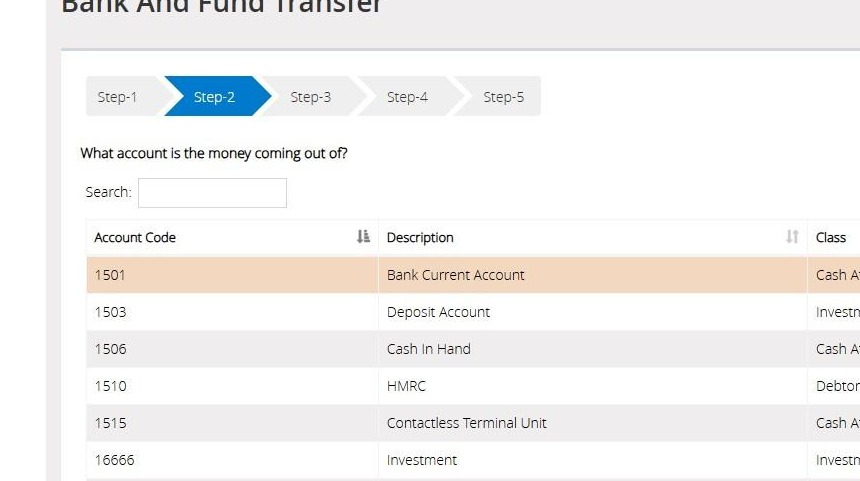
Tip: Tip: If the asset you are looking for is not visible, please note that there is a "Next" button available above the "Next step" button, as only 10 assets are displayed on the screen when entering this step. You can increase the displayed list by selecting the "Show entries" drop down.
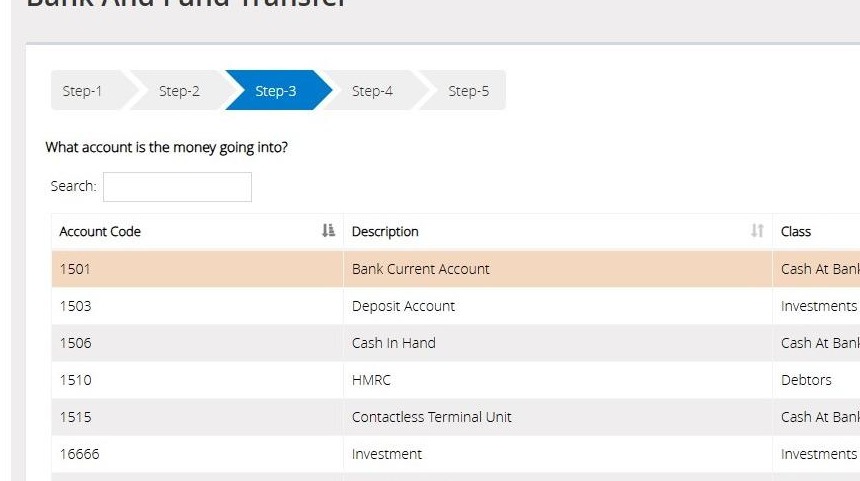
36. On step 3.
Select the account the money is being transferred into.
Here you may add a "Description".
Then click "Next Step"
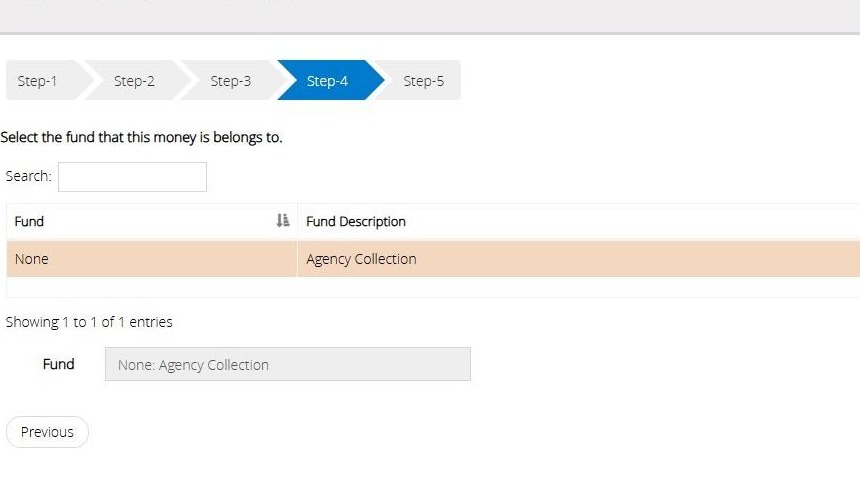
37. On step 4.
Select the "Agency Collections" option.
Then click "Next Step".
38. On step 5, review all the information you entered on the previous steps.
Click 'Save & Post' to confirm this information. Otherwise, select 'Previous' to return to the previous steps.
This transfer will allow you to move an agency balance from one bank account to the other.
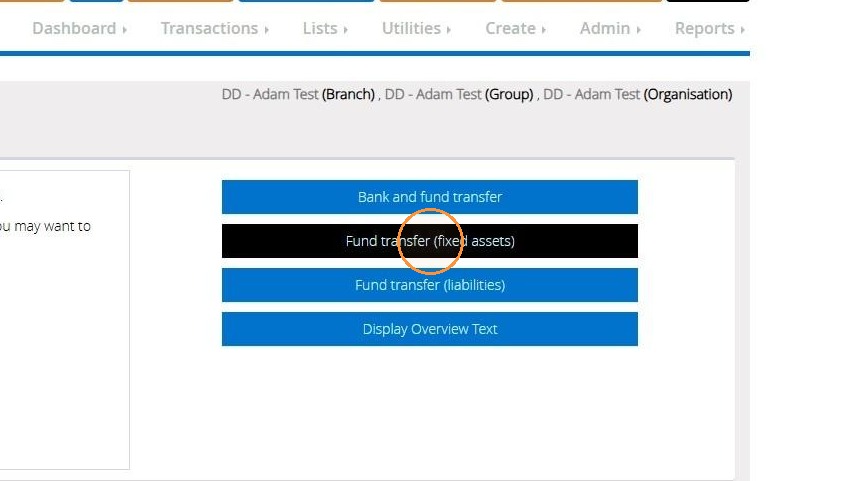
Fund Transfer Fixed assets
39. This type of transfer allows you to change the fund of a fixed asset from current to another.
Choose "Fund transfer (fixed assets)"
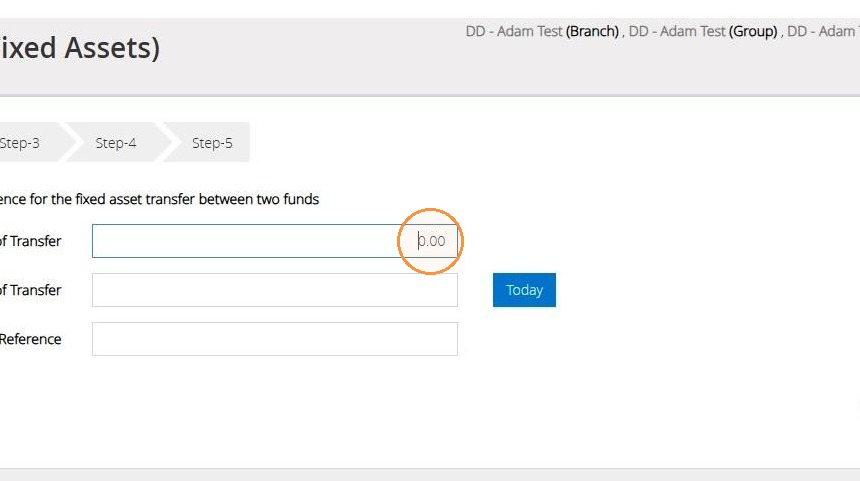
40. On Step 1.
Enter the amounts, date of the transfer and a reference if required.
Then click "Next Step".
41. On step 2.
Select the fund the money is being transferred out of.
Here you may add a "Description".
Then click "Next Step".
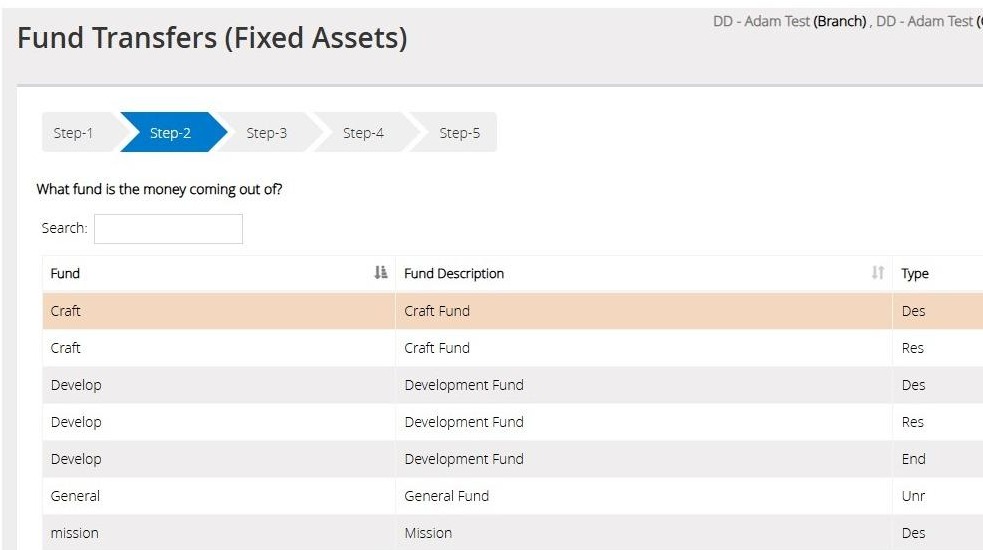
Tip: Tip: Please note that if the fund list as mentioned above if a fund is not visible, the list is limited to 10 funds. To view more funds, please click the "Next" button located above the "Next step" button. Or use the "Show Entries" drop down to increase the list.
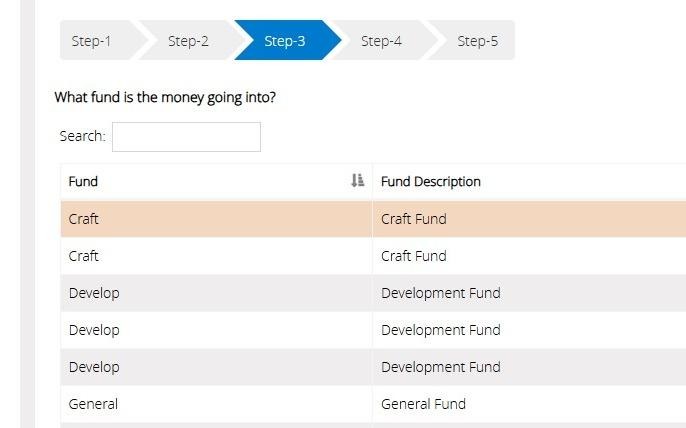
42. On step 3.
Select the fund the money is being transferred into.
Here you may add a "Description".
Then click "Next Step".
43. On Step 4,
Select the bank account the money is related to.
Then click "Next Step".
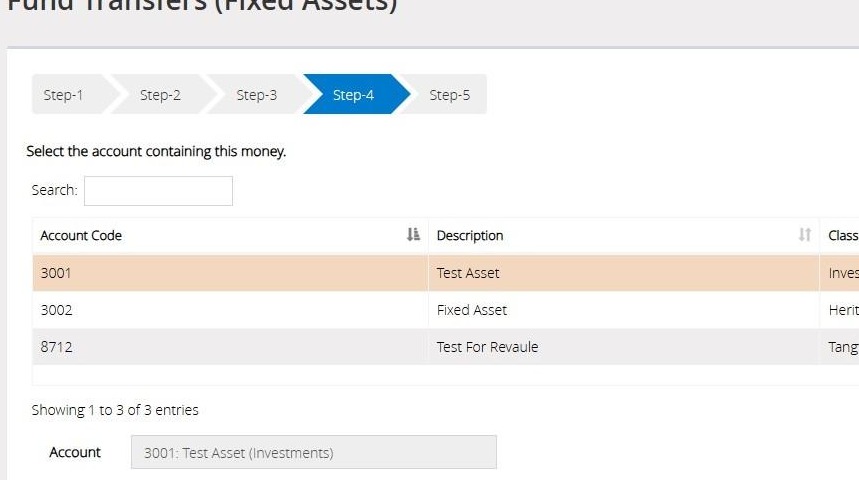
Tip: Tip: If the asset you are looking for is not visible, please note that there is a "Next" button available above the "Next step" button, as only 10 assets are displayed on the screen when entering this step. You can increase the displayed list by selecting the "Show entries" drop down.
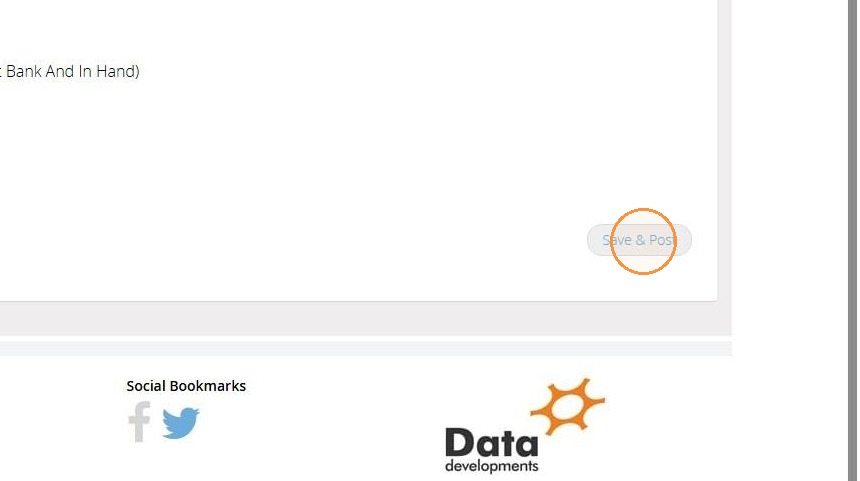
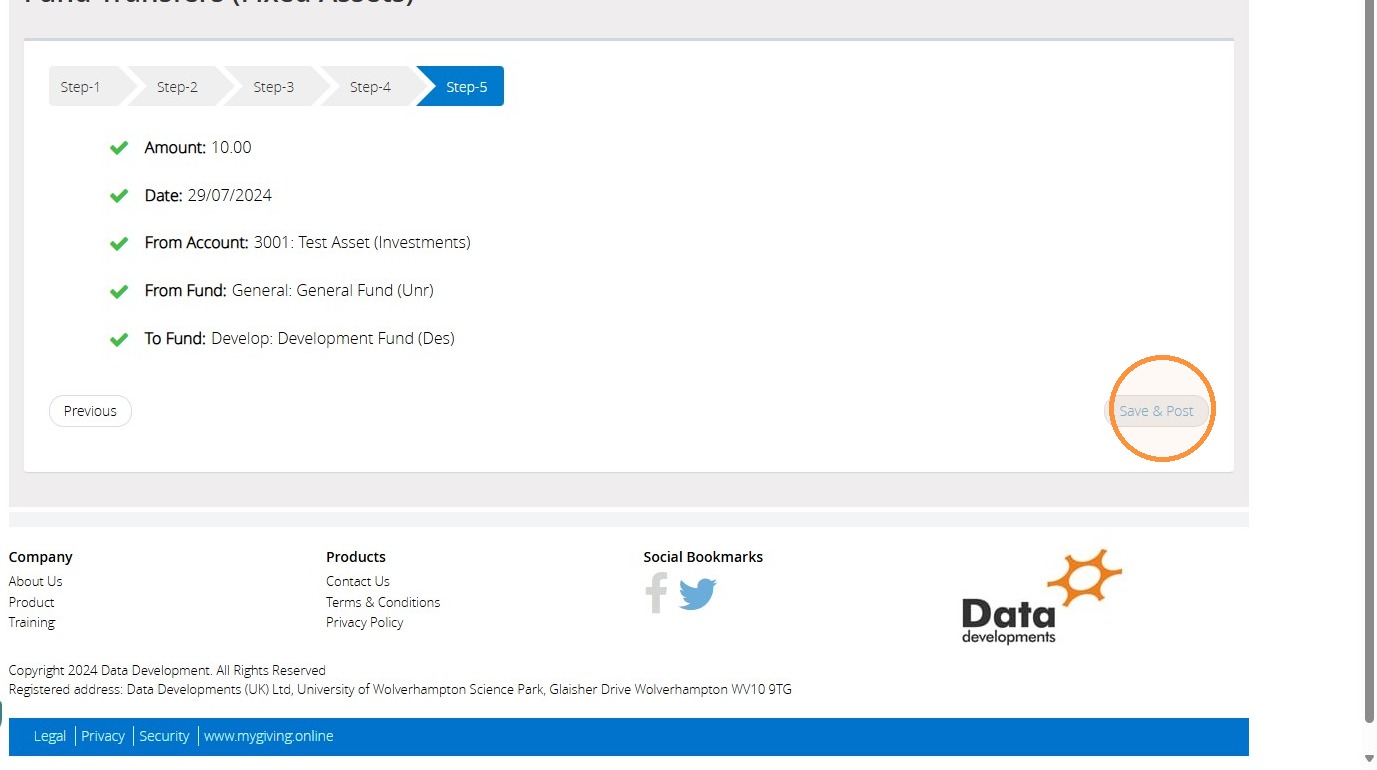
44. On step 5, review all the information you entered on the previous steps.
Click 'Save & Post' to confirm this information. Otherwise, select 'Previous' to return to the previous steps.
Fund Transfers Liabilities
45. Select "Fund transfer (liabilities)"
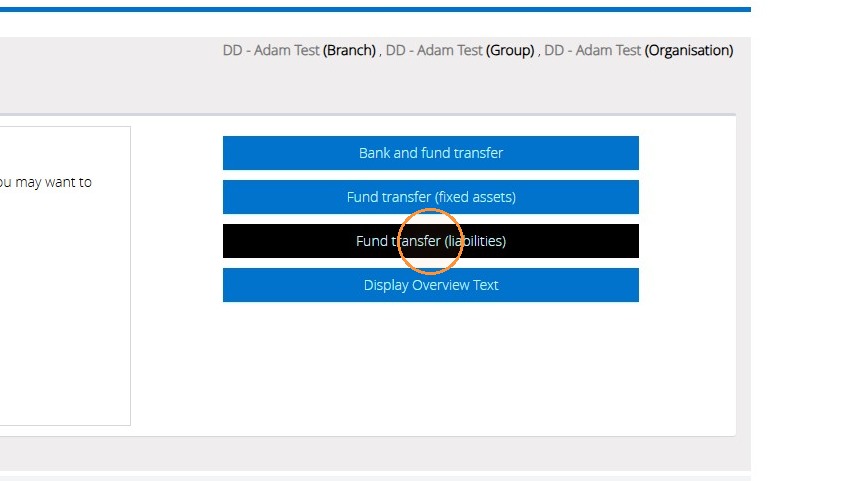
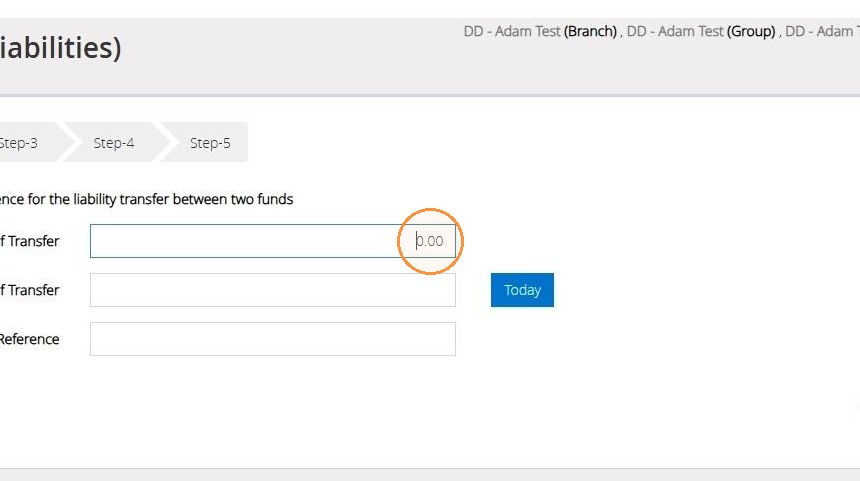
46. On Step 1, enter the amount to be transferred, the date of the transfer and a reference if required
Then click Next step.
Tip: Tip: Because a liability is associated with money owed, when money is recorded into a liability, it actually reduces the amount owed rather than increasing it.
47. On step 2.
Select the fund the liability is going into.
(Which fund are you using to reduce the amount you owe?)
Here you may add a "Description".
Then click "Next Step".
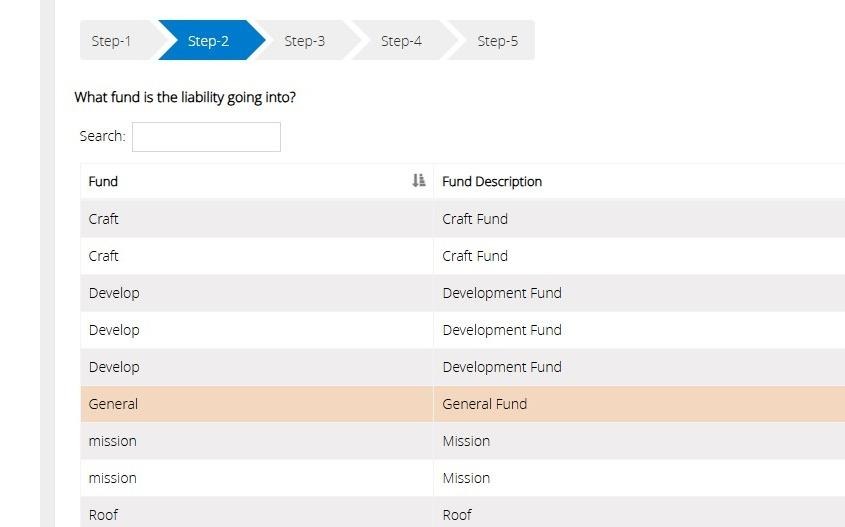
Tip: Tip: Please note that if the fund list as mentioned above if a fund is not visible, the list is limited to 10 funds. To view more funds, please click the "Next" button located above the "Next step" button. Or use the "Show Entries" drop down to increase the list.
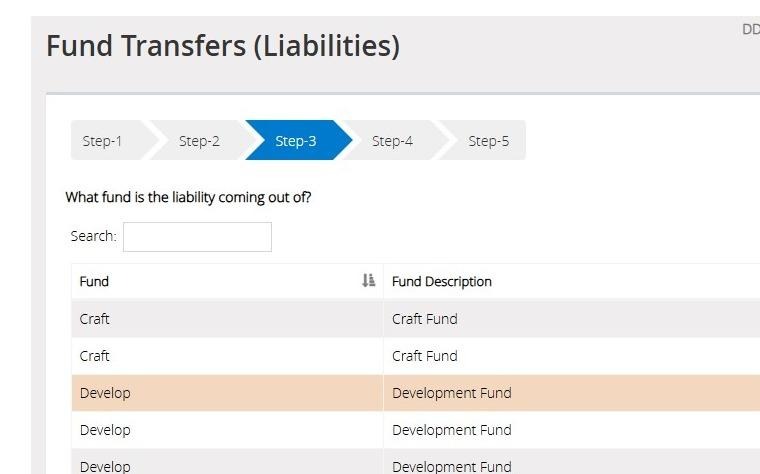
48. On step 3.
Select the fund the liability is coming out of.
(Which fund are you using to increase the amount you owe?)
Here you may add a "Description".
Then click "Next Step".
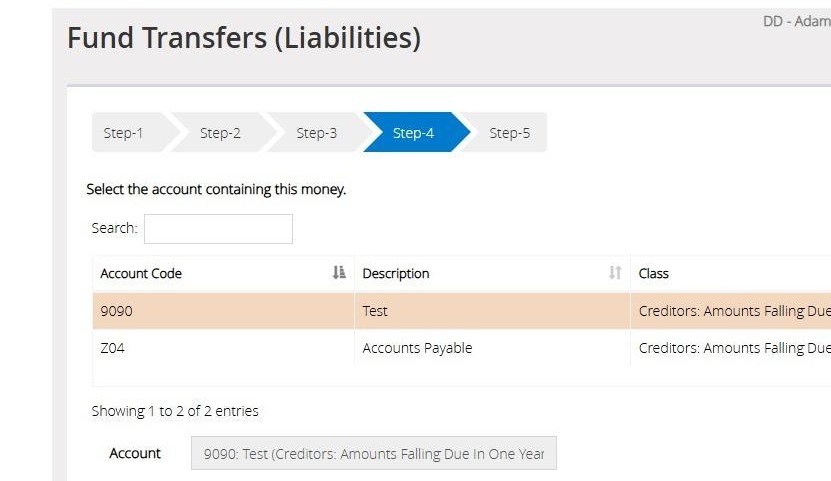
49. On step 4.
Select the bank account the money is associated with.
Then click "Next Step".
50. On step 5, review all the information you entered on the previous steps.
Click 'Save & Post' to confirm this information. Otherwise, select 'Previous' to return to the previous steps.
We hope you found this guide helpful and easy to follow. If you require any further assistance, please contact our support team by telephone on 01902 714030 or by email at support@datadevelopments.co.uk