
Tip: MyGiving.Online allows you to not only provide tax statements for some of your donors, but also to use the opportunity to offer your thanks and show your donors what a difference their donations have made. This is achieved through generating "Thank you letters"
1. Navigate to https://www.mygiving.online
Tip: Before creating our letters we will first need to create a Letter template" The below steps will guide you through this.
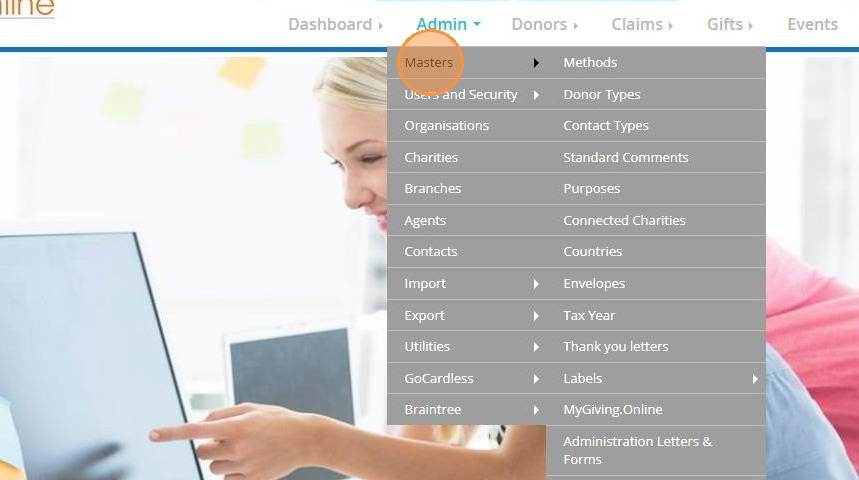
2. Click "Admin"

3. Click "Masters"
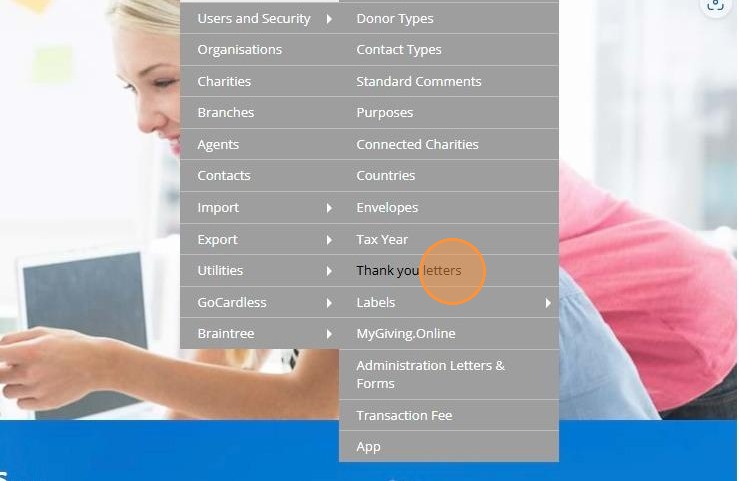
4. Click "Thank you letters"
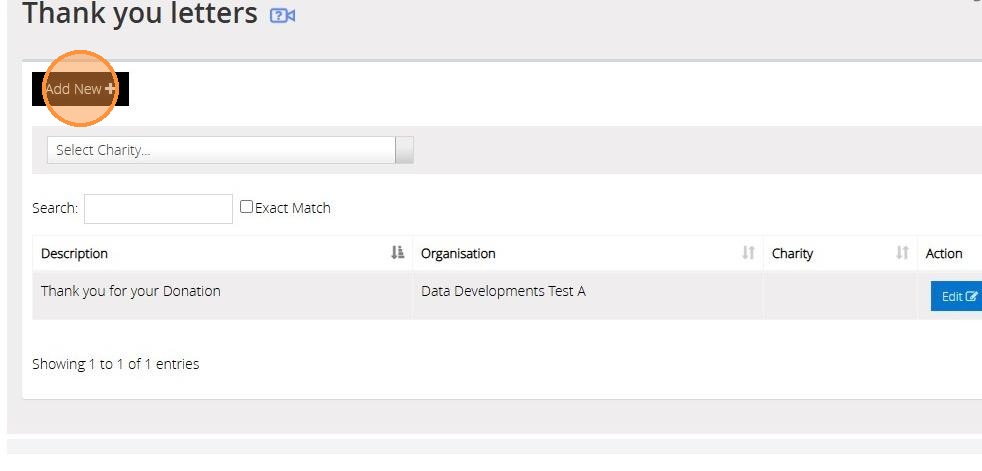
5. Click "Add New"
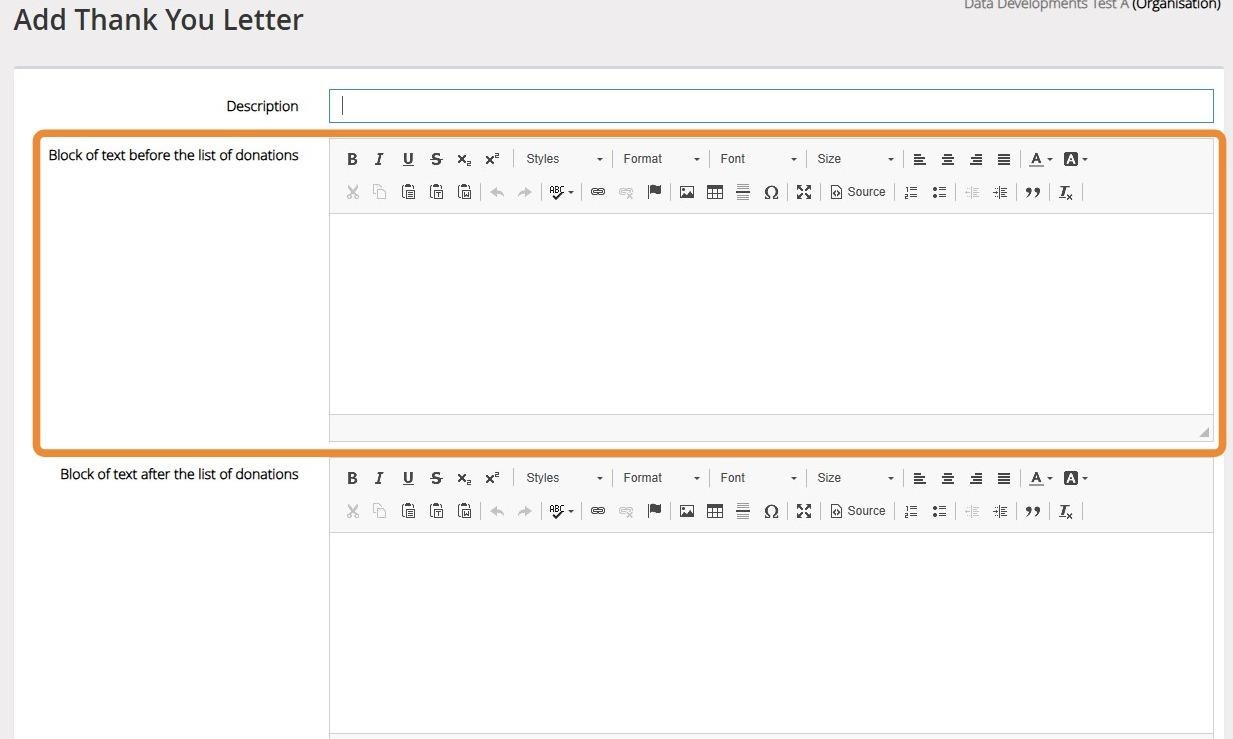
6. Enter a description for your Letter Template.
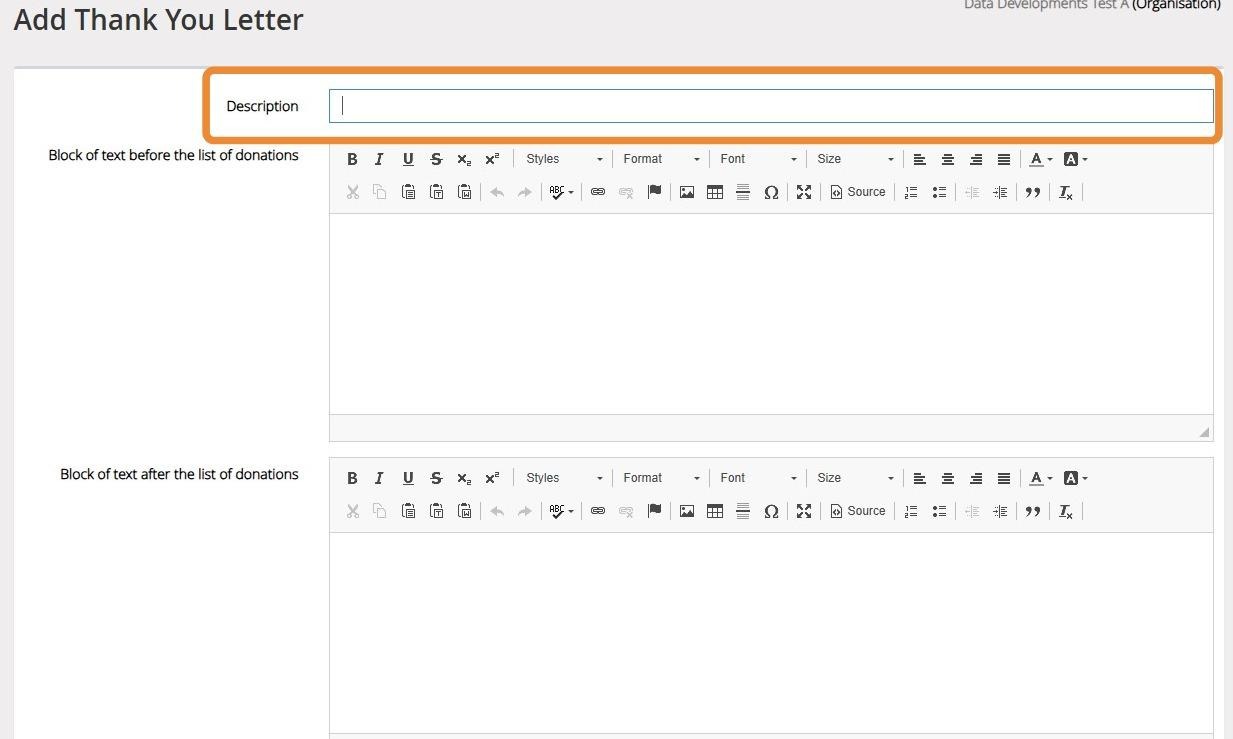
7. Enter the text you wish to appear before the list of donations.
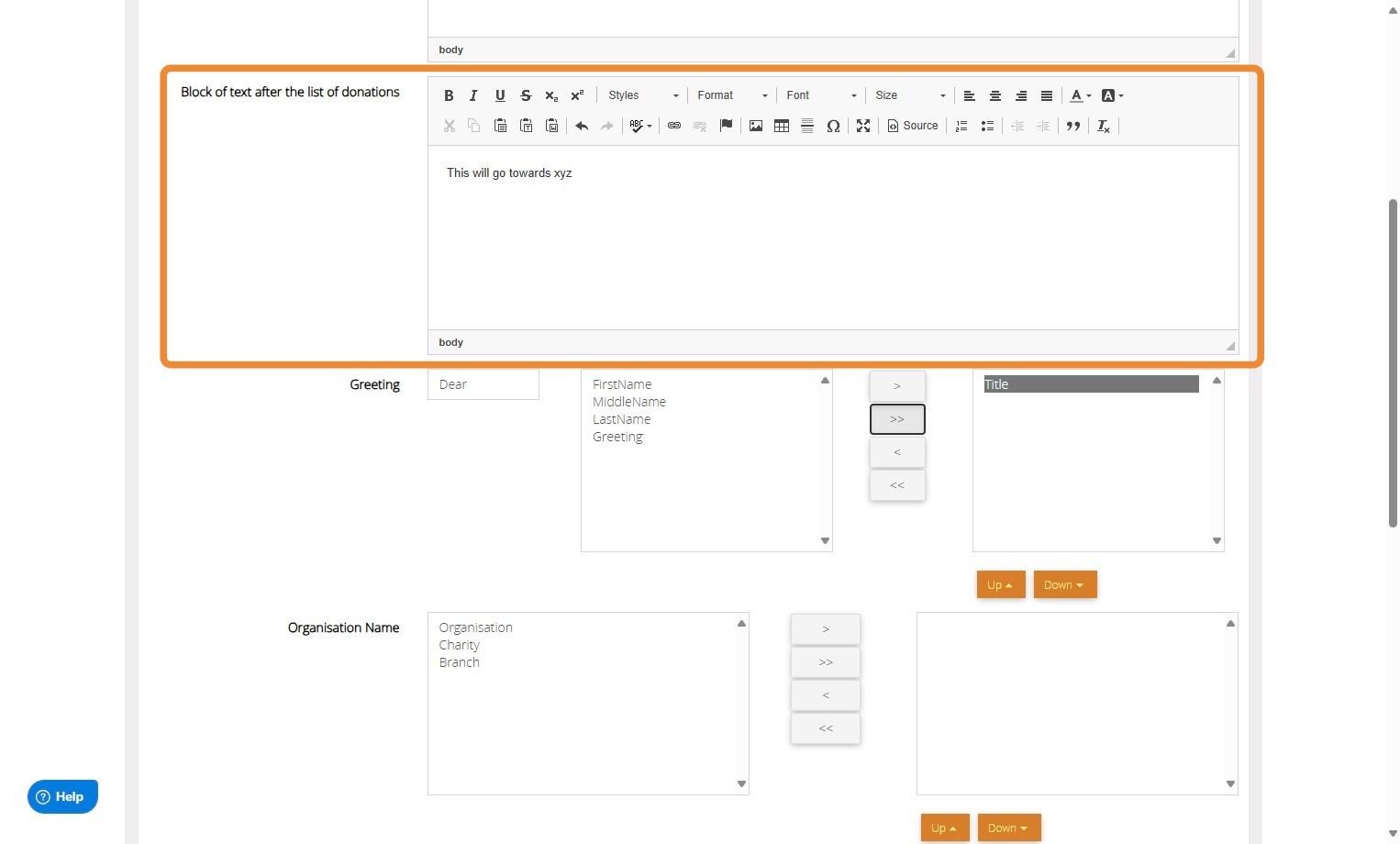
8. Enter the text that should appear after the list of donations.
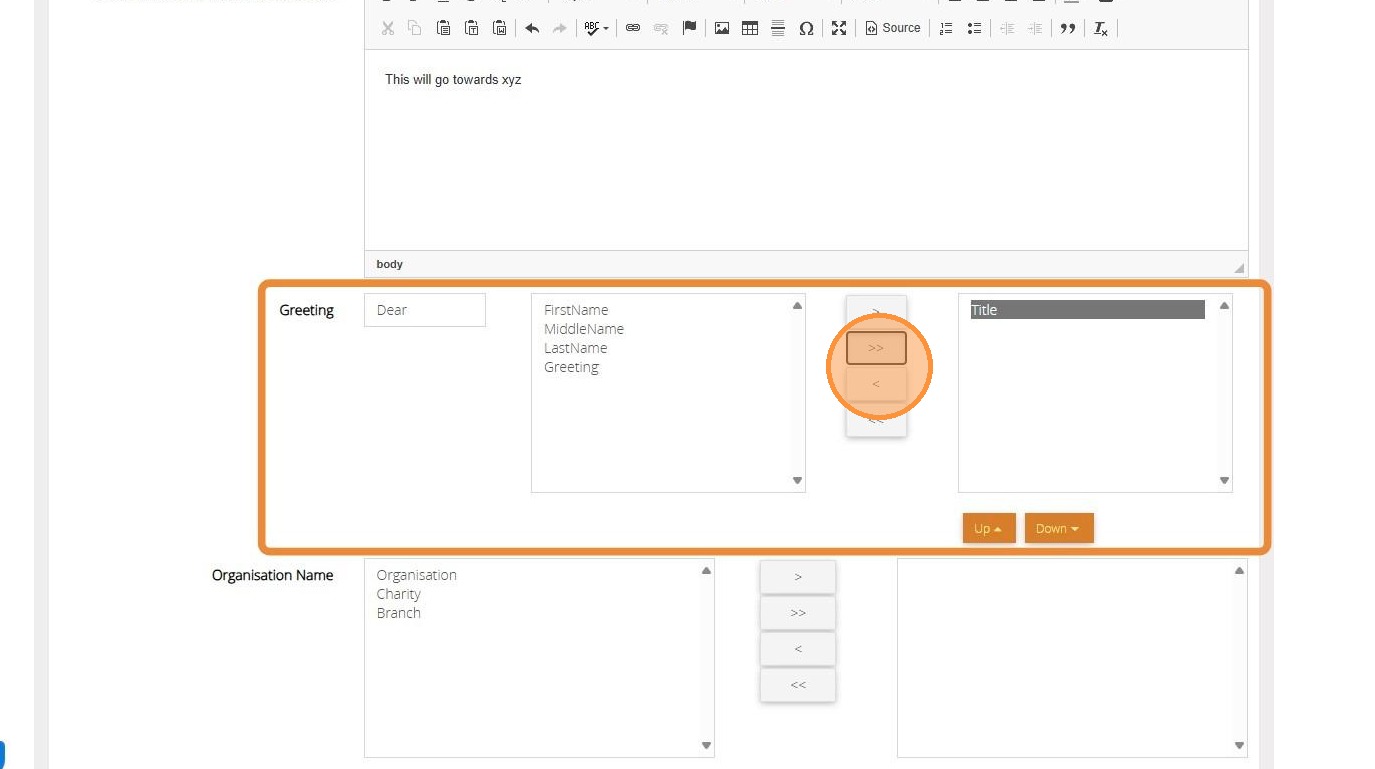
9. Select the format of the greeting you wish to use.
You can move one field at a time by selecting the field and then clicking the ">" button between the list or ">>" to move all fields from left to right. You can do the opposite with the "<" and "<<" buttons.
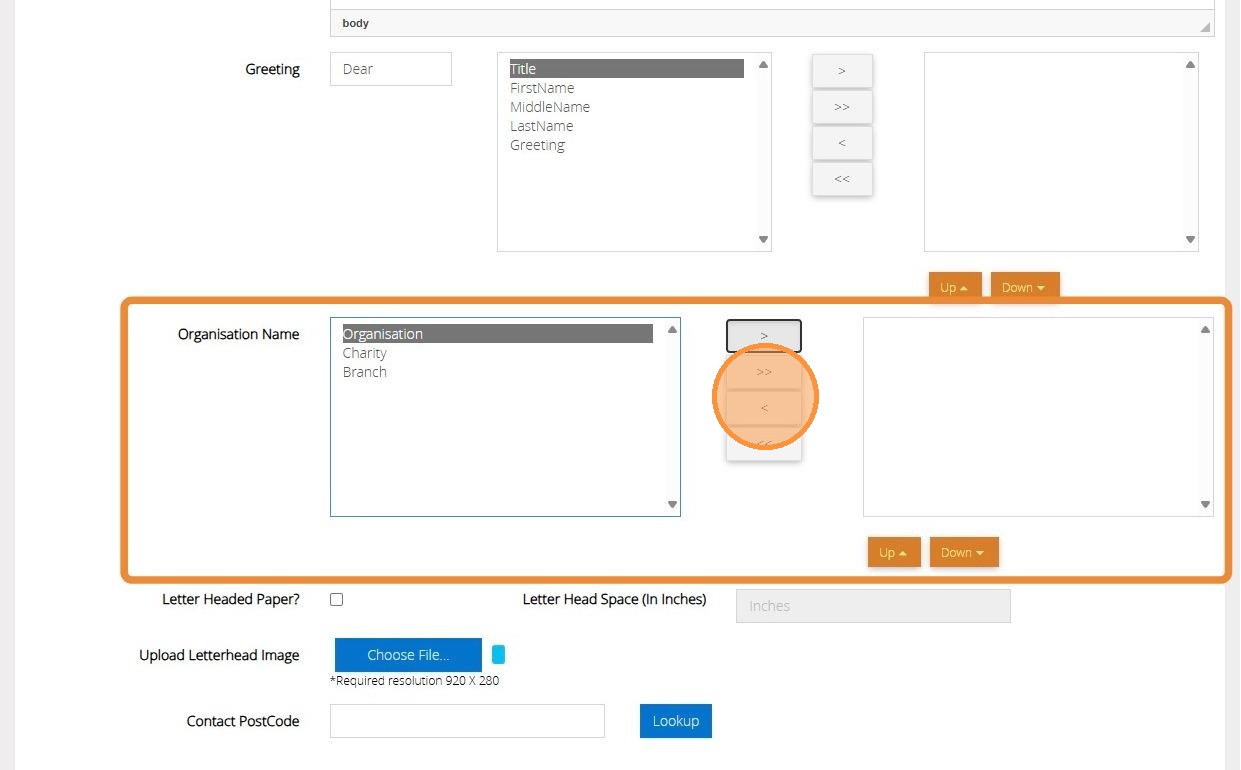
10. Select the Account name that you wish to appear on the letter. This could be the overall organisation name, the charity name or the individual branch.
You can move one field at a time by selecting the field and then clicking the ">" button between the list or ">>" to move all fields from left to right. You can do the opposite with the "<" and "<<" buttons.
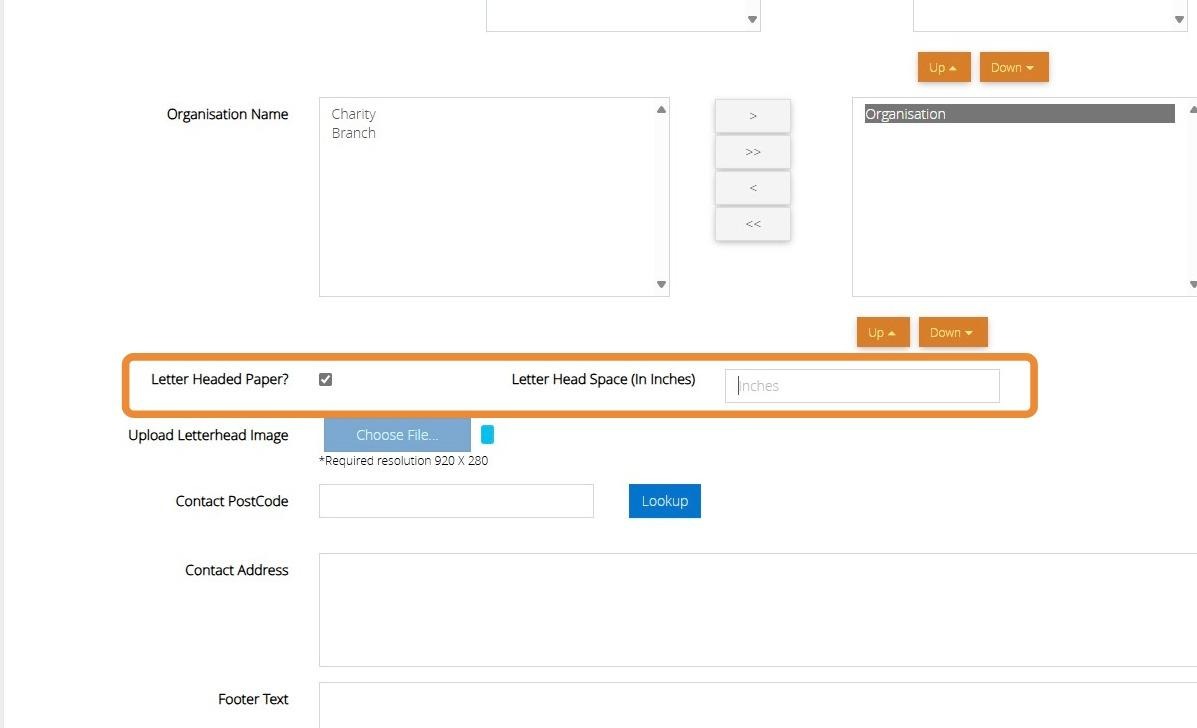
11. If you wish to use Letter Headed Paper tick the box and then enter the Letter head space in inches.
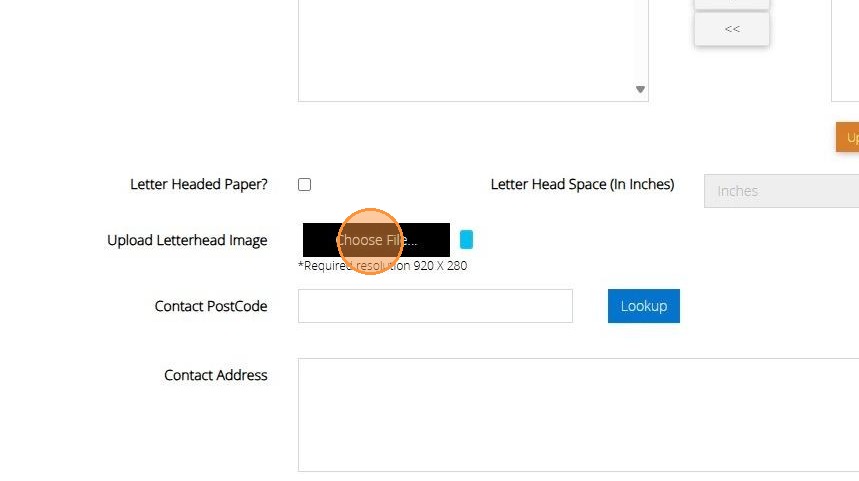
12. Alternatively, you can upload a letterhead image to your template by clicking "Choose File"
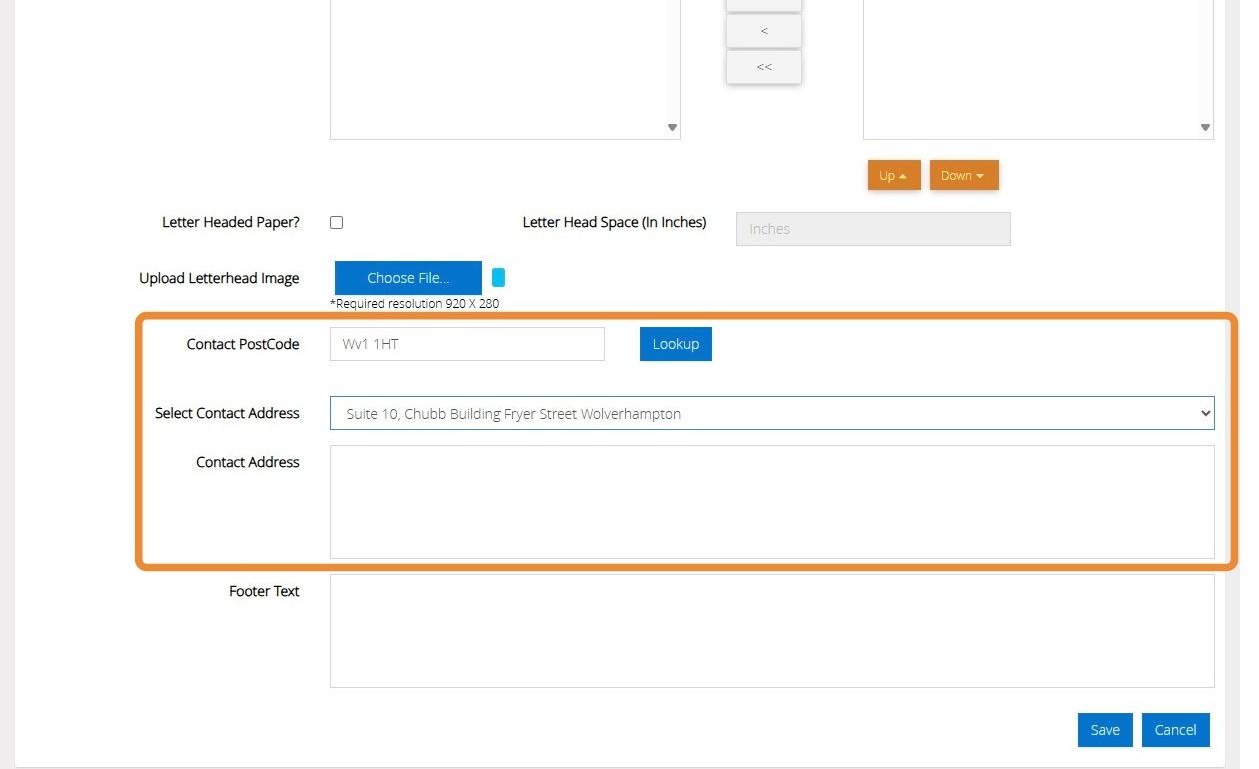
13. Enter the contact address that you want to appear on the template.
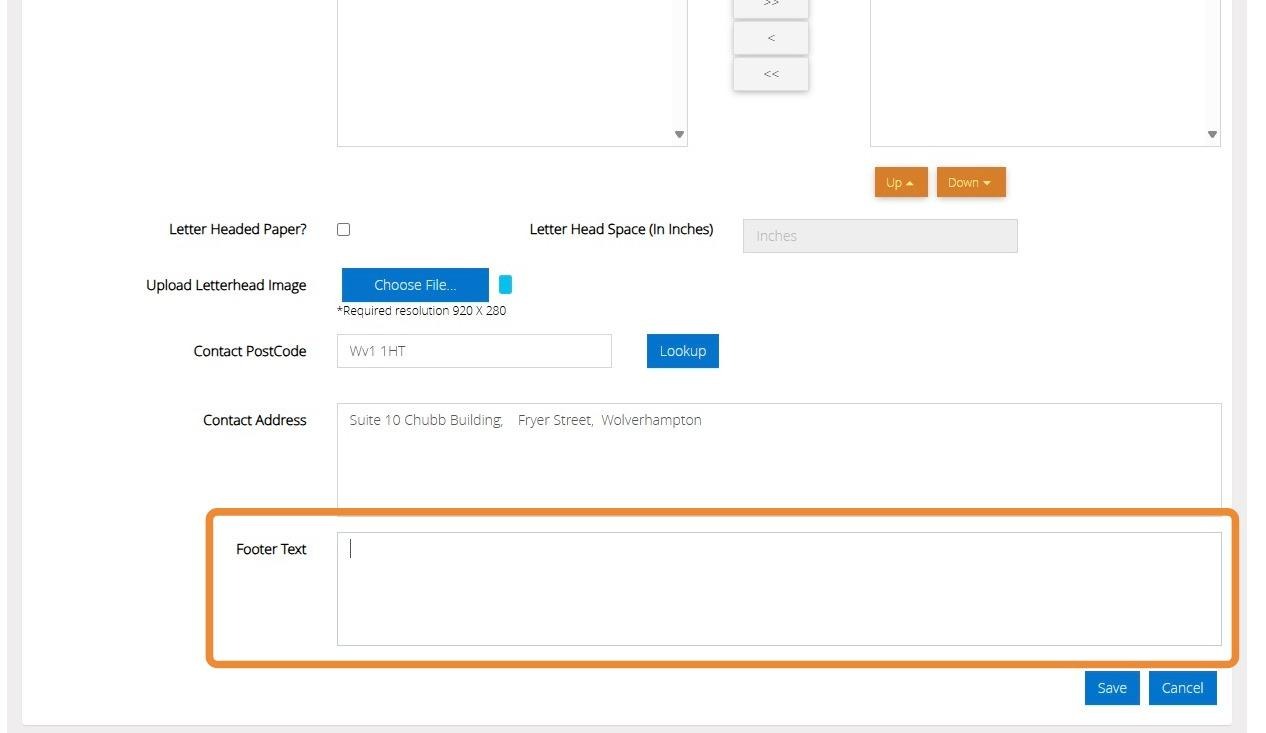
14. Enter your Footer Text in the box provided.
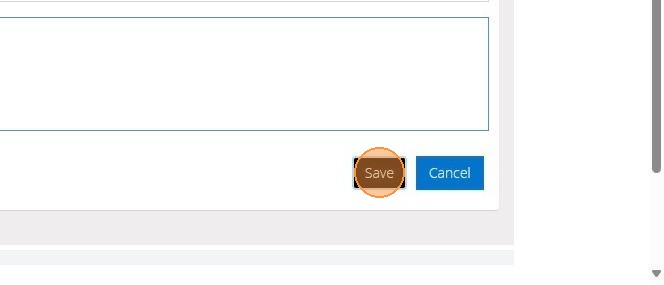
15. Once you are happy with your template click "Save"
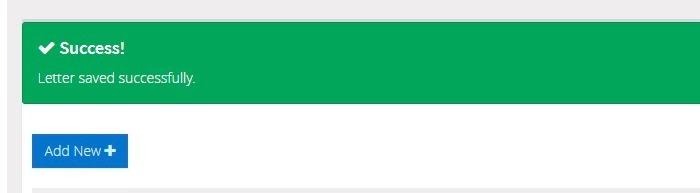
16. The below message will appear once this has been saved successfully.
Making changes to an existing template
17. Click Edit next to your template name to re-open this. Once you have made your changes you would simply save this. Should you no longer require the template you can click on "Delete" to remove this.