Learn how to efficiently upload and process your Parish Giving Scheme statements within MyGiving.Online.
How to access the PGS assistant
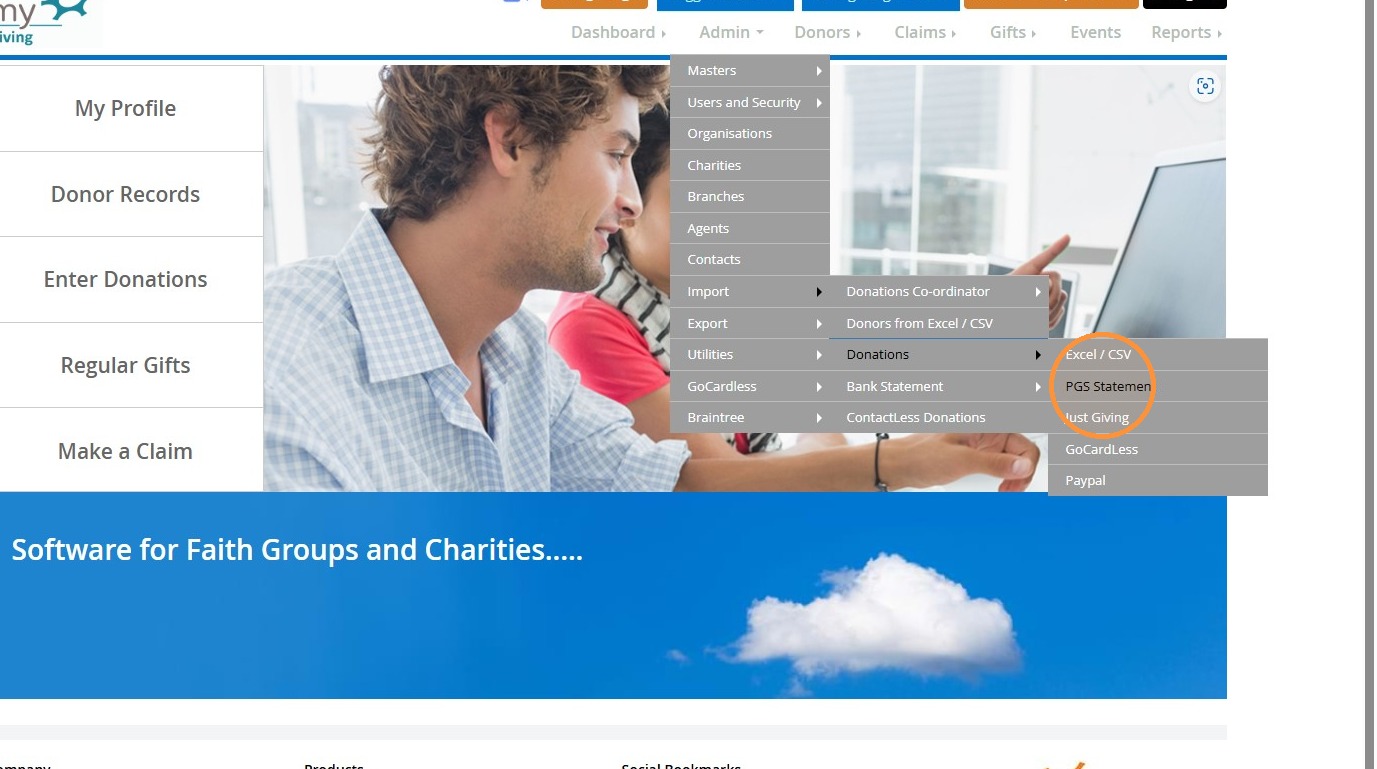
1. Navigate to https://www.mygiving.online/dashboard
">
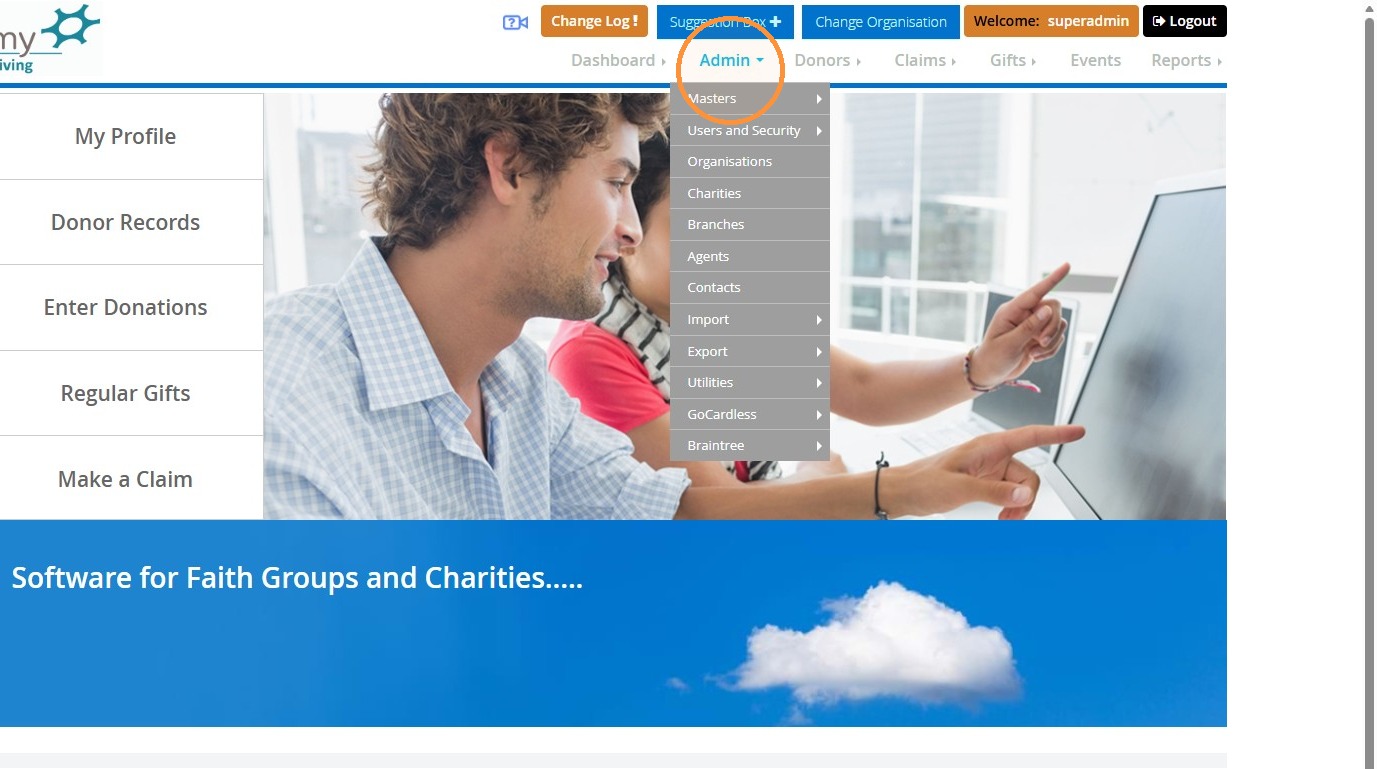
2. Select "Admin"
">
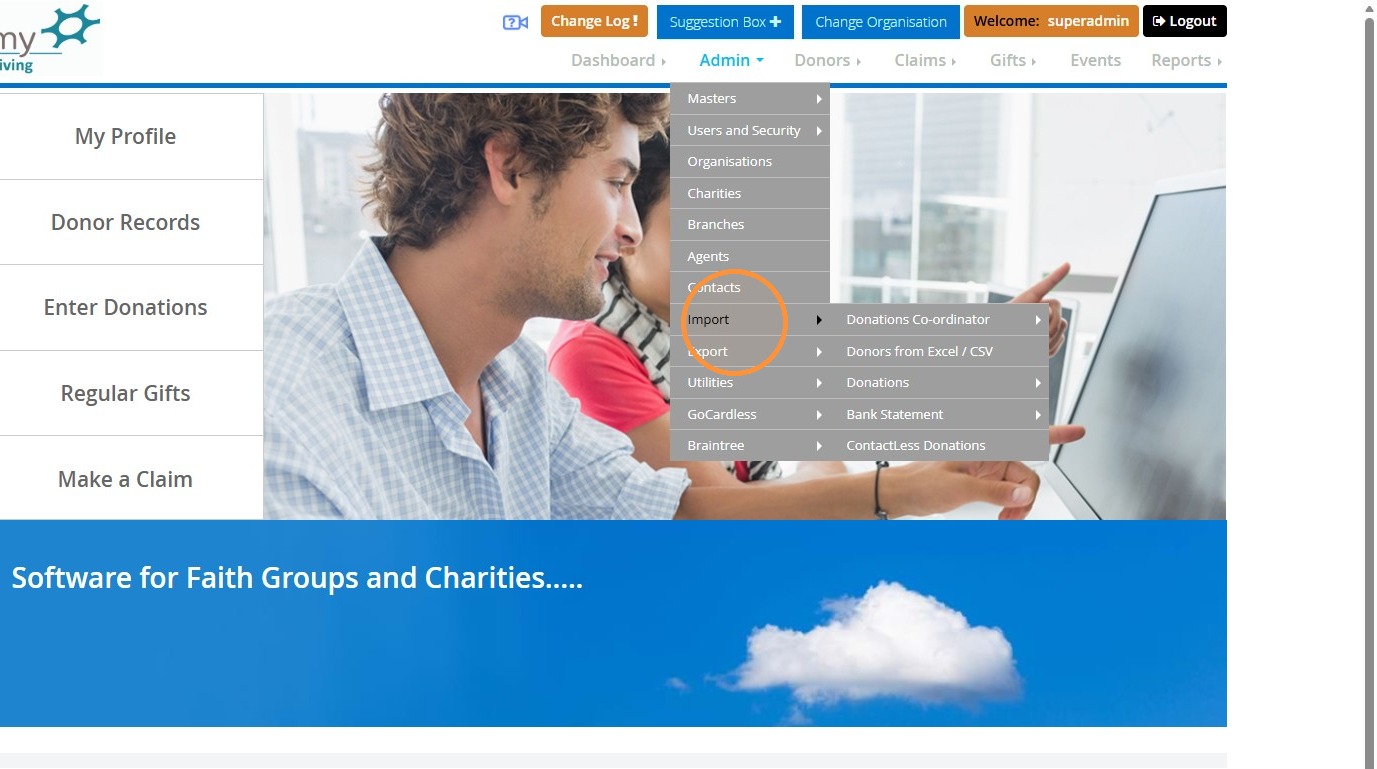
3. Select "Import"
">
4. Select "Donations"
">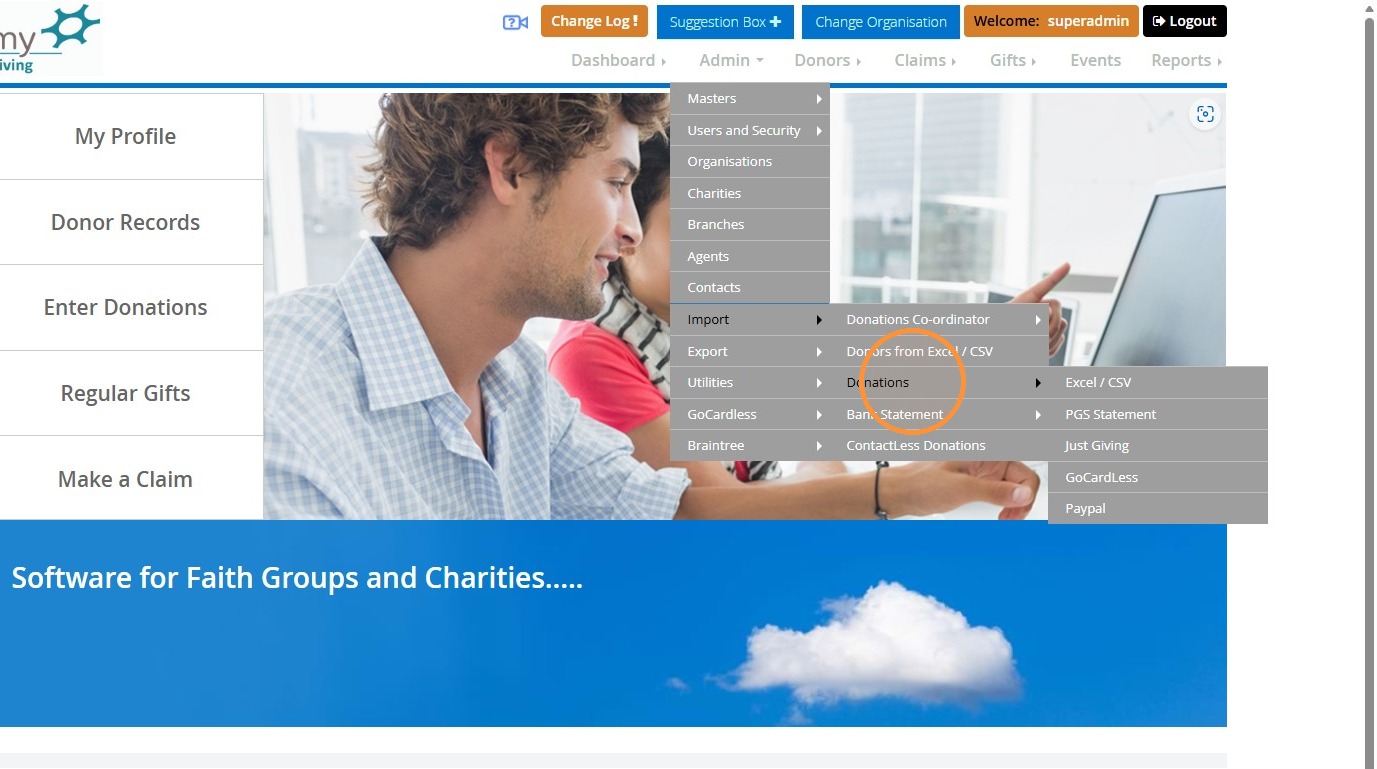
5. Select "PGS Statement"
">
Importing From PGS File
Alert: Alert! Please be aware you will be required to have the PGS statement in CSV or XLSX format to proceed to the next steps.
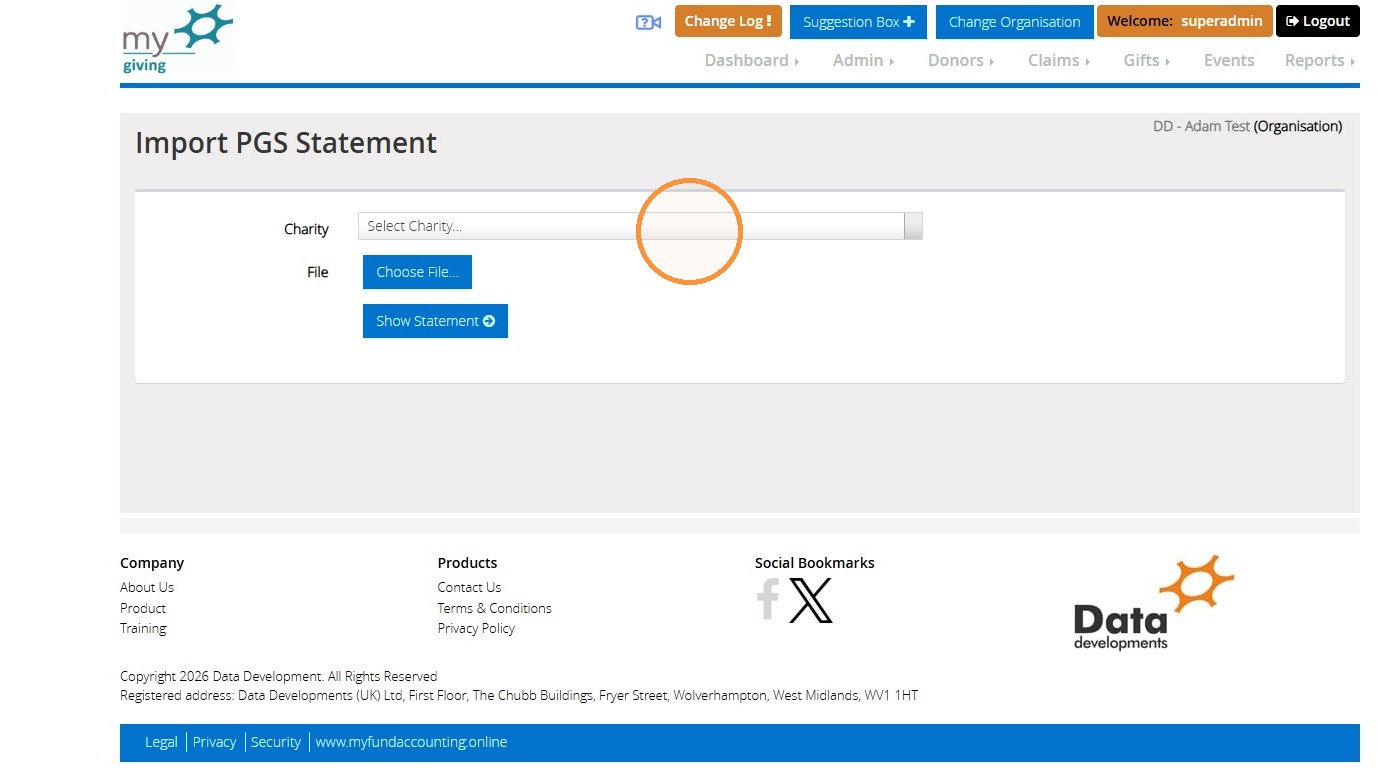
6. If you have more than one charity please click "Select Charity..."
">
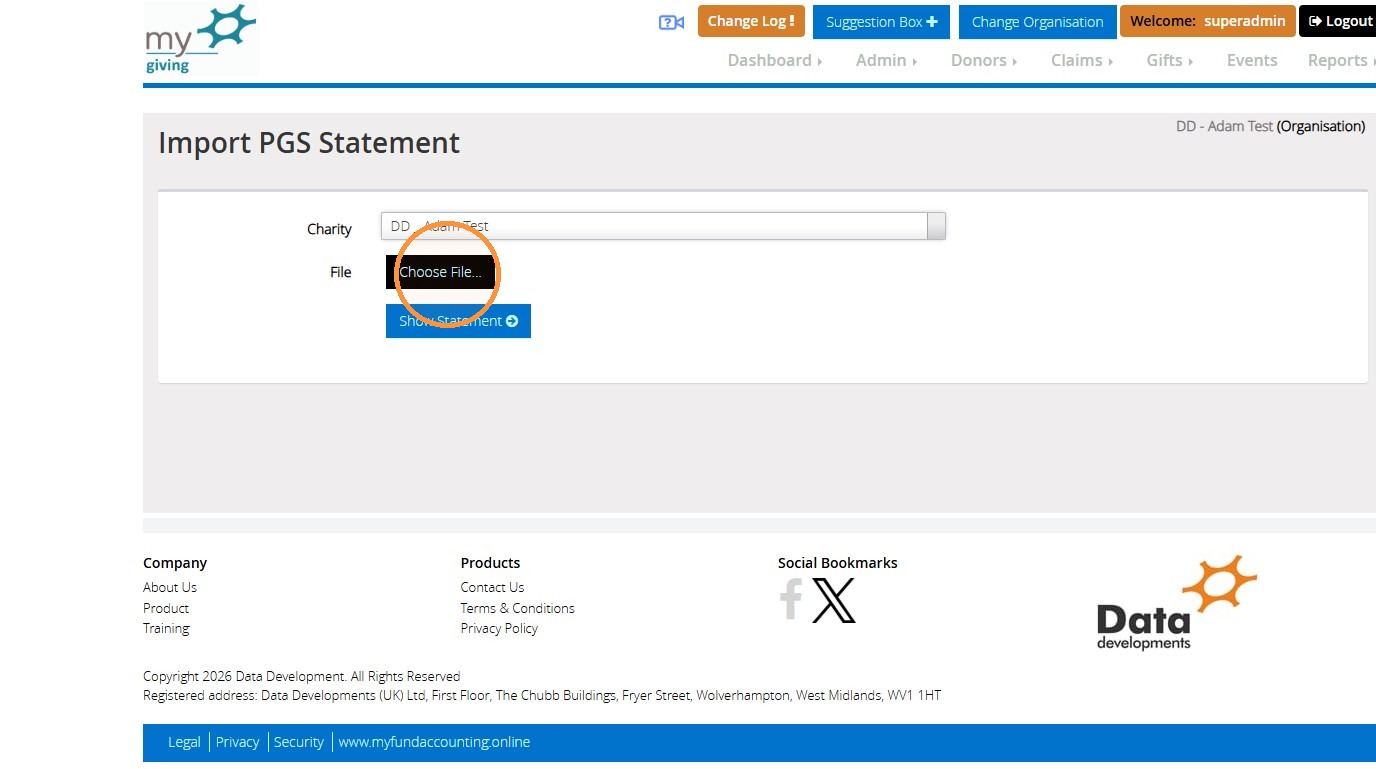
7. Click 'Choose File...' to select the PGS statement file from your computer.
">
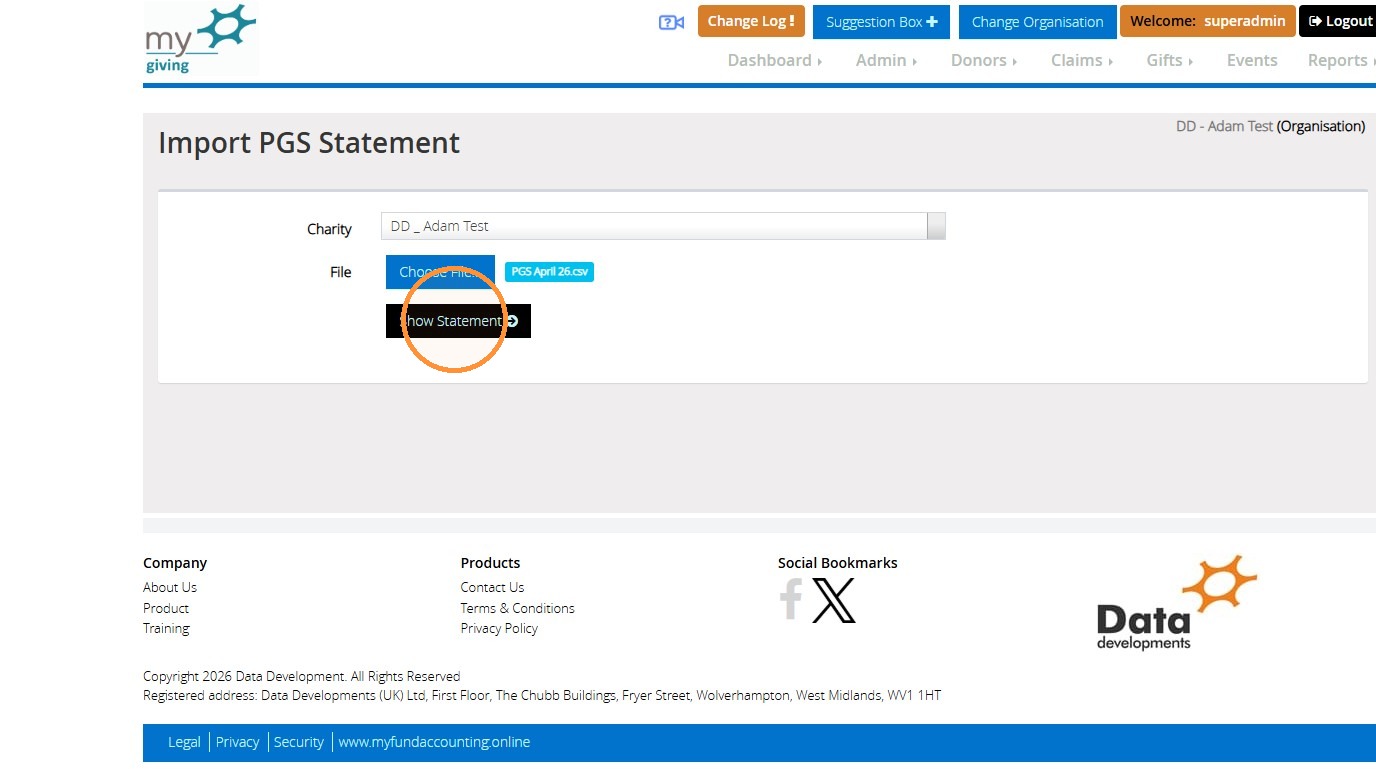
8. Once you have selected your PGS file you will be able to click "Show Statement" to load the details.
">
Mapping donors from the Statement
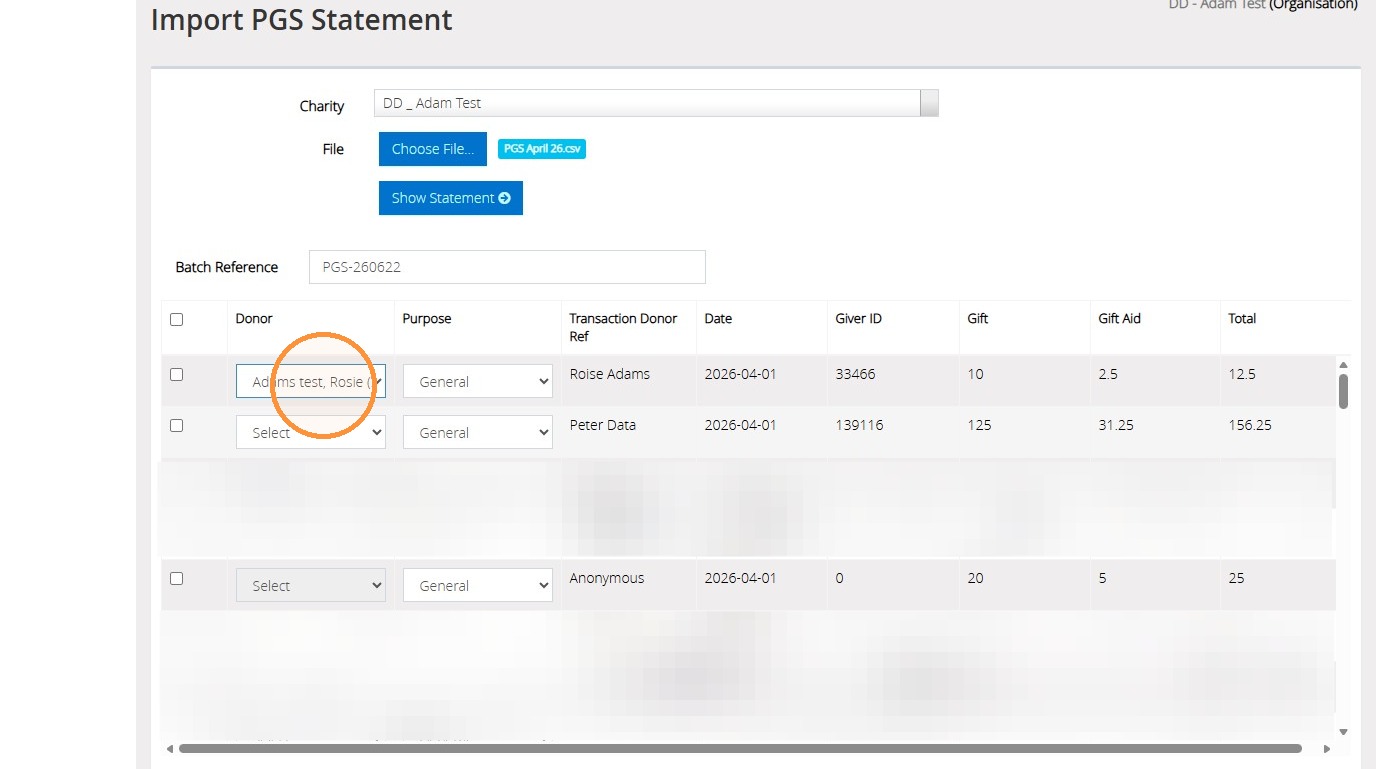
9. Once you have selected "show statement" you can map the donor to their donor record
">
10. Once you have mapped the donor you can now tick to include them in the import.
">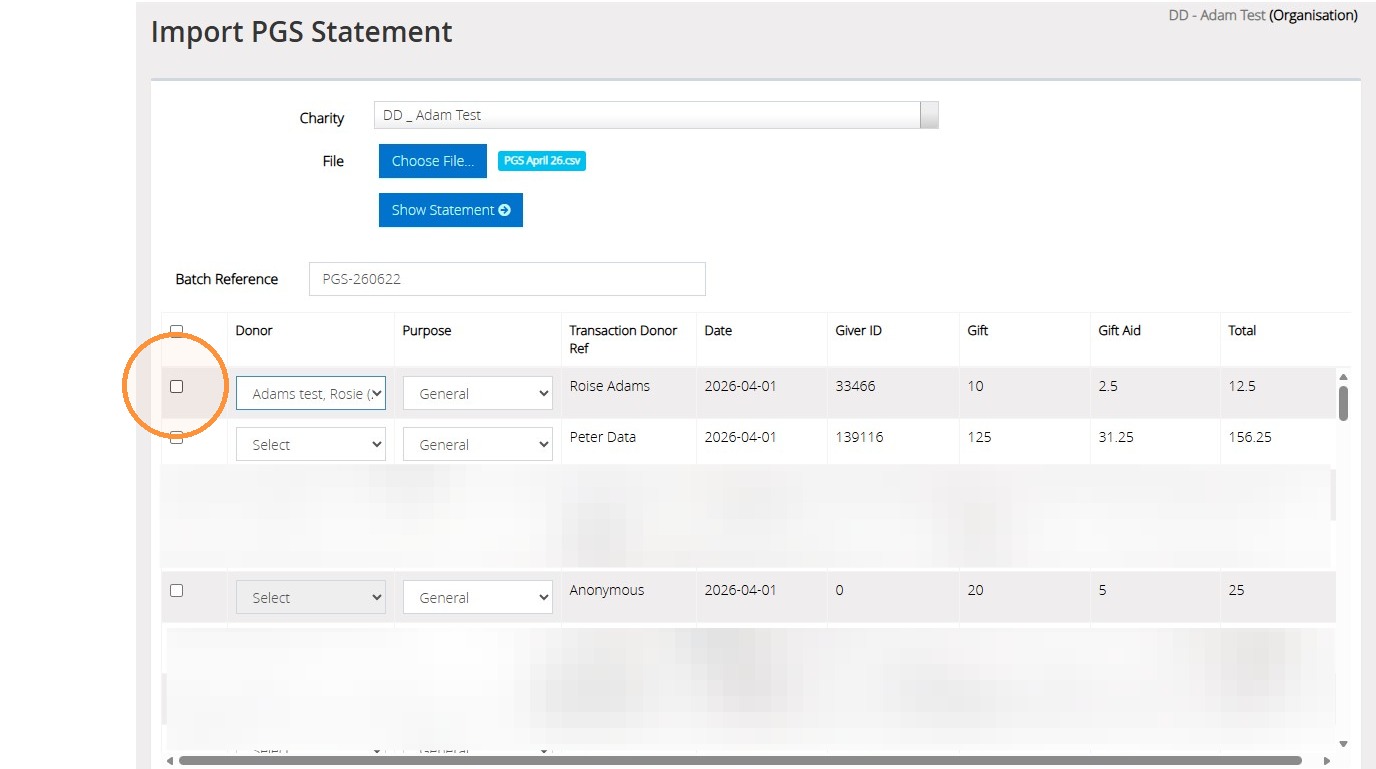
Tip: Tip! You can include all by ticking the empty check box next to the donor heading.
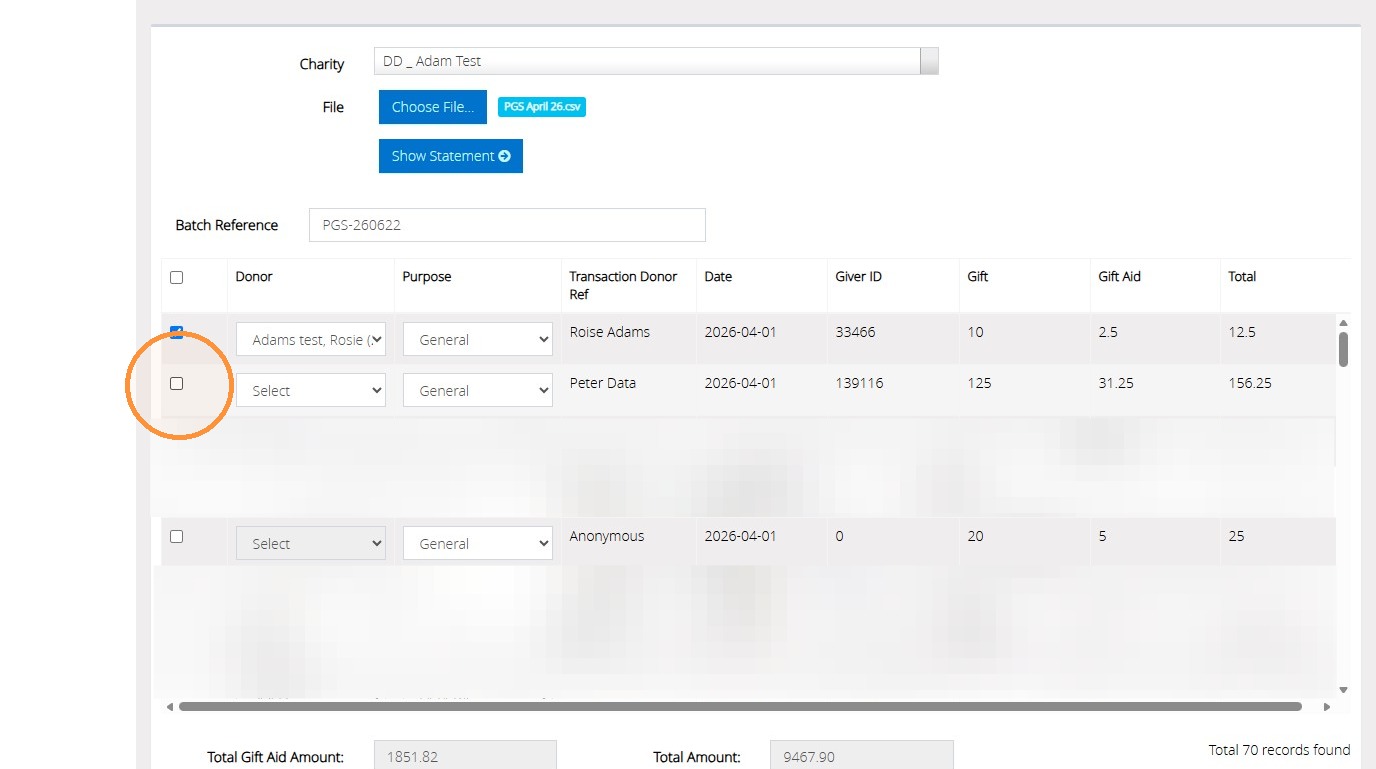
11. You can also include a donor you may not have a record for. This will automatically create a new donor record for them.
">
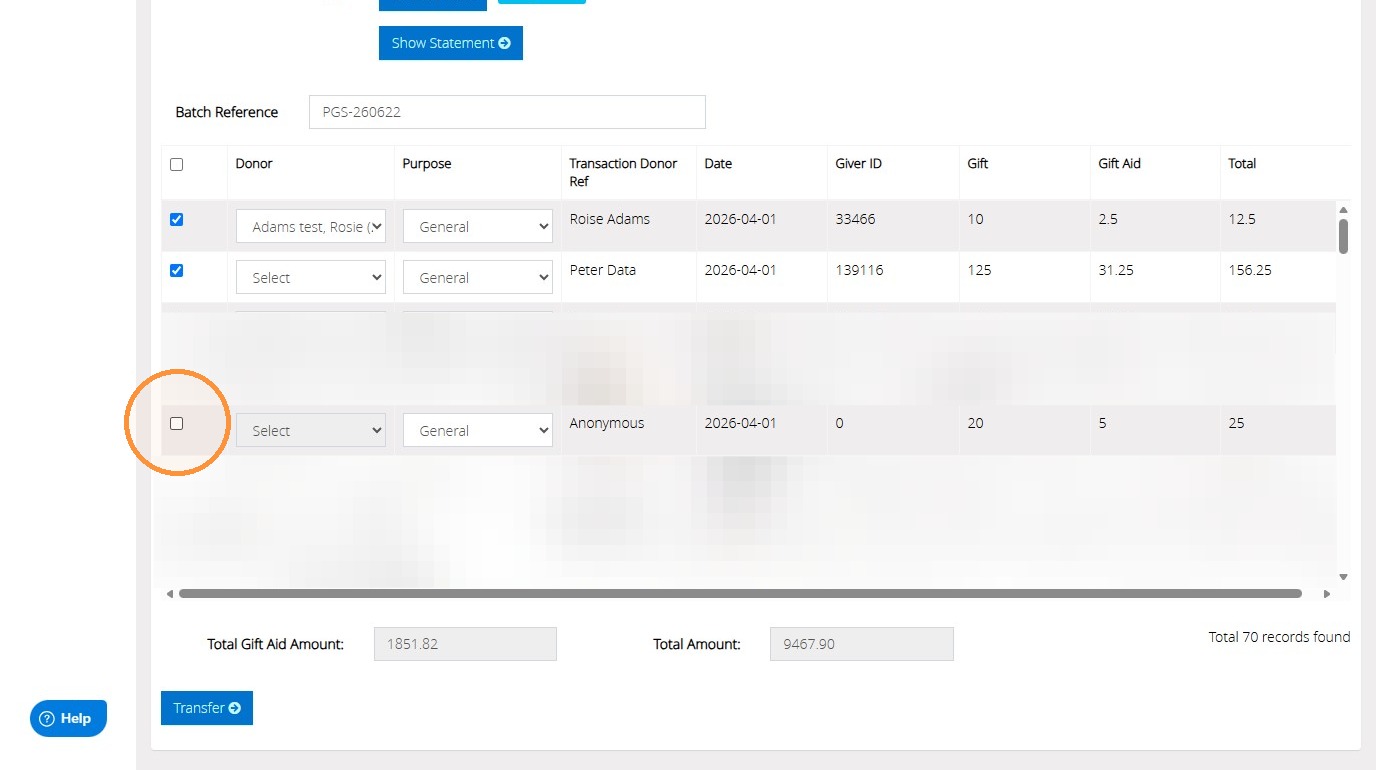
12. Anonymous donations can also be imported. The donations will be viewable once imported under "add new and edit anonymous donations"
">
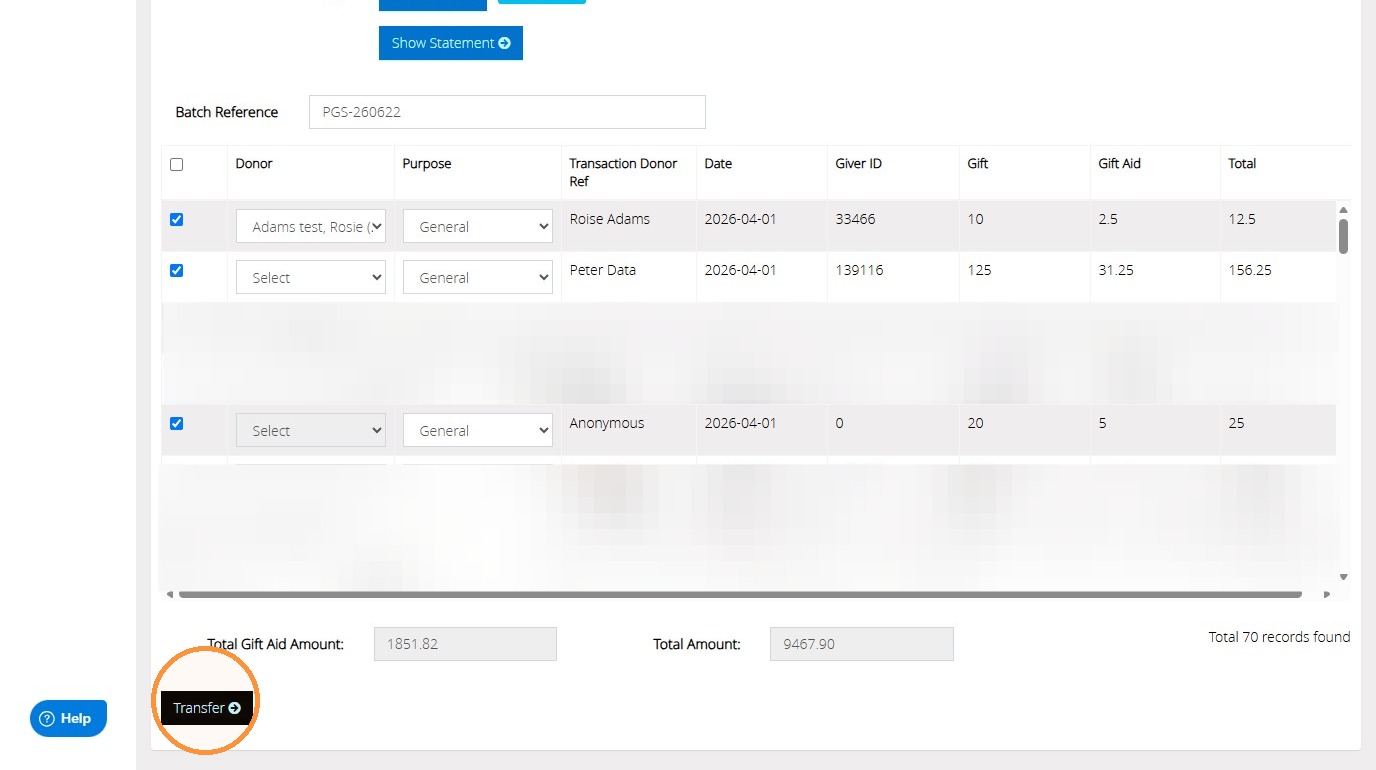
13. Once all the required information is entered you can choose "Transfer" to import these donations to the live account.
">
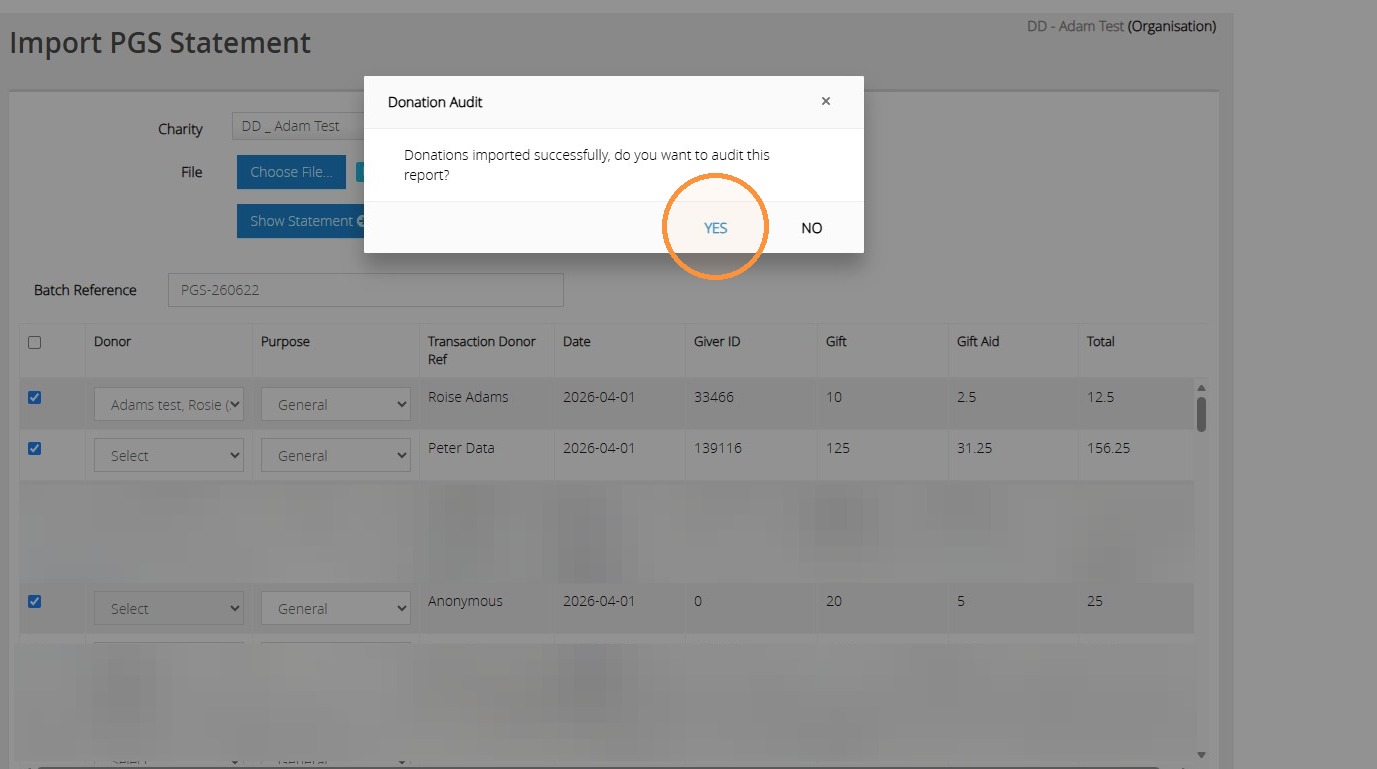
14. You will then have the option to produce a report for the imported donations. Select "Yes" to produce the report.
">
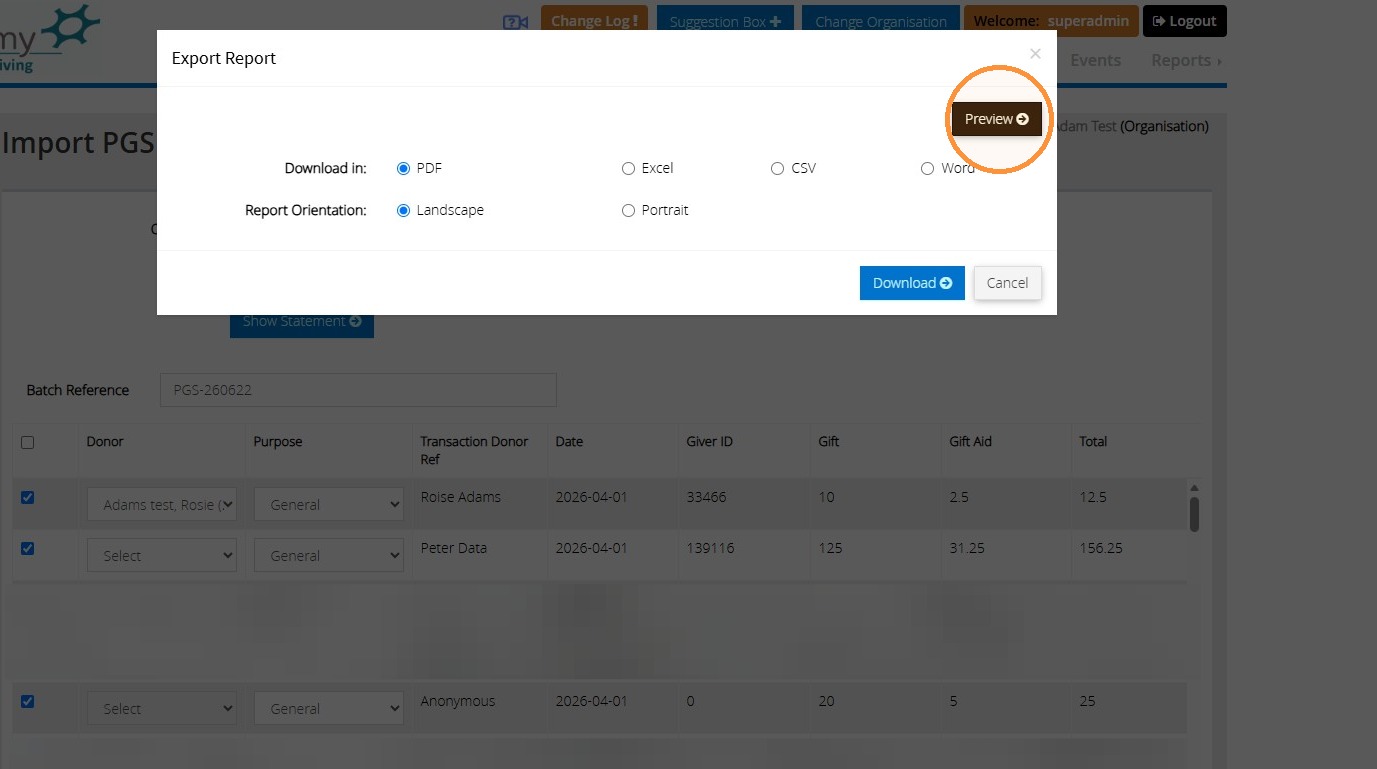
15. Click 'Preview' to view the report or select the format you wish to download the file in.
">